Live Captions vs Translation vs Dubbing: Which One Does Your Event Need?
- What is the difference between live captions, live translation and live dubbing?
- Which output is best for in-person, hybrid and virtual events?
- Accessibility: who needs live captions?
- How do cost and setup compare?
- Final verdict: can you combine live captions, translation and dubbing?
- FAQ on Live Captions and Translation for Events
Tools such as Maestra Live provide real-time multilingual captions and translation for hybrid events. They can deliver three outputs, alone or combined: live captions people read, live translation of captions into other languages, and live dubbing, where an AI voice speaks the translation. It is important that you pick the output that fits your room and audience.
This guide explains:
- What each output does and how fast it appears
- Which output suits in-person, hybrid and virtual events
- Who needs live captions for accessibility
- How cost and setup compare
- How to combine all three in one session
Let's start with what sets the three apart.
What is the difference between live captions, live translation and live dubbing?
Live captions turn speech into on-screen text in the same language, as people talk. Live translation turns that speech into text in other languages, so each attendee reads on their own. Live dubbing goes one step further: an AI voice speaks the translation aloud, usually with translated captions running alongside it.
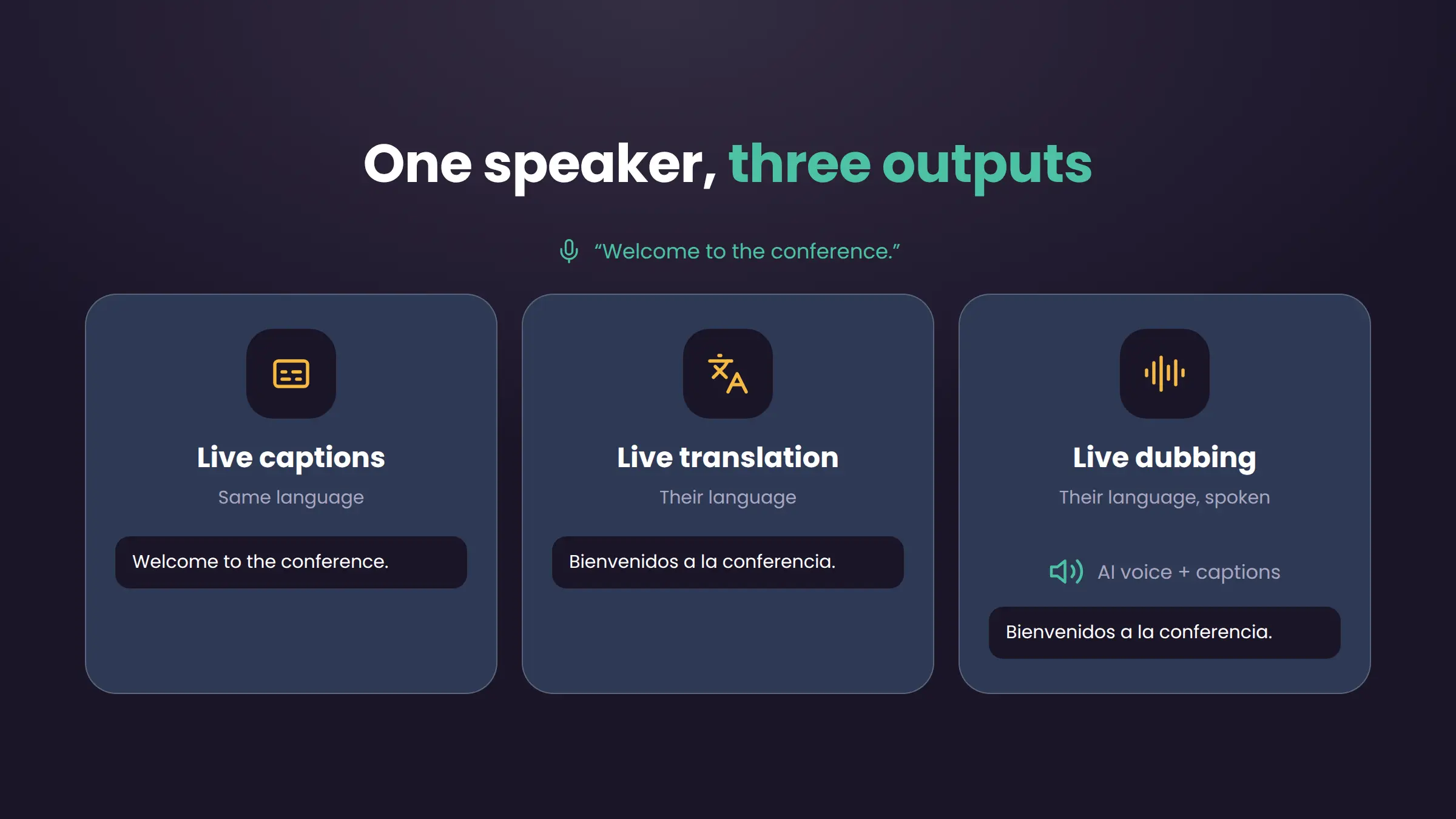
The three also differ in timing. Captions and translated captions can appear almost as words are spoken. A dubbed voice tends to lag a little further behind, since a sentence usually has to be complete before it can be spoken naturally.
Each output also asks something different of attendees. Captions need a screen, either the main one in the room or their own device. With one target language, translated captions can run on the main screen and the AI voice can play through the room's speakers. With several, each person needs their own phone, tablet or laptop to pick a language, plus headphones for the AI voice.
| Output | What attendees get | Language | Typical delay | Best for |
| Live captions | Text on a screen or their own phone | Same as the speaker | Near-instant | Accessibility, noisy rooms, note-taking |
| Live translation | Translated text | Each attendee's language | Near-instant | Multilingual audiences who prefer to read |
| Live dubbing | Translated AI voice, usually with captions | Each attendee's language | Usually a sentence behind | Listeners who prefer audio or can't watch a screen |
Which output is best for in-person, hybrid and virtual events?
The right choice depends on where your audience is and how noisy the room is.
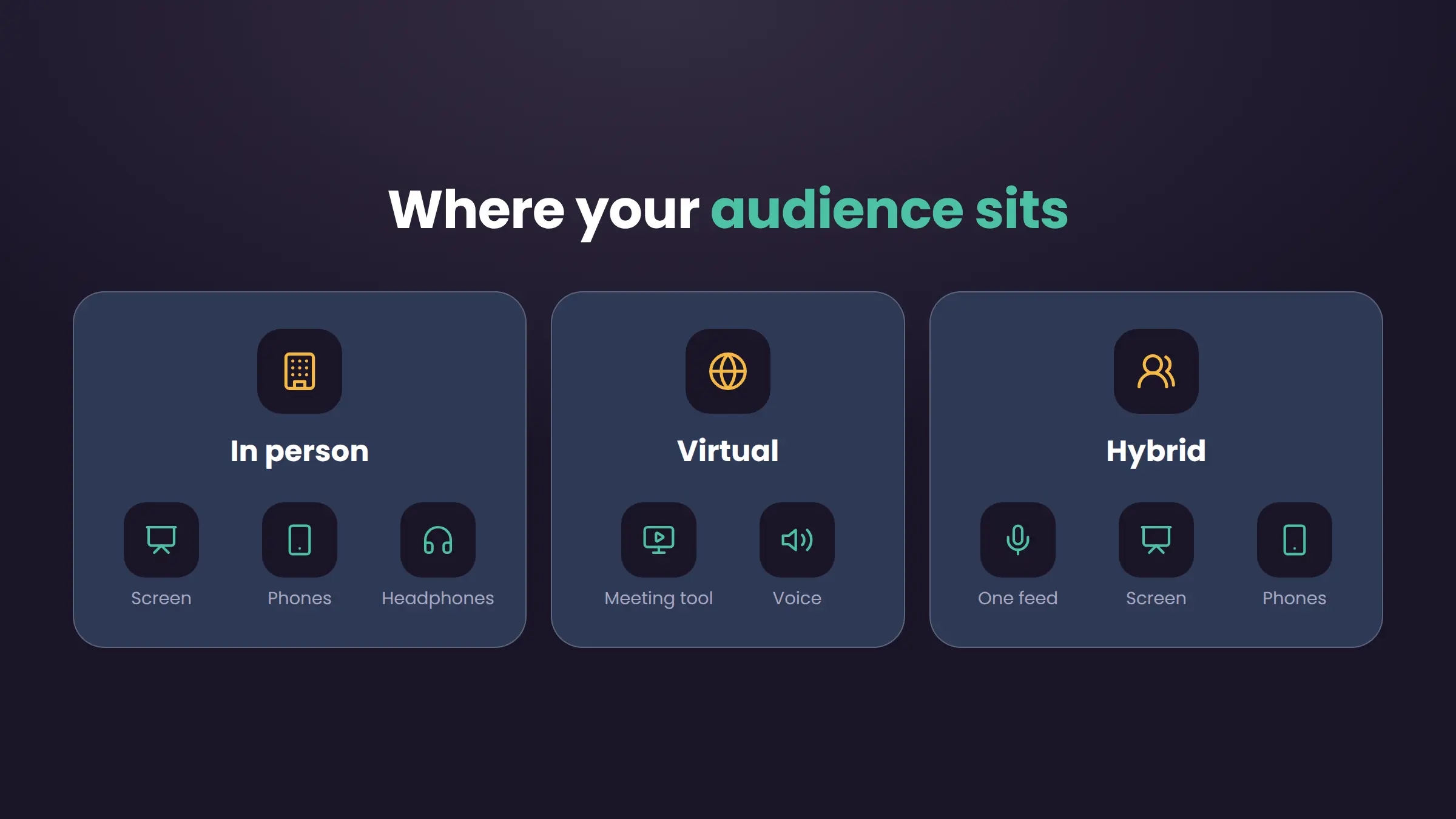
In person, sound is the weak point. Echo, crowd noise and strong accents make speech hard to follow, so captions on a main screen help everyone. Translated captions on attendees' own phones cover other languages. Dubbing works in person too, but listeners need headphones so the AI voice doesn't compete with the speaker.
Virtually, attendees already sit at a screen, often with headphones on. Dubbing fits well here, and captions can run inside the meeting tool. Maestra Live, for example, sends captions to Zoom, Microsoft Teams, OBS and vMix.
Hybrid events serve both audiences from one source. Capture the speaker's audio once, send captions to the room screen and the stream, and let each attendee pick a language on their own device. Maestra Live, for example, lets on-site and remote attendees join the same session through a link or QR code. See live event translation for how the setup works.
| Event type | Main challenge | Starting mix |
| In person | Noise, echo, several languages in one room | Captions on the main screen, translated captions on phones, dubbing with headphones |
| Virtual | Attendees spread across languages and screens | Captions inside the meeting tool, optional dubbing |
| Hybrid | Two audiences, one speaker | One audio feed to captions on the screen and stream, each attendee picks a language |
Accessibility: who needs live captions?
Captions are the accessibility layer of any event. The WHO says 430 million people live with disabling hearing loss, including over a quarter of people older than 60. [1] Most of them are hard of hearing rather than deaf, so they follow the spoken session itself and captions help them catch what they miss.
The WCAG web accessibility standard lists live captions as a Level AA criterion for live audio, such as a webcast. Its definition goes beyond words: captions should also identify who is speaking and note important sounds. W3C's example is CART, where a trained human captioner types in real time. [2]
AI captions are quick to switch on for every session. Still, it’s important to ask registrants about access needs early, and book a CART captioner when someone requests one.
Captions help people without hearing loss too: second-language speakers, attendees in a noisy hall and anyone following with the sound off. Meanwhile, dubbing does not replace captions for access, but it helps listeners who can't easily read a screen.
How do cost and setup compare?
Captions cost the least and need the least setup. Dubbing costs and asks the most.
Live captions need only a browser and a clean audio source. Maestra Live’s free captioner supports 100+ languages, with nothing to install.
Translation adds a cost driver: languages. Vendors price it in different ways: hour packages, annual plans with minimum hours, or custom quotes. On Maestra Live, translation needs a paid plan, from $15 a month billed yearly. Each plan includes a set number of languages per session, and you can add more for a fee.
Dubbing adds AI voices, and on Maestra Live they come with the same paid plans. Voice cloning, which keeps the speaker's own voice in other languages, is included from the Personal plan.
Setup is where hybrid events get harder. Captions and translation need nothing beyond a browser, but the room audio does. Feed the mixer's output into the device running the session, and rehearse that path before event day.
| Output | Setup | Main cost driver | On Maestra Live |
| Live captions | A browser and an audio source | Usually the lowest | Free and unlimited |
| Live translation | Pick target languages | Hours and number of languages | Paid plans, languages per session set by plan |
| Live dubbing | Pick voices, add headphones in the room | Hours, languages and voice features | Paid plans, voice cloning included |
Final verdict: can you combine live captions, translation and dubbing?
Yes, and most hybrid events should. Captions serve access and noisy rooms, translation serves other languages, and dubbing serves people who would rather listen. One session can carry all three from a single audio source.
A combined setup looks like this:
- Show same-language captions on the main screen and in the stream.
- Share a join link or QR code, so each attendee picks a language on their own device.
- Let attendees read translated captions, or turn on the AI voice with headphones.
Maestra Live runs this as one hosted session. Guest speakers and audiences join through the organization's own page, such as live.maestra.ai/join/org-name, or its QR code. Captions always run, and the organization can add live dubbing for the spoken translation. Speakers can use their own language, and attendees still choose theirs.
🌟 Before event day, make sure you rehearse the full path from microphone to attendee phone.
Ready to try live captioning, translation or dubbing?
FAQ on Live Captions and Translation for Events
Maestra Live, Wordly, KUDO and Interprefy all offer AI captions and speech translation for hybrid events. Maestra Live is self-serve, with free live captions and translation on paid plans. Wordly is AI-only, while KUDO and Interprefy also offer human interpreters. This comparison of KUDO, Wordly, Interprefy and Maestra covers features and pricing side by side.
Often, yes. AI captions are accurate enough for general access, and most events should run them by default. W3C's checklist for accessible events tells organizers to ask about accessibility requirements on registration forms, then arrange captioners as needed. Take that route for high-stakes sessions or when an attendee asks, since a professional captioner handles accents and jargon best.
Captions appear almost as words are spoken. Translated speech comes a little later, because the AI voice usually waits for a full sentence before speaking. For in-room listeners, that short gap is easier to follow with headphones, so the voice doesn't overlap the speaker.
Usually not. Maestra Live attendees join in the browser through a link or QR code and pick their language there. Each attendee follows on their own phone, tablet or laptop. Still, test the join steps on an older phone and on mobile data, because that is how many attendees will connect.
Yes. Maestra Live sends captions to Zoom, Microsoft Teams, OBS and vMix. Wordly, KUDO and Interprefy all integrate with the major meeting tools too. Zoom and Teams also have built-in captions, with translation on some plans. For hybrid events, send the same captions to the room screen.