10 Best AI Subtitle Generators With No Watermark (2026)
Most AI subtitle generators do a fine job until they stamp their logo on your work.
A watermark is a branding decision, made for you - on content you created.
For creators, businesses, and teams localizing content across markets, that stamp is a real frustration.
What makes a Good AI Subtitle Generator?
1. Accurate caption generation.
Word error rates above 10% mean editing every line manually. The best generators stay under 5% on clear audio and handle accents, technical terms, and proper nouns without breaking.
2. Various export formats.
SRT, VTT, ASS - clean, watermark-free. A generator locked to a single format is built for a single use case.
3. Language support.
If you are producing content for international audiences, language range is not a bonus feature. It is a requirement.
4. A usable free tier.
The best AI subtitle generators offer clean export from the start - or price fairly enough that upgrading is worth it.
5. And, of course, no watermark.
Your content is yours. A subtitle generator that stamps its logo on your export has made a branding decision for you.
Adding subtitles to videos increases views by up to 40%. Yet most creators abandon subtitle tools the moment they see a watermark on export.
10 Best AI Subtitle Generators: Reviewed & Compared
Here’s an overview of the best subtitle generators.
| Subtitle AI Generator | Watermark | Free Tier | Languages | Best For |
| Maestra | No | Free trial | 125+ | Video translation + subtitles |
| CapCut | No | Unlimited basic | 20+ | Social media creators |
| YouTube Studio | No | Unlimited | Auto-detect | Youtube creators |
| Descript | No | Free trial | 26+ | Text-based video editing |
| Rev | No | Free trial | 37+ | Maximum accuracy |
| VEED.io | SRT clean / video watermarked | Free with video watermark | 100+ | Animated captions for social |
| Subtitle Edit (with Whisper) | No | Fully free | 100+ | Offline and open-source |
| Happy Scribe | No | Free trial | 120+ | Pro transcription at volume |
| Submagic | SRT clean / video watermarked | Free trial | 50+ | TikTok / Reels styled captions |
| Kapwing | SRT clean / video watermarked | | Free with video watermark | 70+ | Team collaboration on video |
1. Maestra
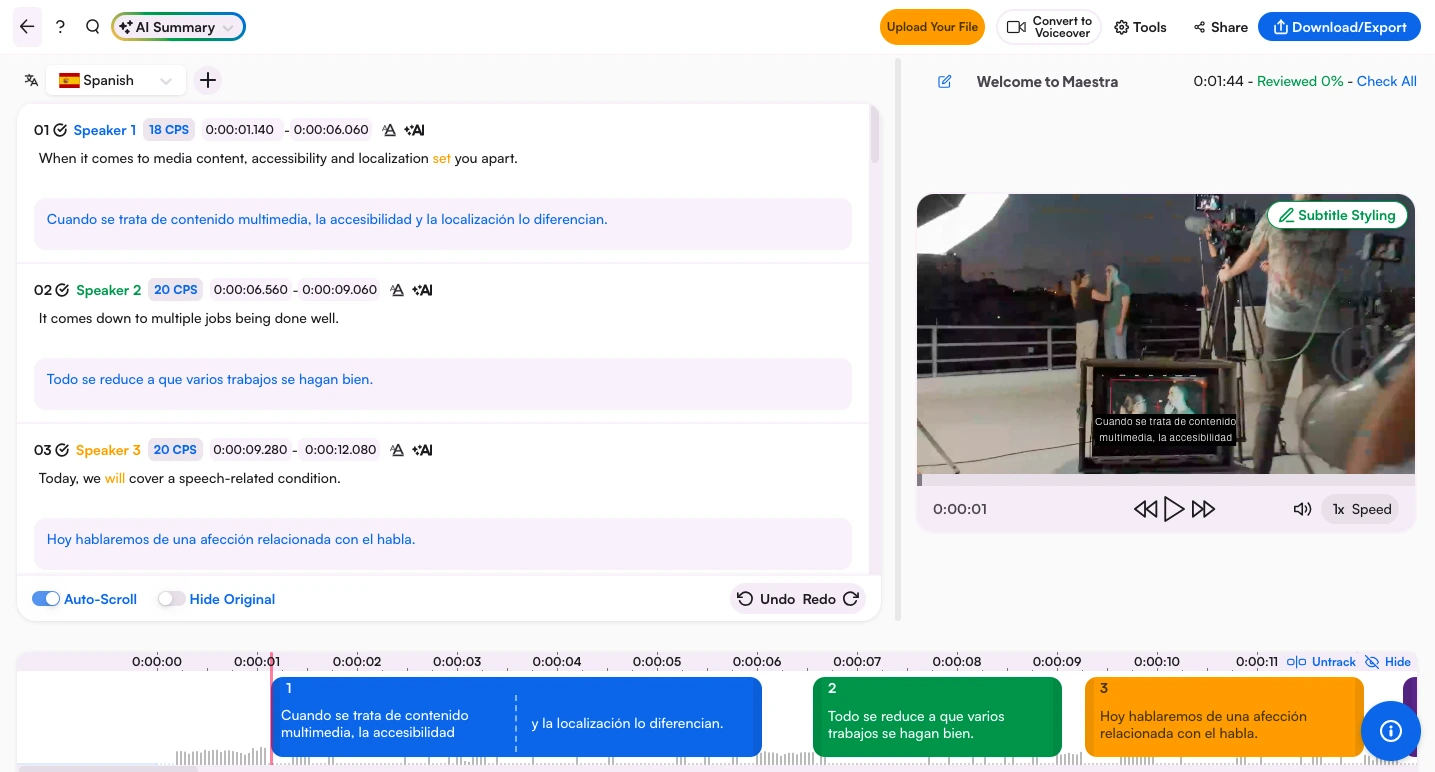
Maestra is an all-in-one AI subtitle generator that transcribes, translates, and dubs content across 125+ languages.
What also stood out in my testing was the multi-engine approach that allows cross-referenced interpretations from other AI tools (DeepL, OpenAI, and Gemini).
I found myself correcting output less. And if you do need to correct it, the interface is easy to use. Transcription, translation, and dubbing happen in one place.
No exporting to a second tool. No reformatting. No watermark on export.
Key features:
- AI subtitles in 125+ languages
- Runs DeepL, OpenAI, and Gemini simultaneously
- SRT, VTT, SCC export - no watermark
- One-click subtitle to voiceover
- Team collaboration and shared workspaces
- Browser-based - no installation
Pros
- Only tool that combines subtitles, translation, and dubbing in one workflow
- Multi-engine approach produces more accurate output
- Clean export across formats without watermark
Cons
- Free trial limited
- Overkill for creators who only need basic captions
Pricing:
- Free trial available
- Pay-as-you-go: $12 / 60 credits
- Subscription from $39/month (billed annually)
- See more on pricing.
Video Subtitles in 125+ Languages
2. CapCut
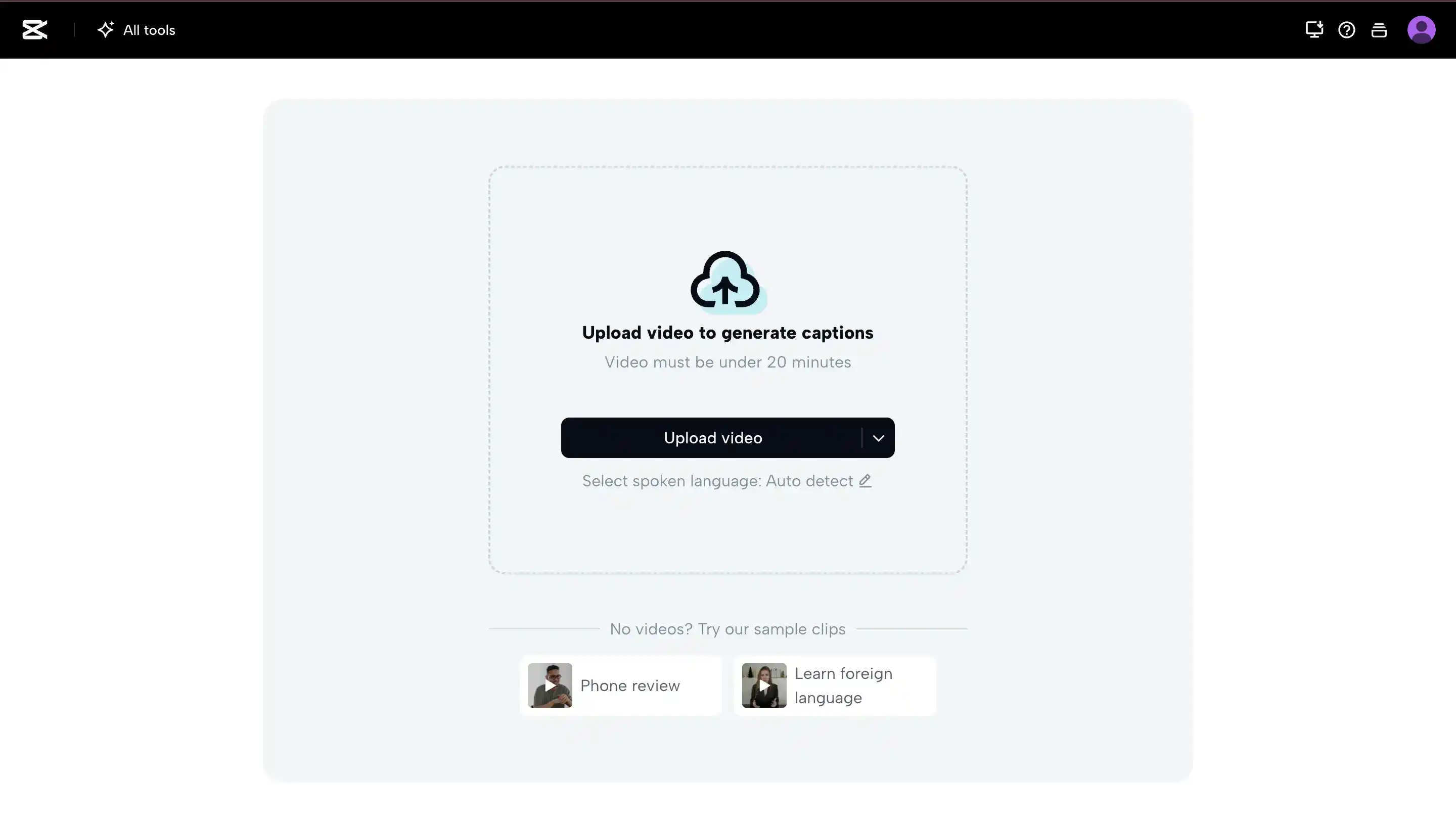
CapCut is free and genuinely useful for what it does. For short-form content - I found the caption sync was accurate. But, where it fell short was anything beyond basic captioning. I found 20 languages limiting. Translation quality dropped noticeably on anything longer than a short clip. For a free tool aimed at social media, those are acceptable tradeoffs. For anything more demanding, they are not.
Key features:
- Auto-captions with no watermark on standard plan
- Animated caption styles for social media
- Mobile and desktop
- Translation in 20+ languages
Pros
- Completely free with no watermark on captions
- Accurate caption sync on short-form content
- Works on mobile and desktop
Cons
- Limited to 20+ languages — not suited for multilingual content
- Translation quality drops on longer clips
- Mobile version doesn't export SRT
Pricing: Free (no watermark)
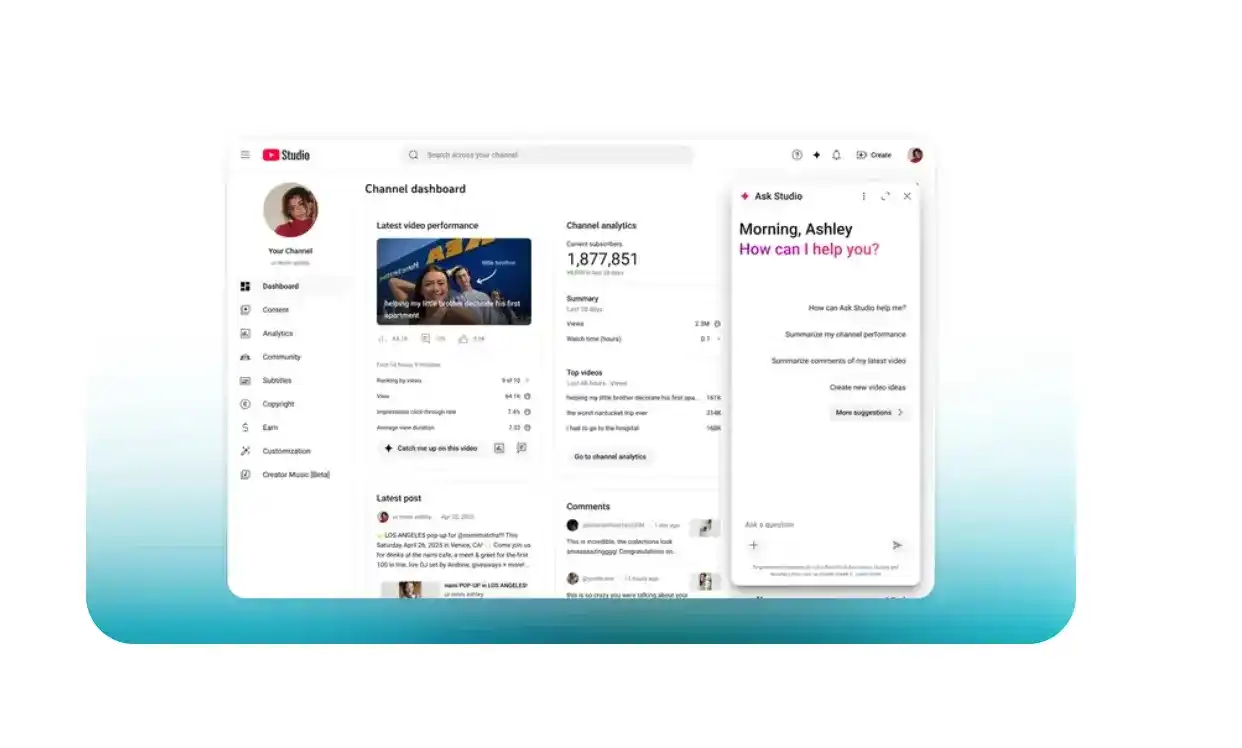
3. YouTube Studio
In testing, it handled standard speech accurately enough for most content. The captions appeared automatically after upload.
On the downside, the captions might break down outside of context. Export options & languages are limited. And the moment you need subtitles somewhere other than YouTube, it stops being useful entirely.
Key features:
- Unlimited auto-captions for all uploaded videos
- No watermark by design
- Auto-detect language
- Edit captions in YouTube Studio
- Download as SBV or SRT
Pros
- Completely free with no limits
- No watermark
- Already built with youtube
Cons
- Only Youtube
- Accuracy drops on complex audio
- limited export options
Pricing: Free. No paid tier
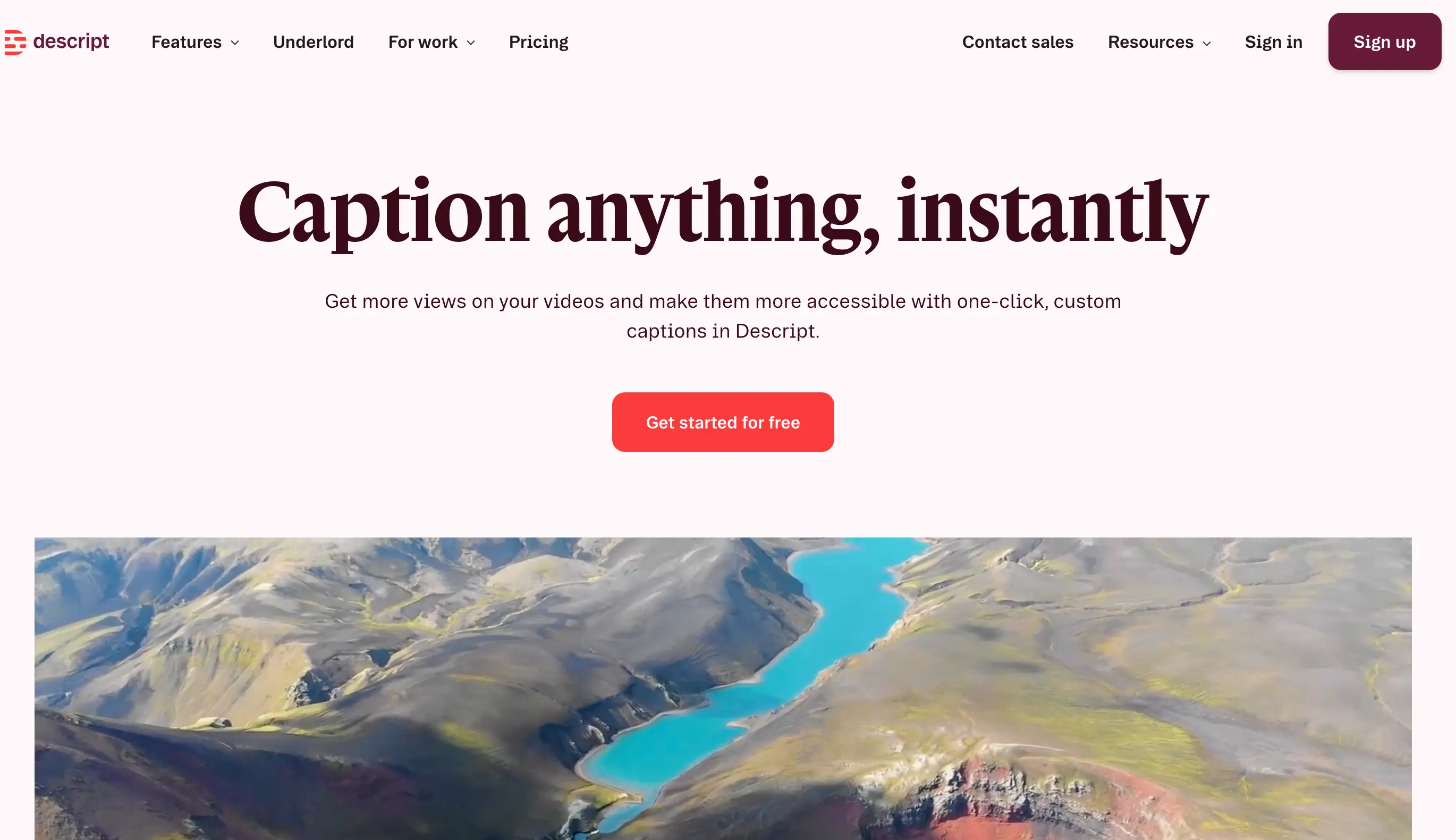
4. Descript
For anyone who finds traditional video timelines unintuitive, you will like this one. In testing, editing subtitles felt like editing a document.
Key features:
- Text-based editing - edit transcript, video updates
- AI subtitle generation in 26+ languages
- Watermark-free on paid plans
- SRT export available
Pros
- Most intuitive workflow for non-video editors
- Subtitle and video editing in one tool
- Clean export on paid plans
Cons
- Watermark on free tier
- Narrower language support
Pricing:
- Free trial available
- Paid plans from $16/month
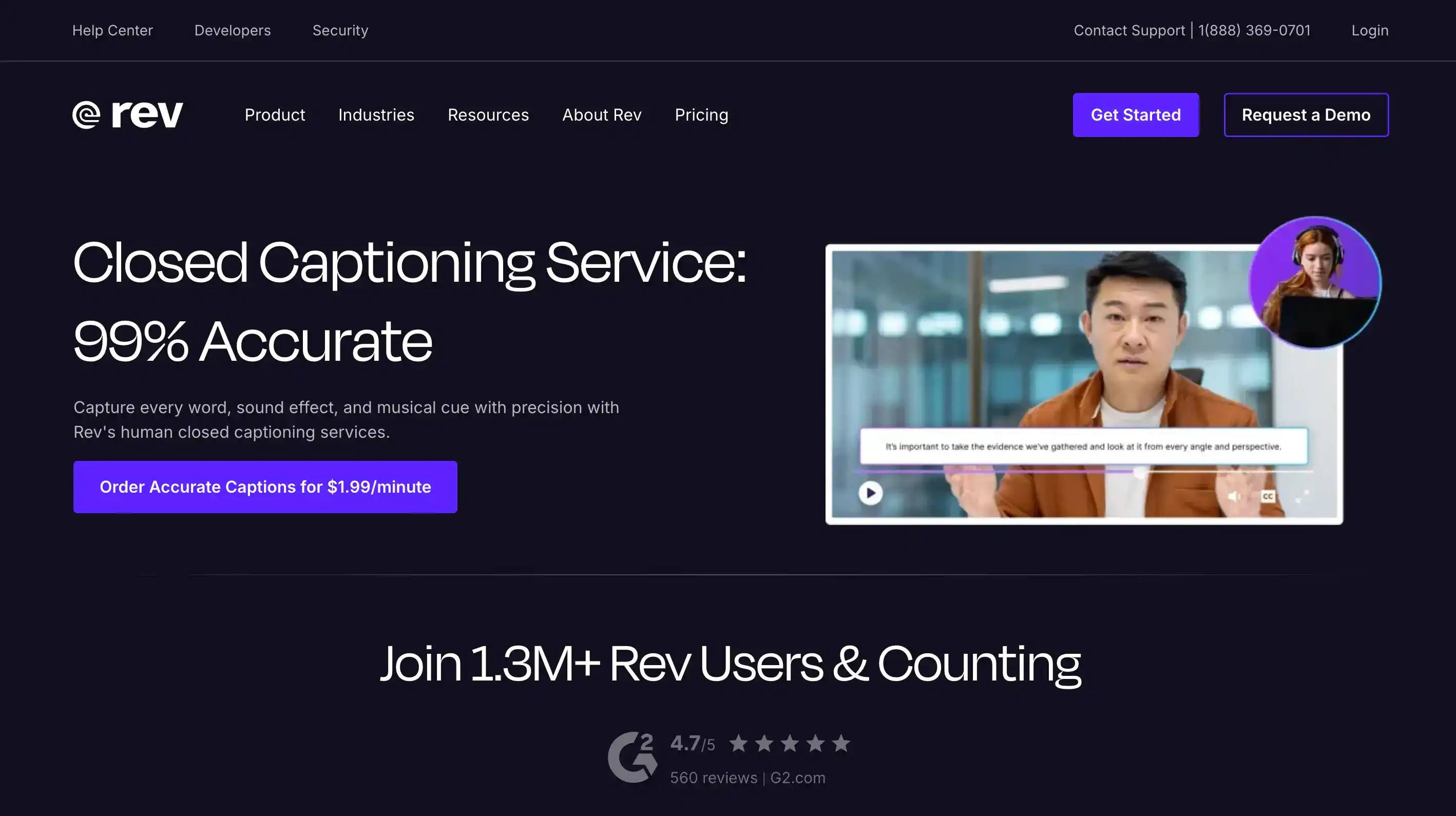
5. Rev
Rev is the tool I would recommend to anyone for whom a subtitle error would be a problem. In testing, the subtitles were accurate & clear - with minimal correction needed.
The human review option exists for serious content (legal, medical, educational, broadcast etc.). But this takes longer and costs more. However, the output is the closest thing to error-free subtitles available without doing it yourself.
Key features:
- AI captions with optional human review
- ADA and Section 508 compliance
- 37+ languages on AI tier
- SRT, VTT, SCC export
- No watermark
Pros
- Extremely accurate AI-generated subtitles
- Human review option available
- No watermark across all plans
Cons
- More expensive than most tools here
- Narrower language range
Pricing:
- Free trial available
- AI captions: $0.25/min
- Human captions: $1.99/min
- Translated subtitles: from $6.49/min
- Subscription from $14.99/month
6. VEED
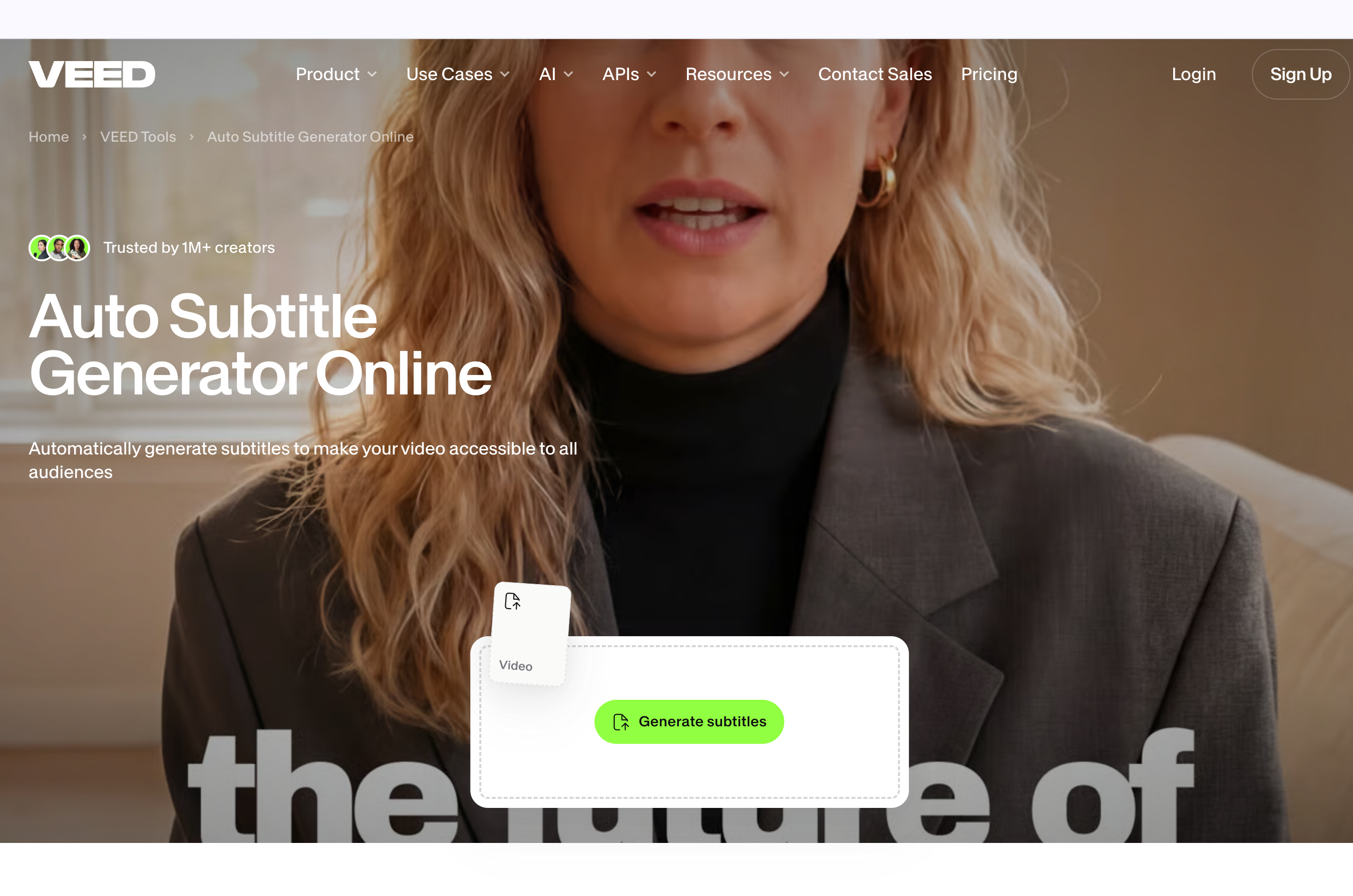
VEED is one of the most popular browser-based video editors, and the auto-subtitle tool holds up.
In testing, captions were accurate on standard speech, and the in-browser editor makes restyling and retiming straightforward without exporting to a second tool.
What stood out was the template library.
For animated captions on social posts, this is the fastest route I found - templates do most of the work.
On the free plan, the exported video gets a "Made with VEED" watermark. The SRT file itself exports clean.
So if you only need the subtitle file, free works.
But for embedded captions on the video, upgrade.
Key features:
- AI subtitle generation in 100+ languages
- Animated subtitle templates for short-form
- Built-in translator for multi-language exports
- Browser-based, no install
- SRT, VTT, TXT export
Pros
- Fast browser editor with strong template library
- Clean SRT export on free plan
- Useful translation built-in
Cons
- Video export watermarked on free plan
- Animated caption styles locked to paid tiers
Pricing:
- Free (SRT export clean; video export has watermark)
- Paid plans from $12/month
The AI subtitle generator market is projected to grow from $1.2 billion in 2024 to $3.5 billion by 2033.
7. Subtitle Edit (with Whisper)
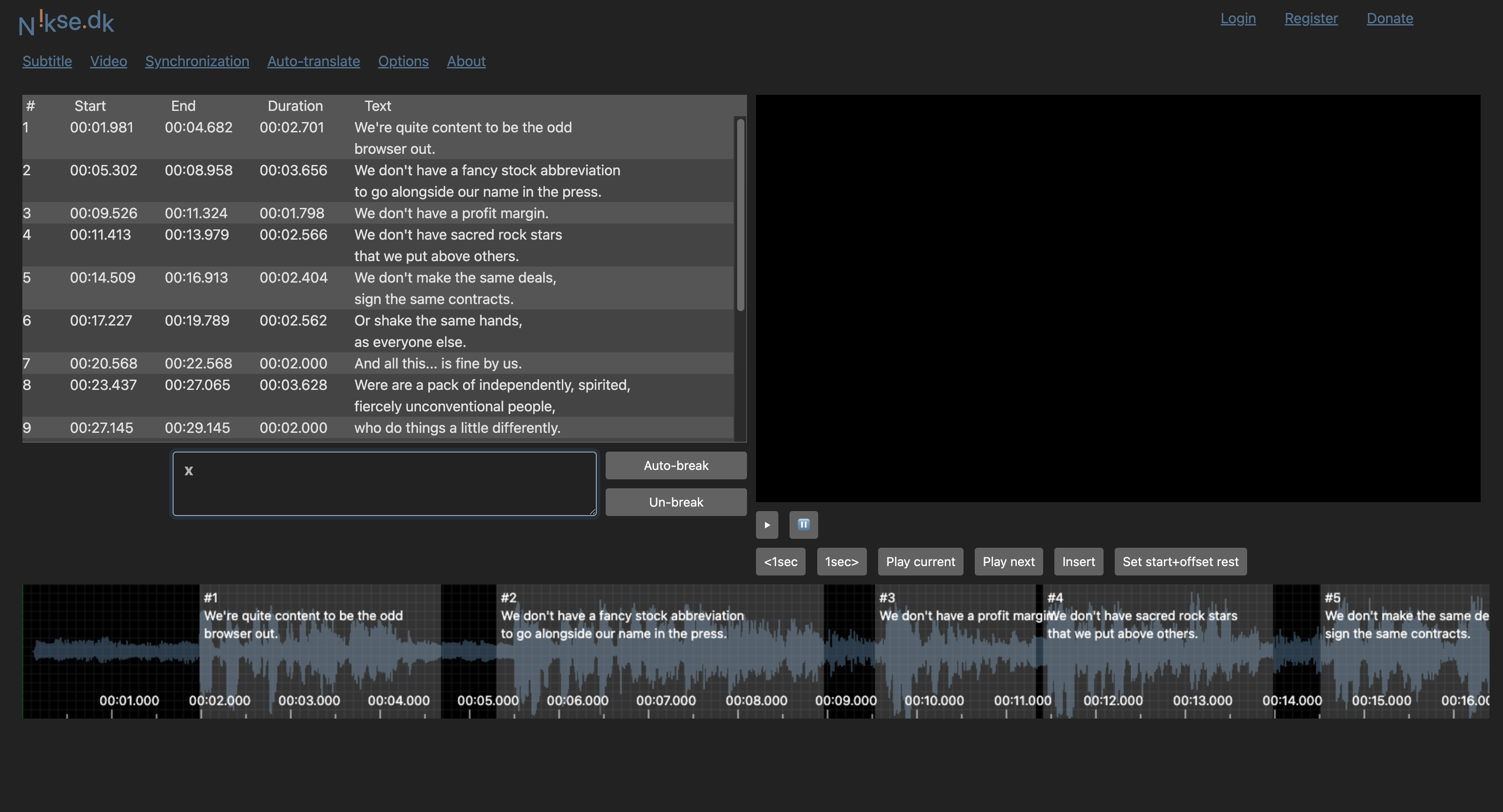
Subtitle Edit is the one tool on this list that's genuinely free, genuinely offline, and never adds a watermark - because it's open source. It pairs with OpenAI's Whisper model for the AI transcription side.
In testing, accuracy on clear speech was on par with paid web tools. Setup takes about ten minutes the first time - download the app, download a Whisper model - but after that, you can generate subtitles for any video file without an internet connection.
It's desktop software, not a browser tool, so the interface looks dated next to VEED or Kapwing. But if you're working with content that can't leave your machine, or you just don't want to pay for a subscription, nothing else here comes close.
Key features:
- Open-source, fully free
- Offline AI subtitle generation via Whisper
- 100+ languages
- SRT, VTT, ASS, SSA, SBV, SUB export
- Works on Windows; Mac and Linux via Mono or alternatives
Pros
- Free with no limits, no watermark, no account
- Full offline workflow once models are downloaded
- Widest format support on this list
Cons
- Steeper setup than web tools
- Windows-first; Mac and Linux need workarounds
- Desktop interface can feel dated
Pricing: Free forever. Open source.
8. Happy Scribe
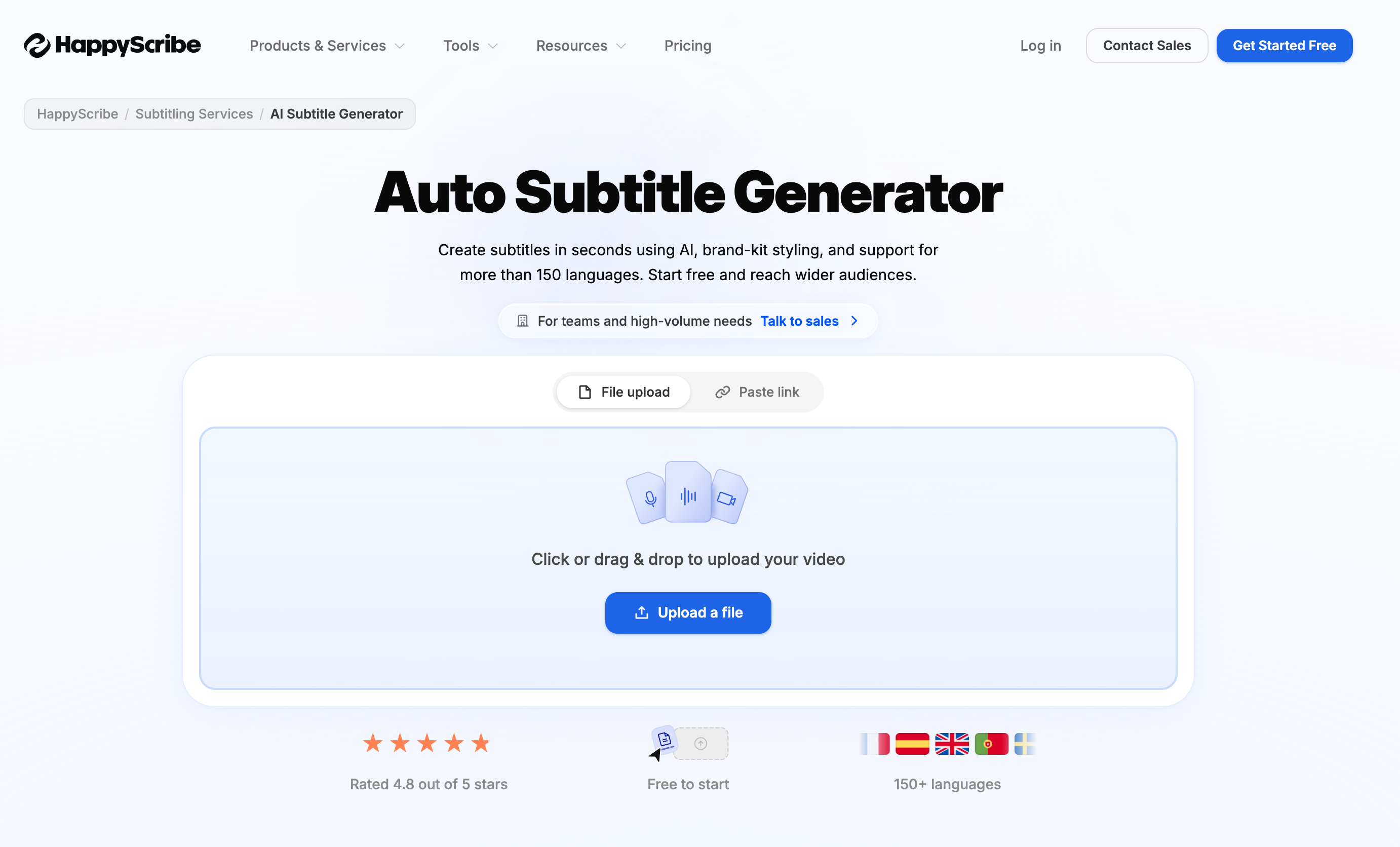
Happy Scribe sits in the same lane as Rev - professional transcription and subtitles with both AI and human review, but the language range is wider (120+ vs Rev's 37+) and the workflow is more flexible if you're producing volume rather than precision.
In testing, AI accuracy was strong on clear audio. Where Happy Scribe pulls ahead is on export options.
No watermark on exports, including during the trial.
Key features:
- AI and human transcription
- 120+ languages
- 13+ export formats including SRT, VTT, STL, FCPXML, EDL, TTML
- Subtitle editor in browser
- Collaboration tools for teams
Pros
- Widest language range on the pro side
- Strongest format support on this list
- No watermark across plans
Cons
- Pricing adds up at high volume
- AI accuracy lags Rev for technical or accented content
Pricing:
- Free trial + free tier (10 min)
- Paid plans from €17/month
9. Submagic
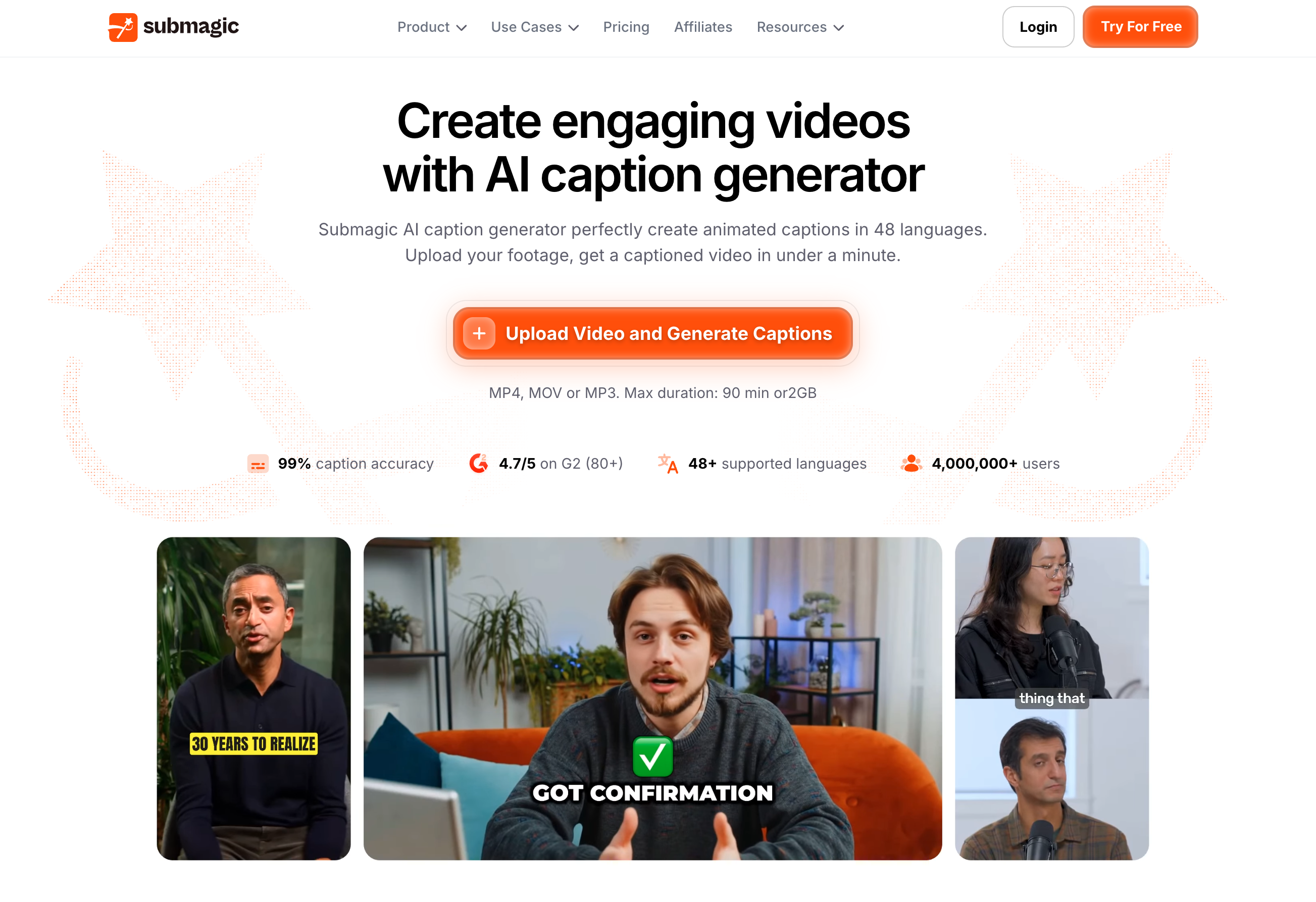
Submagic is built for one job: styled, animated captions on short-form vertical video. Where CapCut is an editor that happens to caption, Submagic is captions-first - templates, auto-emojis, B-roll suggestions, and sound effects optimized for TikTok, Reels, and Shorts.
In testing, the styled output looked closer to what creators actually post than anything else on this list. The caption templates feel current, not generic. Accuracy on clean podcast or talking-head audio was strong. Faster-paced speech sometimes needed a cleanup pass.
Watermark on the free trial; clean on paid plans.
Key features:
- AI subtitle generation tuned for short-form vertical video
- 50+ animated caption templates
- Auto-emojis, B-roll, and sound effect suggestions
- Multi-language support
- Direct export to vertical video formats
Pros
- AI subtitle generation tuned for short-form vertical video
- 50+ animated caption templates
- Multi-language support
Cons
- Watermark on free trial
- Limited to short-form use cases
Pricing:
- Free tier: 3 videos/month (watermarked)
- Paid plans from $16/month
10. Kapwing
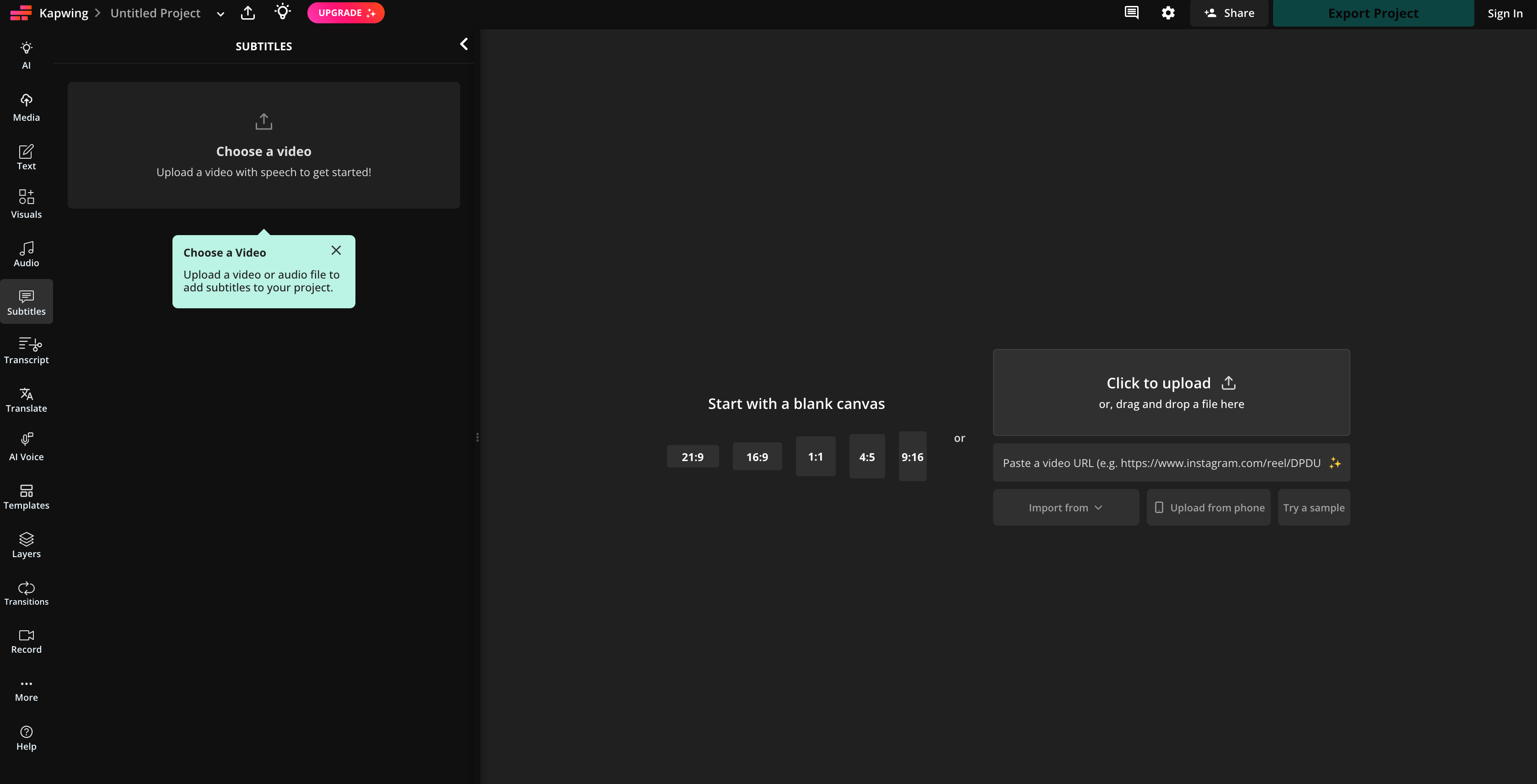
Kapwing is the closest equivalent to VEED in the browser-editor space - full timeline, captioning, translation, collaboration. In testing, auto-subtitles were accurate and the editor handled longer videos well, which is where some browser tools start to lag.
The standout for me is the collaboration side. If you're working with a team on the same video - editor, captioner, reviewer - Kapwing handles it natively without exporting between tools.
Free tier exports with a Kapwing watermark on the video. The SRT file is clean. Removing the video watermark requires a paid plan.
Key features:
- AI subtitle generation in 70+ languages
- Real-time team collaboration on the same project
- Built-in translation for multi-language captions
- Full timeline editor in browser
- SRT, VTT export
Pros
- Strongest team collaboration on this list
- Reliable on longer videos
Cons
- Video watermark on free plan
- Free tier limits on video length and resolution
Pricing: Free with watermark on video. Pro from $16/month.
The Right AI Subtitle Generator For You
The right tool depends on what you are actually trying to do. So if -
- You publish on TikTok or Reels with simple captions: CapCut.
- You publish on TikTok or Reels and want styled, animated captions: Submagic.
- You publish on YouTube in one language: YouTube Studio.
- You translate content across languages: Maestra.
- You produce at volume and need broadcaster-grade formats: Happy Scribe.
- You need compliance-grade accuracy: Rev.
- You're a non-video-editor who edits like a text doc: Descript.
- You collaborate with a team on the same video: Kapwing.
- You want animated captions in a browser editor: VEED.io.
- You work offline or with sensitive content: Subtitle Edit
How to Add Subtitles to a Video Automatically on Maestra
Step 1 - Upload your video.
Go to Maestra's AI subtitle generator and upload your video file directly. Maestra accepts MP4, MOV, AVI, and most common formats.
You can also paste a YouTube or Vimeo URL directly if the video is already published.
Step 2 - Select your language.
Choose the spoken language in your video. Maestra auto-detects in most cases.
But selecting manually improves accuracy on accented speech or technical content.
Step 3 - Generate subtitles.
Click generate.
Maestra transcribes the audio using its AI engine and produces a timed subtitle file in seconds.
For a ten-minute video, this takes under a minute.
Step 4 - Review and edit.
The subtitle editor opens automatically.
Review the output, correct any errors, and adjust timing if needed.
For standard speech on clear audio, corrections are minimal.
Step 5 - Translate if needed.
Select a target language and Maestra translates the subtitles using DeepL, OpenAI, or Gemini.
Timing is preserved automatically - no manual resync required.
Step 6 - Export.
Download your subtitle file in SRT, VTT, or SCC format. No watermark.
Upload directly to YouTube, embed in your video, or send to your team.
The entire process - upload to export - takes under five minutes for a standard video on clear audio.
Frequently Asked Questions
What is the best free AI subtitle generator with no watermark?
CapCut offers free auto-captions with no watermark on the standard plan across mobile and desktop.
How do I remove a watermark from my subtitles?
There are two ways to remove them. First, upgrade to the paid plan of the tool you are using. Or switch to a tool that does not add watermarks at all - Maestra, Rev export clean on their base or free tiers.
Which AI subtitle generator is the most accurate?
Maestra cross-checking between other AI tools allows it to achieve accuracy. If not then Rev's human review is the most accurate, since it is reviewed by humans.
Is an AI subtitle generator good enough for YouTube SEO?
Yes - with one condition. The subtitles need to be reviewed. YouTube's algorithm indexes caption text as a ranking signal. Inaccurate captions introduce incorrect keywords into that index. For YouTube SEO, accuracy matters as much as the presence of captions. YouTube Studio auto-captions are accurate enough for most standard speech. For accented, technical, or fast-paced content, a dedicated tool like Maestra or Rev produces cleaner output that indexes better.
Is there a free AI subtitle generator for YouTube videos?
Yes. YouTube Studio auto-generates captions on every upload for free, with no watermark. For higher accuracy or multi-language output, Maestra and Subtitle Edit (with Whisper) both export clean SRT files you can upload directly to YouTube.
Which AI subtitle generator works best for TikTok or Reels?
For simple captions, CapCut is free and integrates directly into the editing workflow. For styled, animated captions with templates and auto-emojis, Submagic is the dedicated tool - though it costs more.
Can an AI subtitle generator translate subtitles to other languages?
Yes. Maestra translates subtitles across 125+ languages using multiple AI engines simultaneously. Happy Scribe, VEED, and Kapwing also offer built-in translation, though with narrower language ranges.
Can I use an AI subtitle generator offline?
Yes - Subtitle Edit paired with OpenAI's Whisper model runs entirely offline once the model is downloaded. None of the other tools on this list offer full offline subtitle generation.