What to Do With a Live Event Recording: Transcripts, Subtitles and Dubbed Replays
- What can you do with a recording of a live translated event?
- Step 1: How do you turn the session into a clean transcript?
- Step 2: How do you add subtitles in more languages?
- Step 3: How do you make a dubbed replay?
- Step 4: How do you create clips and an on-demand library?
- What does an example workflow look like?
- What should you set up before the event?
- FAQ
After a live translated event, you can turn the recording into four things: a clean transcript, subtitles in more languages, a dubbed replay that viewers hear in their own language, and short clips for an on-demand library. If the session was saved during the event, the transcript and translations already exist, so most of the work is editing, not starting over.
This guide covers each step in order, what you need for it, and a checklist to run before your next event so nothing is lost when the session ends.
What can you do with a recording of a live translated event?
A live translated event reaches the people who attend. The recording reaches everyone else: attendees who joined late, colleagues in other time zones and customers who find the session months later. Most teams turn one recording into four outputs:
| Output | Who it serves | What you need |
| Transcript | Attendees, note-takers and search engines | The saved session or the audio |
| Translated subtitles | Viewers who watch the replay in another language | The transcript plus the video |
| Dubbed replay | Viewers who would rather listen than read | The video plus AI voices or a cloned voice |
| Clips and a library | Social posts, sales follow-ups and training | The video plus chapters or timestamps |
The most important step happens before the event. In Maestra Live, saving is controlled by two settings, Save transcript and Save audio, that you turn on before the session starts. Without them, the live captions and translations are gone when you stop. Maestra Live saves the transcript and audio, not the video, so also record the video in Zoom, Teams or your streaming software.
Step 1: How do you turn the session into a clean transcript?
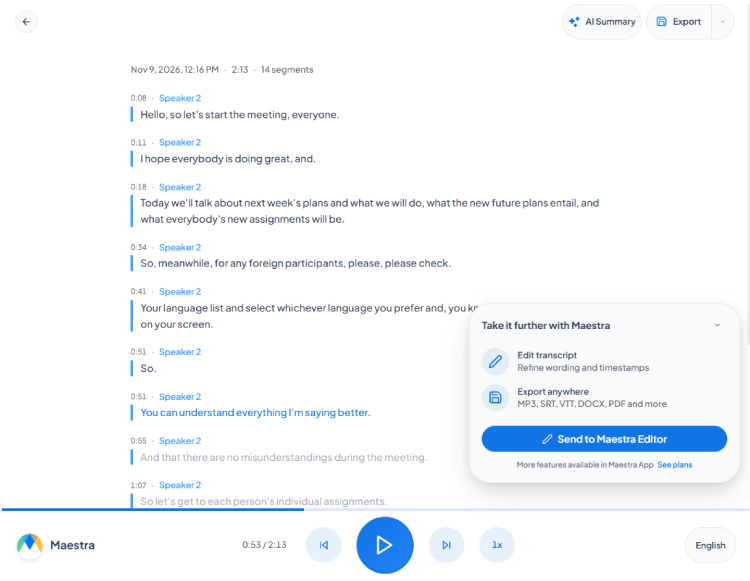
If saving was on, the transcript is waiting in Maestra Live's Recordings tab. Open the session to read the transcript next to a playback bar, click any line to jump to that moment, and switch between the original language and each saved translation. From there, export it as TXT or DOCX, or download the audio.
Cleanup is quicker than writing from scratch, because you are fixing a draft. Focus on what readers will quote:
- Names, product terms and numbers, which AI is most likely to mishear
- Speaker labels, so every quote is tied to the right person
- Filler words and false starts, if the transcript will be published
For a recap, the AI Summary button turns the saved transcript into a short summary with chapters, action items, notes per speaker and key topics. For deeper edits or more translation work, send the recording to Maestra Studio, Maestra's editor for recorded audio and video. If nothing was saved, upload the event video to a transcription tool and start from there.
Step 2: How do you add subtitles in more languages?
Subtitles let people watch the replay in their own language without changing the audio. Start from the cleaned transcript, not the raw one, because every error in the source text gets copied into every language you translate into.
A typical subtitle workflow has three steps:
- Translate the subtitles into each target language.
- Have a native speaker review the opening minutes, key slides and any product names.
- Export SRT or VTT files and upload them as caption tracks to YouTube, Vimeo, your website player or your learning platform.
The replay can also reach more languages than the live session did. With Maestra Studio's subtitle translator, you can translate one subtitle track into 125+ languages, edit every line in one window and download each language separately or as one file. If you are comparing options, our roundup of the best subtitle translation software compares 12 tools.
Step 3: How do you make a dubbed replay?
A dubbed replay adds an audio track in another language, so viewers can listen instead of read. It is a different job from live dubbing, where an AI voice reads translations aloud during the event. After the event, you work on a finished recording, so you can fix wording and timing before anyone hears it.
Most AI dubbing tools follow the same path: upload the video, pick the target languages, choose a voice, then review and export. Maestra Studio's AI video dubber covers 125+ languages and 850+ AI voices, can clone the original speaker's voice and offers lip sync. Get the speaker's consent before you clone their voice.
Then decide where the dubbed versions will live. YouTube lets eligible channels add multi-language audio tracks to a single video, so viewers pick their language from the player settings. On other platforms, publish one video per language and link the versions to each other.
Step 4: How do you create clips and an on-demand library?
Clips bring the best moments of a long session to people who will never watch the full replay. Use the AI summary's chapters and key topics to find them: a strong answer in the Q&A, a product demo or a customer story usually makes the best clip. Cut each one in your video editor and keep it short enough to stand on its own.
Add burned-in subtitles in the viewer's language to clips meant for social feeds, since many people scroll with the sound off. Use the dubbed audio for clips you publish on YouTube or your website.
For the on-demand library, put the full replay, its subtitled and dubbed versions, the transcript and the clips on one page per event. Publishing the transcript below the video helps search engines and screen readers understand the content, and it lets viewers skim before they press play.
What does an example workflow look like?
Here is how a 60-minute product webinar, delivered in English and translated live into Spanish and German, could become a full replay package in one week:
| When | Task | Output |
| Before the event | Turn on Save transcript and Save audio in Maestra Live, and start the Zoom recording | A saved session and a video file |
| Day 1 | Fix names and terms in the transcript, then generate the AI summary | A clean transcript and a recap email |
| Day 2 | Translate the subtitles into Spanish, German, French and Japanese, then review them | Four subtitle files |
| Day 3 | Dub the replay into Spanish and German with the speaker's cloned voice | Two dubbed versions |
| Day 4 | Cut five clips from the summary's chapters | Clips for social and sales |
| Day 5 | Publish the replay page with every version and the transcript | An on-demand library page |
The time saving comes from the step before the event. Because the session was saved, the transcript and the Spanish and German translations already exist, so the team edits drafts instead of transcribing and translating from scratch.
What should you set up before the event?
Run through this checklist a day before the event:
- Turn on Save transcript and Save audio before the session starts.
- Record the video in your meeting platform or streaming software.
- Add speaker names, product names and acronyms to the dictionary, so the transcript needs less cleanup.
- Ask speakers for consent to record, and to voice cloning if you plan to dub with their voice.
- Decide which languages the replay needs. It can be more than the live session had.
- Choose where the replay will live: YouTube, your website or your learning platform.
Translate Your Next Event Live
FAQ
Yes, if saving was on during the session. In Maestra Live, turn on Save transcript, and optionally Save audio, before you start. The session then appears in the Recordings tab, where you can read it, export it as TXT or DOCX and switch between the original language and the saved translations.
No. Maestra Live saves the transcript and, if you choose, the audio. Record the video in your meeting platform, such as Zoom or Teams, or in your streaming software, then use that file for subtitles and dubbing.
Live dubbing reads translations aloud in an AI voice while the event is happening. A dubbed replay is made after the event from the recording, so you can correct the wording and timing before you publish it.
Yes, with voice cloning. Maestra Studio's AI video dubber can clone the original speaker's voice and carry it into other languages. Ask the speaker for consent before you clone their voice.
Yes. The number of languages in a live session depends on your plan, but subtitles and dubbing for the replay are made separately. Maestra Studio supports 125+ languages, so you can add languages that were not part of the live session.
