What to Look for When Buying Live Translation Software: 12 Criteria
- Why is choosing live translation software so hard?
- What are the 12 criteria that matter when buying live translation software?
- Which red flags should you watch for in demos and pricing pages?
- How do you run a short pilot test?
- What should a live translation software scorecard include?
- Conclusion: How do you choose the right live translation software?
- FAQ on How to Buy Live Translation Software
When buying live translation software, look for accuracy on your own speakers, latency under a few seconds, coverage of every language pair you need, and a listener experience that works on any phone. Then check security, pricing model, support and reporting. Test all 12 criteria in a short pilot before you sign anything.
This guide gives you:
- A clear benchmark for each criterion
- Red flags to catch in demos
- A short pilot plan
- A scorecard that works with any vendor
Before the checklist, it helps to see why this choice might be harder than it looks.
Why is choosing live translation software so hard?
Choosing is hard because vendors sell different things under the same label, and they describe quality in different ways. Some platforms are AI-only, with no human interpreters involved. Others pair an AI translator with a network of professional interpreters, and recommend a human interpreter for important decision-making.
Pricing models differ just as much. Some vendors sell hour packages that last 12 months, others sell annual plans with a minimum number of hours, and others offer monthly plans plus one-off event plans. Two quotes for the same event can look nothing alike, so compare what each one covers: hours, languages, attendees and support.

Top 9 AI Live Translation Software Tested & Reviewed (2026)
Quality claims are hard to compare too. The SAFE AI Task Force, an industry group of interpreters, buyers and vendors, published a six-dimension rubric in 2024 to help organizations judge when AI interpreting helps and when it is too risky. [1]
The criteria below turn that question into a checklist you can score.
What are the 12 criteria that matter when buying live translation software?
The 12 criteria that matter are accuracy, latency, language coverage, setup, platform support, listener experience, output modes, custom vocabulary, security, pricing model, support and reporting.
⭐ Score each one on your own audio, not on the vendor's demo clip.
The table sets a benchmark for each criterion and a quick way to check it. Where possible, the benchmarks come from outside sources. Microsoft's speech documentation [2], for example, rates a word error rate of 5-10% as good quality and 30% or more as poor.
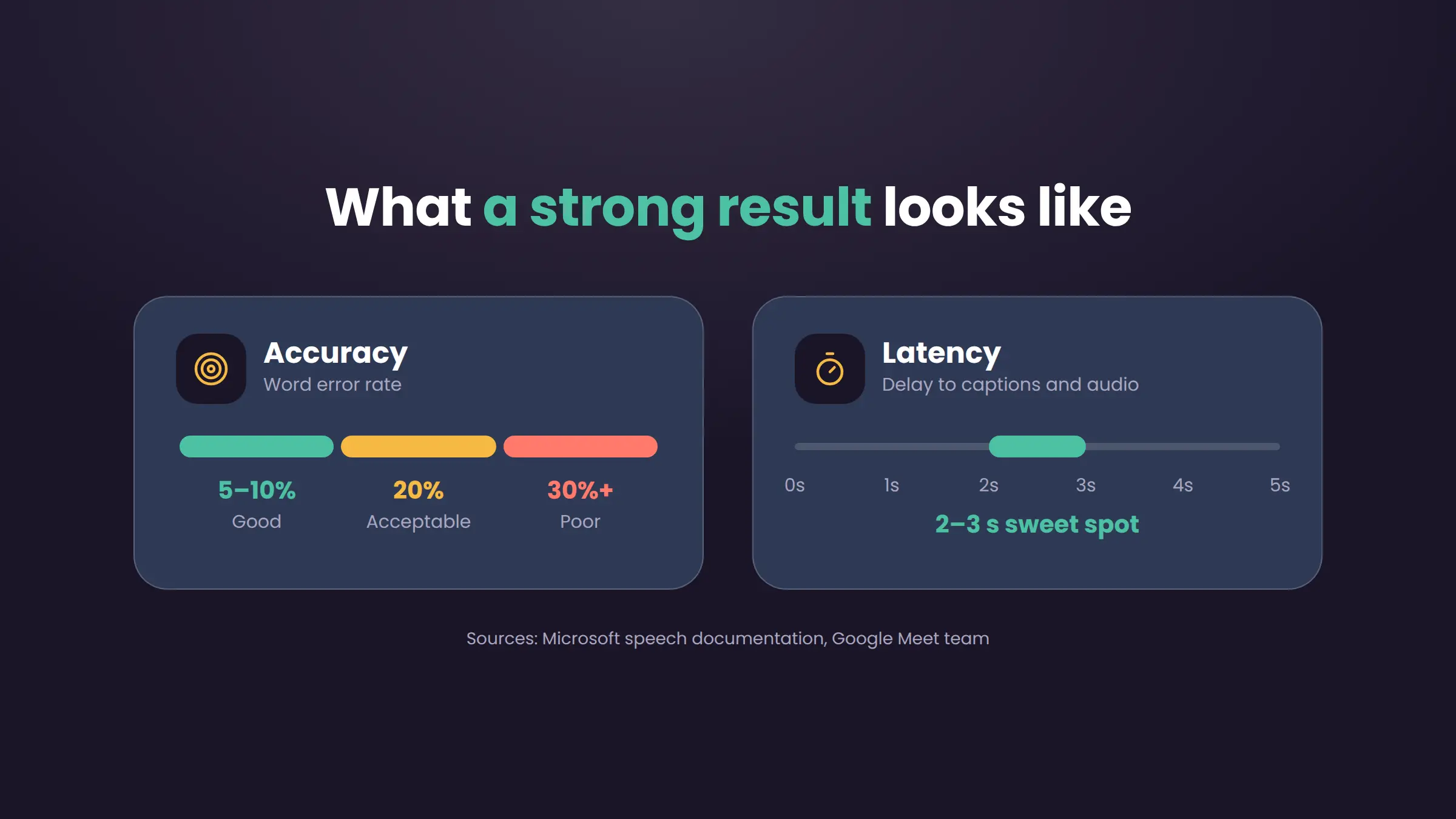
Google's Meet team puts the sweet spot for live speech translation at 2-3 seconds [3], a delay that nearly mimics a human interpreter and a fair yardstick for AI.
Google Meet Real-Time Speech Translation Guide + Alternative
Not every criterion weighs the same for every buyer. A church streaming one sermon cares most about cost and phone access. A pharma training team cares most about glossaries and security.
⭐ Make sure you weigh the rows before you score them.
| # | Criterion | What good looks like | How to check it |
| 1 | Accuracy | Word error rate of 5-10% on your speakers | Transcribe and translate 10 minutes of real audio; count wrong words, then have a bilingual colleague check the meaning |
| 2 | Latency | Captions and translated speech within about 2-3 seconds, close to a human interpreter's pace | Time how long a spoken phrase takes to appear in the captions and in the translated audio |
| 3 | Language coverage | Every pair you need, with AI voice where listeners need audio | Ask which languages are captions-only |
| 4 | Setup | A live session in minutes | Time a fresh account from sign-up to live |
| 5 | Platform support | Works with your meeting, streaming and room audio tools | Run it inside your Zoom, Teams or mixer |
| 6 | Listener experience | Join by link or QR code, no app or account needed | Have a colleague join on an older phone |
| 7 | Output modes | Captions, plus AI voice for listeners who want to hear | Read the captions and listen with headphones for 5 minutes |
| 8 | Custom vocabulary | A glossary for names, acronyms and jargon | Add 10 terms, then replay the same audio and compare |
| 9 | Security | SOC 2 Type II or ISO 27001, GDPR terms, clear retention rules | Check the privacy policy and the security page |
| 10 | Pricing model | Fits how often you run sessions and how many languages you need | Price a full year of your real calendar |
| 11 | Support | Live help during events, not only email | Ask support a real setup question during the pilot |
| 12 | Reporting | Transcripts, recordings and language use per session | Export one session's records |
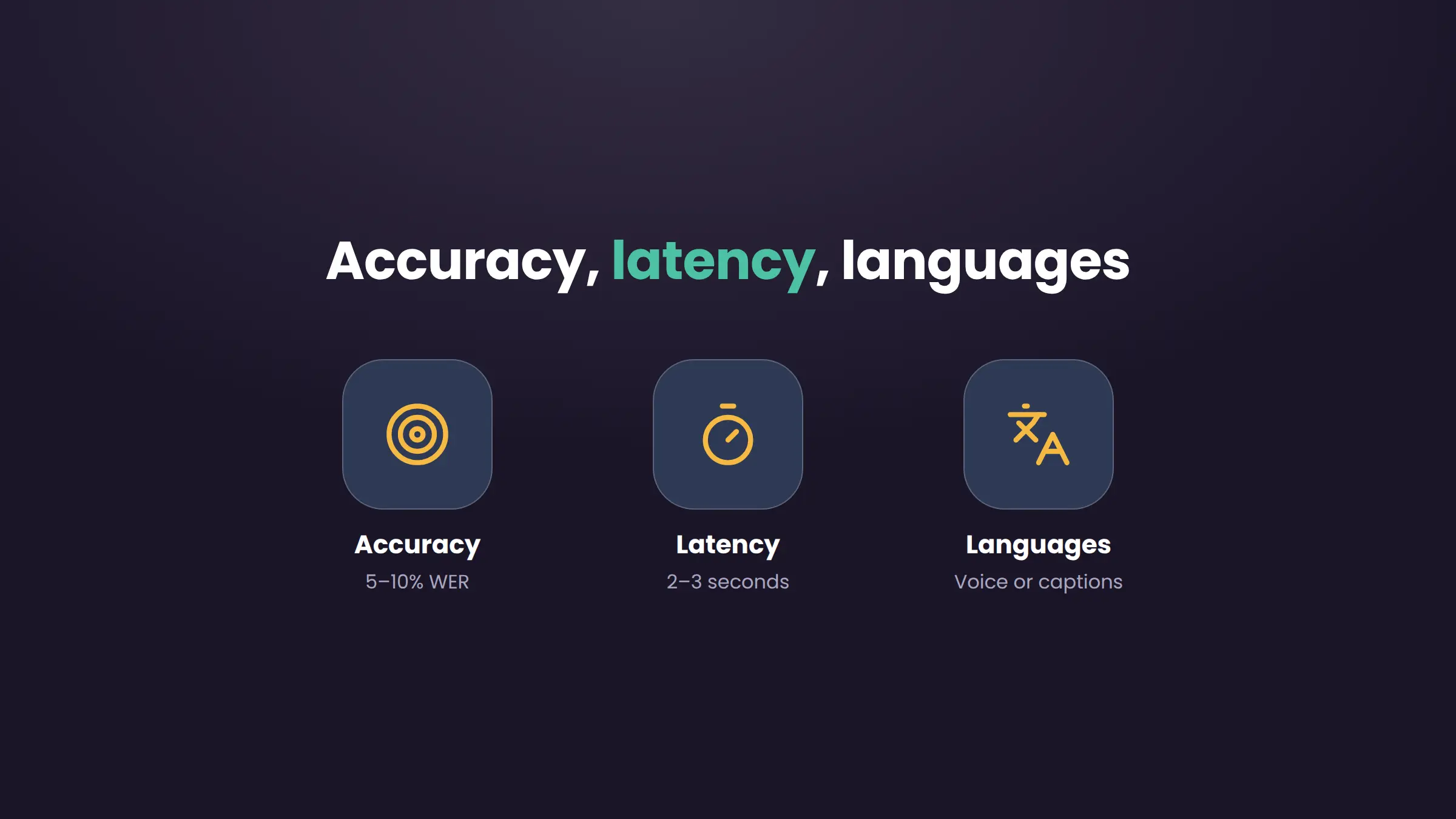
How do you judge accuracy, latency and languages?
Judge accuracy by word error rate (WER) on your own recordings. WER counts inserted, deleted and substituted words against a human transcript. Microsoft rates 5-10% as good quality, 20% as acceptable and 30% or more as poor. Test with your real speakers, accents and room noise, because demo audio is usually clean.
Judge latency against human interpreters. Google's Meet team found 2-3 seconds to be the sweet spot, close to how a human interpreter delivers speech. AI tools often show captions faster than they speak the translation: Wordly, for example, plays translated audio after each sentence is completed. Time both outputs separately.
For languages, a long list is not enough. Check each pair you need in both directions, and ask which languages get AI voice and which get captions only. Maestra Live, for example, has AI voices in most of its languages, but a few are captions only. Confirm how many languages one session allows, too.
What should setup, platforms and the listener experience look like?
Setup should take minutes, not an IT project. Browser-based tools such as Maestra Live and LiveVoice let the host start a session from a computer browser, with no install. Time a fresh account from sign-up to a live session.
Platform support means working where your audio already lives. Check native integrations for your meeting tool (Zoom, Microsoft Teams, Google Meet), your streaming software (OBS, vMix) and your in-room sound. Onsite, many tools need an audio cable and a converter into a laptop or tablet.
The listener experience decides adoption. The best tools let attendees join by link or QR code, with no app or account, and switch languages mid-session. Output should suit the room: captions for reading, plus AI voice for listeners who would rather hear the translation in headphones.
Which control and trust features matter most?
Custom vocabulary comes first. Google Cloud's speech documentation notes that models often miss proper names and domain-specific words, because they are rare in everyday speech. [4] A glossary or custom dictionary fixes names, acronyms and product terms before they reach listeners. Check whether your team can share one glossary.
Security comes next. Ask for an independent audit, such as a SOC 2 Type II report or ISO 27001 certification, plus a data processing agreement for GDPR. Wordly and KUDO both list these credentials on their sites, so the bar is public. Then ask three plain questions: where is audio stored, for how long, and is it used to train models?
Reporting closes the loop. Strong tools give you transcripts, recordings and usage data after each session, such as which languages listeners picked and how many joined. These records help you prove value, fix glossary gaps and meet accessibility duties.
How should you compare pricing models and support?
Compare pricing on a full year of your real calendar, not on the entry price. Common models include hour packages, monthly or annual plans, and per-event quotes. Ask every vendor the same three questions: what counts as an hour, do languages cost extra, and what happens to unused time?
Support matters most when something breaks mid-event. Check whether live help is available during sessions, which channels it uses, and whether onsite help costs extra. A ticket opened during your pilot might tell you more than any promise.
Which red flags should you watch for in demos and pricing pages?
The biggest red flag is a demo you can't repeat with your own audio, and no free trial to test it yourself. A scripted clip shows the vendor's best case, not yours.
In demos, watch for:
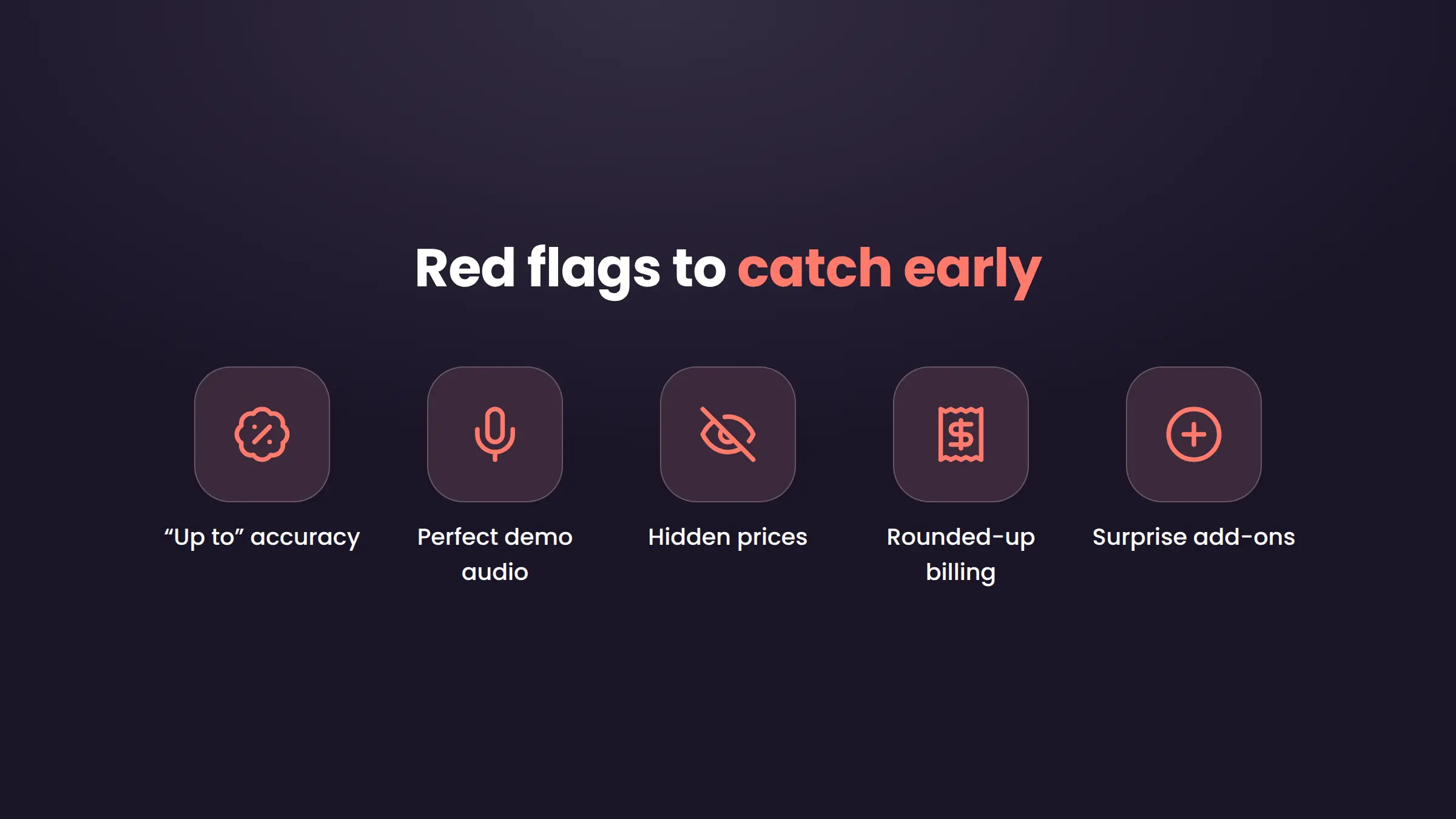
- Accuracy quoted as "up to" a percentage, with no language pair, audio type or test method named.
- One fluent speaker, with no accents, crosstalk or background noise.
- Captions shown, but translated audio never played at full speed.
- No live switch between speakers or languages.
On pricing pages, watch for:
- "Contact sales" as the only price for a small, one-off event.
- Billing that rounds every session up to a full hour.
- Prices with no clear list of what each plan includes.
- Onsite or live-event support sold as an extra you discover late.
None of these rules a tool out on its own. Each one is a question to ask before you sign.
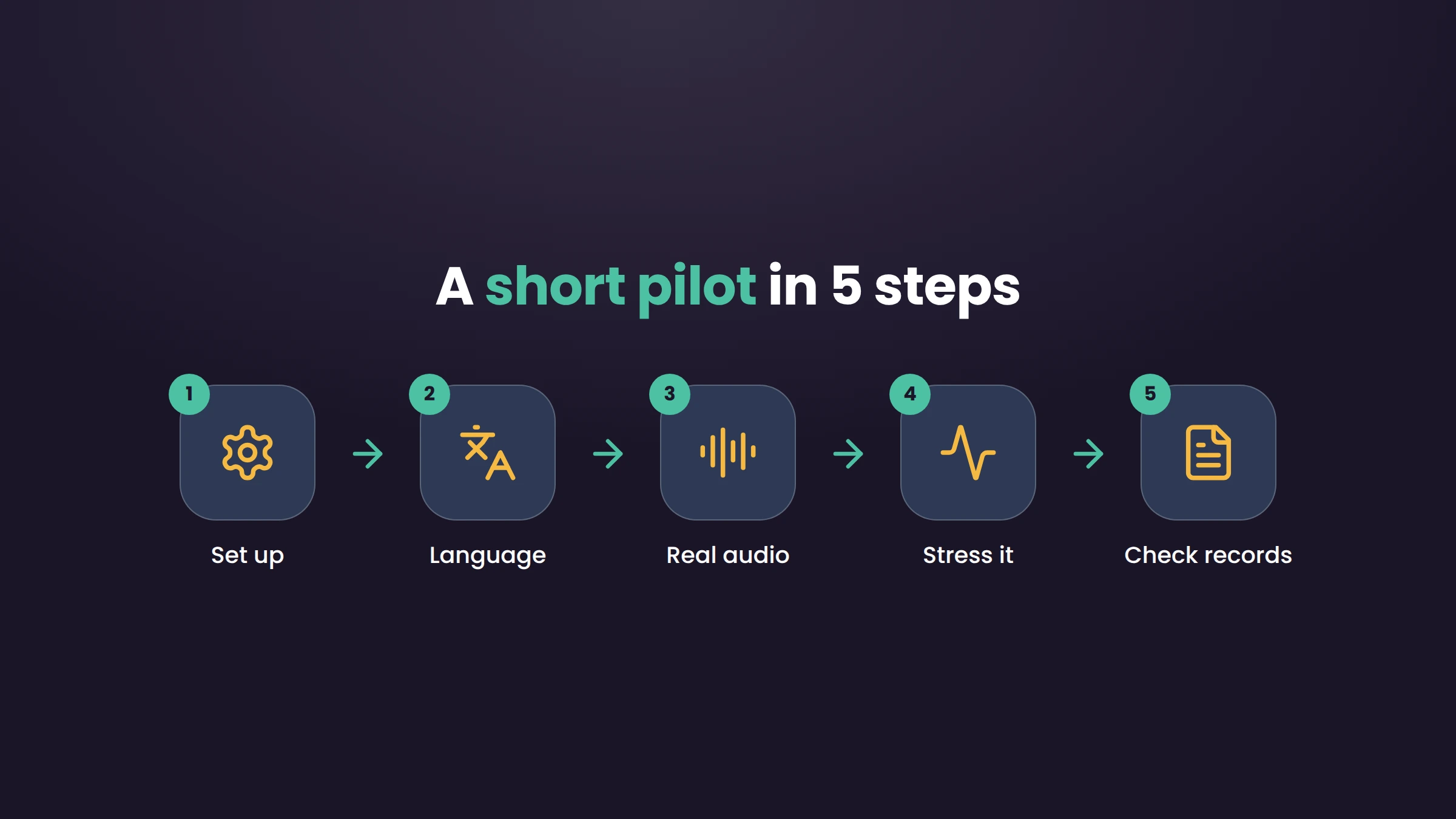
How do you run a short pilot test?
Run the same short test on every tool you're considering, with the same audio and the same tester. That keeps the scores comparable.
- Set up. Create a session from a fresh account and connect your real audio source. Note any install, IT approval or sales call needed.
- Pick a language. Choose your target language and follow the output on the same screen.
- Play real content. Run a few minutes of real audio from your own meetings or events, with names, numbers and jargon.
- Stress it. Play audio with two speakers and light background noise. Time how fast captions and any translated audio appear.
- Check the records. Open the saved transcript and count the mistakes.
Ask each vendor for a trial long enough to run this. Maestra Live's free plan gives 10 minutes a week with no credit card, enough for the core accuracy check.
What should a live translation software scorecard include?
Use this scorecard to turn the pilot into a decision. Give each criterion a weight from 1 (nice to have) to 3 (must have). Then score each tool from 1 (poor) to 5 (excellent) on what you saw in the pilot, not on the sales deck.
Multiply each score by its weight and add up the column. The highest total is your front-runner, with one rule: if a tool scores 1 or 2 on a must-have, drop it, even with the highest total.
Write one line of evidence for every score, such as "WER 7% on the CEO town hall" or "audio lag 4 seconds". Evidence makes the choice easy to defend to finance, IT and the people who will use the tool every week. Copy the table into a spreadsheet and keep it next to your pilot recordings.
| Criterion | Weight (1-3) | Tool A (1-5) | Tool B (1-5) | Tool C (1-5) | Evidence |
| Accuracy | |||||
| Latency | |||||
| Language coverage | |||||
| Setup | |||||
| Platform support | |||||
| Listener experience | |||||
| Output modes | |||||
| Custom vocabulary | |||||
| Security | |||||
| Pricing model | |||||
| Support | |||||
| Reporting | |||||
| Weighted total |
Conclusion: How do you choose the right live translation software?
Choose the tool that scores highest on the criteria that matter most to your sessions, after testing it on your own audio. No single tool wins everywhere. A church streaming a weekly sermon, a sales team on two-person calls and a conference running ten languages will each weigh the 12 criteria differently.
Three steps keep the choice simple:
- Mark your must-haves, such as specific language pairs, AI voice, a glossary or security terms.
- Shortlist two or three tools that meet them on paper.
- Run the same short pilot on each, with the same audio and the same tester, and fill in the scorecard as you go.
Treat the red flags as questions, not deal-breakers. A vendor that answers them clearly, and lets you test before you pay, is usually the safer choice for meetings and live events.
Ready to run your pilot?
FAQ on How to Buy Live Translation Software
Not always. AI handles one-way talks, two-way conversations, training and events well, but humans still lead for high-stakes decisions. The SAFE AI Task Force urges organizations to evaluate AI interpreting carefully in live settings where risks are higher. Test AI on your own audio before you decide.
It depends on the pricing model. Maestra Live has a free plan, and paid plans start at $15 a month billed yearly. Wordly starts at about $1,500 for a 10-hour package used within 12 months. KUDO's annual plan starts from 50 hours a year, priced through sales. Price a full year of your real sessions and languages, not the entry tier.
Usually not. Most modern tools let listeners join in a browser by link or QR code. Maestra Live shares sessions by link or QR code with no downloads needed. Still, test on an older phone and on mobile data, because that is how many of your listeners will join.
Some tools can and some cannot. KUDO describes its AI Speech Translator as one-way and points interactive meetings to human interpreters. Maestra Live offers two-way translation, so both people speak their own language, and Wordly detects and switches between multilingual speakers. Test a real back-and-forth conversation during your pilot.
Many do. Maestra Live adds translated captions to Zoom, Teams and Google Meet calls, plus OBS and vMix for livestreams. Zoom also has built-in translated captions on Business Plus, or as a paid add-on. Test it inside your real meeting tool during your pilot. For a full walkthrough, check our guide toZoom translation.
10 Best Real-Time Translators for Meetings