The Ultimate Guide to Live Zoom Translation (Captions & Voice)

Lately, it’s pretty clear that text-based translation isn’t enough anymore. Once a meeting gets even a little dynamic, reading captions just doesn’t keep up. It works, but it’s not how people naturally communicate.
Zoom seems to be moving in that direction with its live audio translation feature, but it’s still in beta and not fully there yet. As of March 2026, you can choose between translated captions for AI-powered text translation or human interpreters for spoken translation, both of which come with their own limitations.
In this blog, I'll cover:
- Zoom translation features (both translated captions and interpretation)
- The limitations of each approach in real meetings
- How to translate Zoom meetings with Maestra's live voice translator (integration + standalone app)
- The most common use cases and best practices for live Zoom translation
We'll start by looking at how Zoom translation actually works today and what each method offers in practice.
What is Zoom Translation? AI Captions vs. Human Interpretation
As of March 2026, Zoom offers translation in two main ways: AI-powered translated captions or live interpretation via human interpreters.
While the former method converts spoken language into real-time captions in another language, the latter allows professional interpreters to translate speech during a meeting, either simultaneously or consecutively.
Both approaches help overcome language barriers. Translated captions provide an automated solution for multilingual meetings, and human interpretation ensures high accuracy and nuance, especially in complex or high-stakes situations.
The availability of these features depends on your Zoom Workplace plan, as well as whether you have access to professional interpreters.
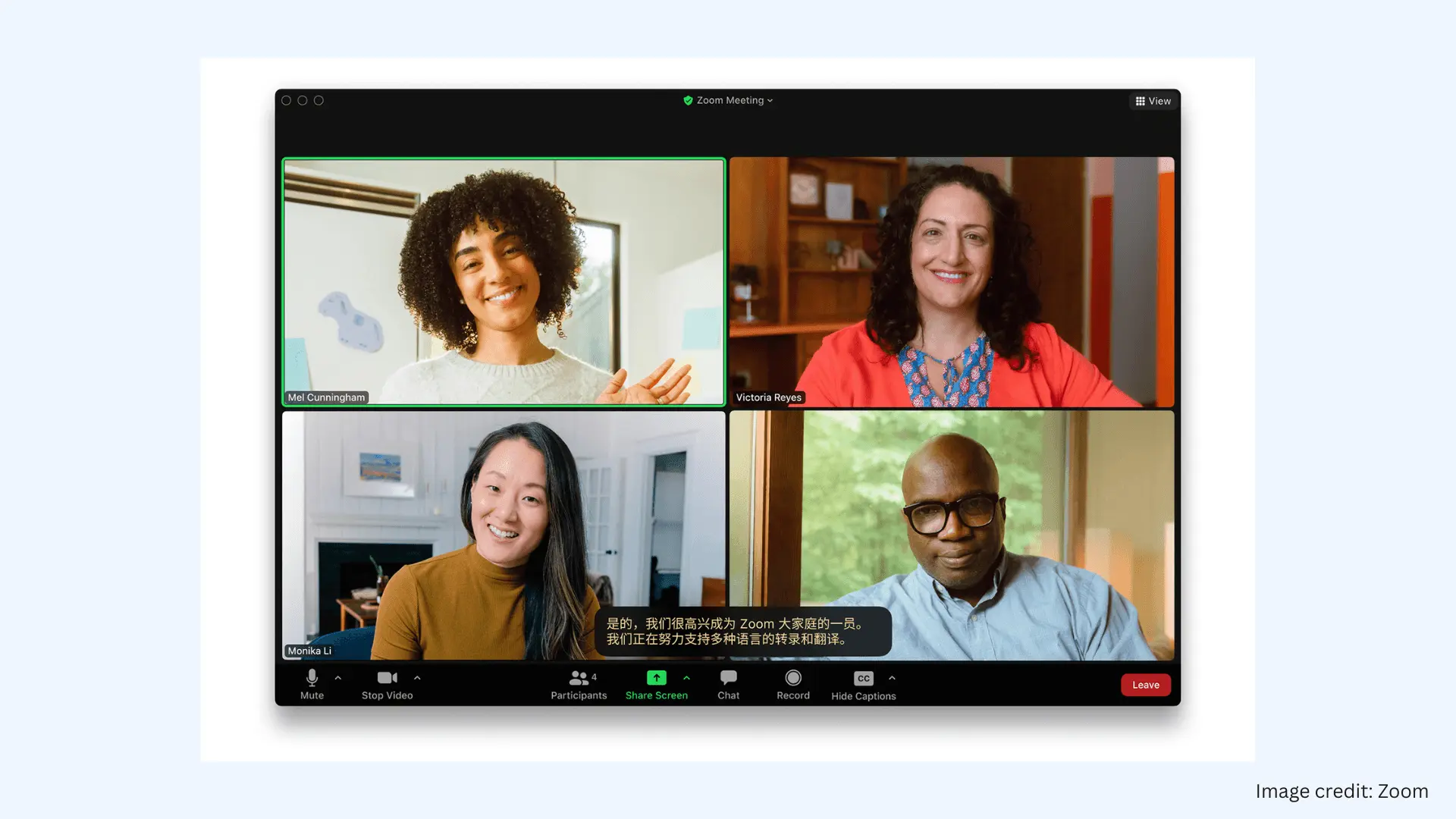
Who can use Zoom translated captions?
Zoom translated captions are available to:
- Users on Zoom Workplace Business Plus, Enterprise Essentials, Enterprise Plus, and Enterprise Premier plans
- Users on other paid plans who purchase the Translated Captions add-on
Only the meeting host needs the license/plan for the entire meeting to have access to translation. Participants in a meeting can select their preferred caption language once the feature is enabled by the host.
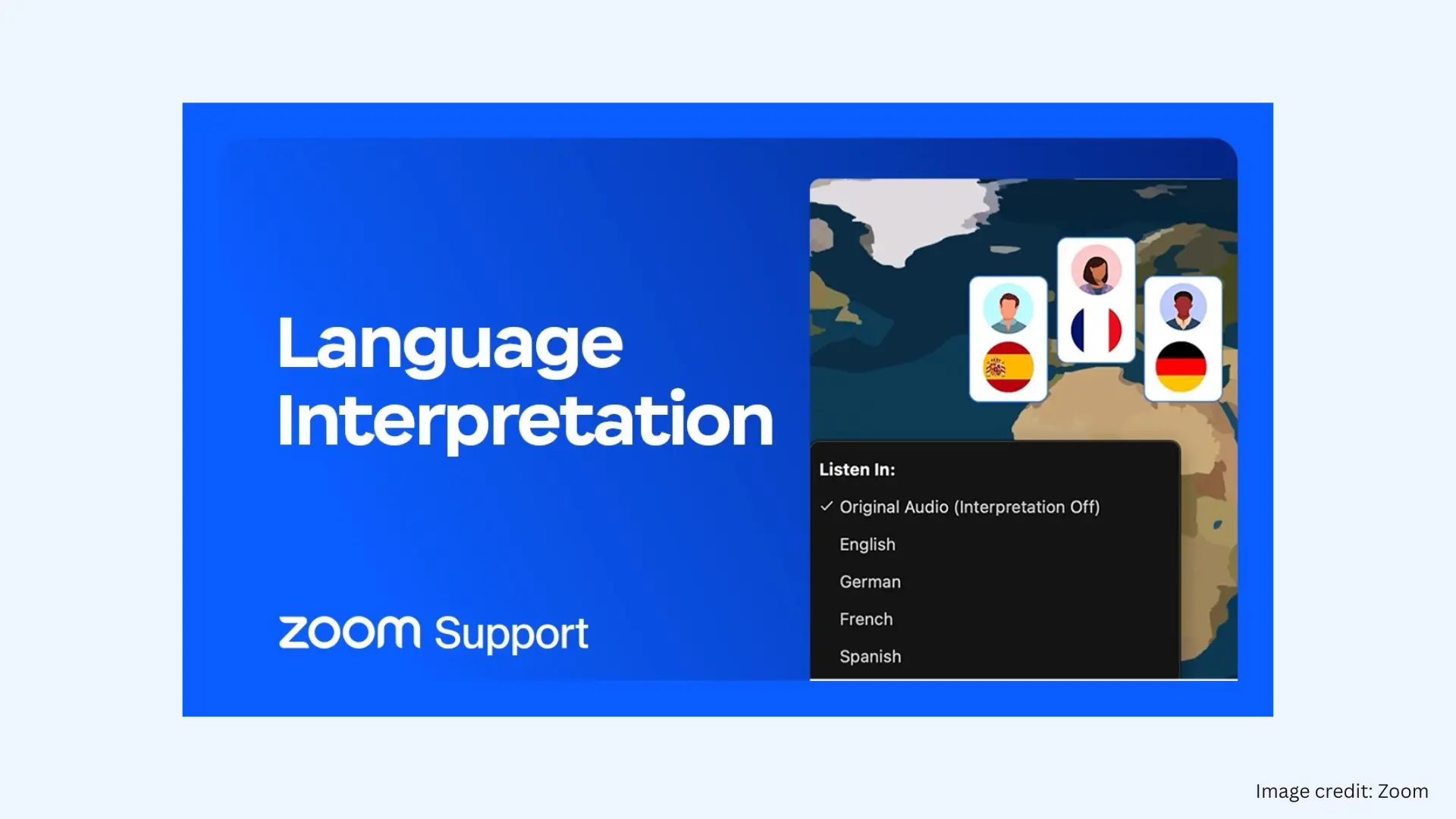
Who can use Zoom language interpretation?
Zoom language interpretation is available to:
- Licensed users on Zoom Workplace Business, Business Plus, Enterprise, and higher-tier plans
To use this feature, the meeting host must:
- Enable language interpretation in meeting settings
- Assign interpreters in advance or during the meeting
Unlike translated captions, interpretation requires human interpreters, who must be invited and managed by the host.
🔄 Looking for an alternative? If you're interested in live translation beyond Zoom, you can check out our guide on Google Meet real-time speech translation.
Supported Languages: Zoom Translated Captions vs. Human Interpretation
The number of supported languages differs significantly between translated captions and live interpretation.
| Feature | AI Translated Captions | Live Human Interpretation |
| Number of Languages | 35+ languages supported for real-time text | Unlimited. You can add any language as long as you have an interpreter for it. |
| Simultaneous Languages in One Meeting | Multiple participants can each choose their preferred language for translated captions | Up to 20 interpretation channels per meeting |
| Directionality | Supports bidirectional translation (e.g., English ↔ Spanish) | Typically unidirectional per interpreter (e.g., English → Spanish), requiring separate interpreters for each direction |
These differences also raise a key question: how well do these methods actually perform in real meetings?
Limitations of Zoom Translation Features
Despite their advantages, both AI translated captions and live interpretation have their own limitations that can impact usability and overall meeting quality. In my experience working with multilingual teams, these limitations start to show more quickly once meetings get bigger or more complex.
Zoom Translated Captions Disadvantages
- Limited language support: Only supports a fixed set of languages, which may not cover all participants in global meetings.
- Text-only experience: Translations are shown as captions only, with no audio output for listeners.
- Accuracy issues: Translation quality can drop with accents, fast speech, or technical terminology.
- Context challenges: May struggle to capture nuance, tone, or the intended meaning in complex conversations.
- Dialect gaps: May struggle to accurately recognize and translate regional accents, dialects, or less common language variations.
Zoom Interpretation Disadvantages
- Requires human interpreters: You need to find, schedule, and manage professional interpreters for each language.
- High cost: Expenses increase quickly, especially for multiple languages or recurring meetings.
- Limited scalability: The number of supported languages depends on how many interpreters you can provide.
- One-directional setup: Each language direction often requires a separate interpreter, adding complexity.
- Setup complexity: Hosts must configure settings and assign interpreters in advance or during the meeting.
Due to these challenges, I've been testing tools that offer a more flexible solution to Zoom translation without added complexity. Maestra is one of the most practical options I've used, so let's take a brief look at how it compares to Zoom's built-in translation features.
Zoom Live Translation
- No AI voice translation (requires human interpreters for speech)
- Built-in caption translation with limited language support (35+ languages)
- Bidirectional captions; interpretation requires separate setup per direction
- No standalone use outside Zoom
Maestra Live Translation
- Real-time AI voice translation available
- Caption translation with broader language coverage (125+ languages)
- Fully bidirectional across multiple source languages and target languages
- Can be used standalone or alongside Zoom
Now let's see how you can actually use Maestra to translate live Zoom meetings.
How to Live Translate Zoom Meetings with Maestra
Maestra can be used in two ways to translate Zoom meetings in real time:
- By integrating directly with Zoom to send translated captions
- By running separately to get live voice translation (supported by captions) alongside the meeting
First, let’s take a look at how to send translated captions directly into Zoom using Maestra’s integration.
How to Integrate Maestra with Zoom for Live Caption Translation
To begin with, you need to enable manual captions in your Zoom account.
- Sign in to Zoom web portal and select My Account>Settings from the left-side menu.
- In the Meeting tab, navigate to In Meeting (Advanced).
- Check both options (Allow host to type or assign a participant to type and
Allow use of caption API Token to integrate with 3rd-party Closed Captioning services) under Manual captions.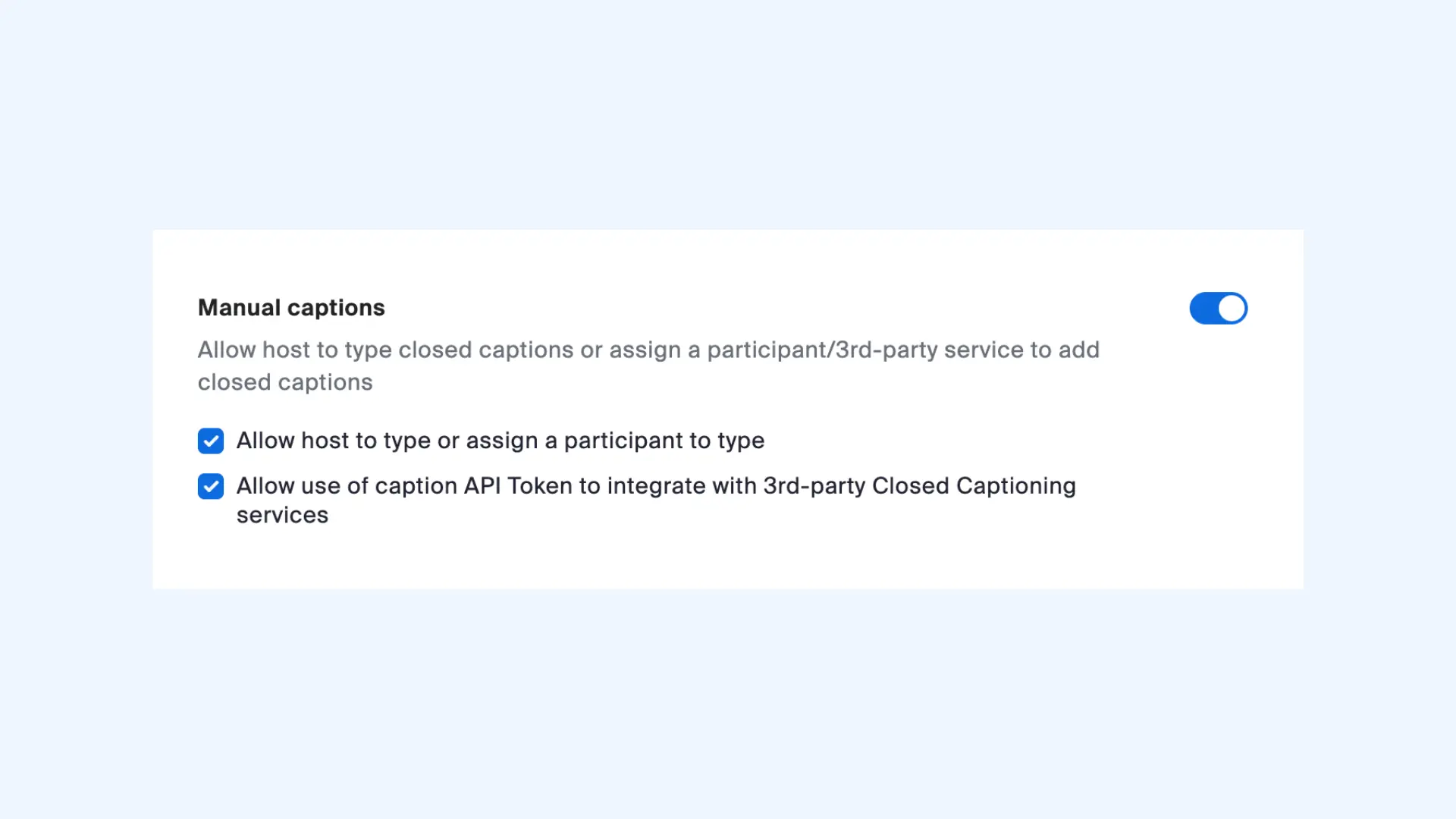
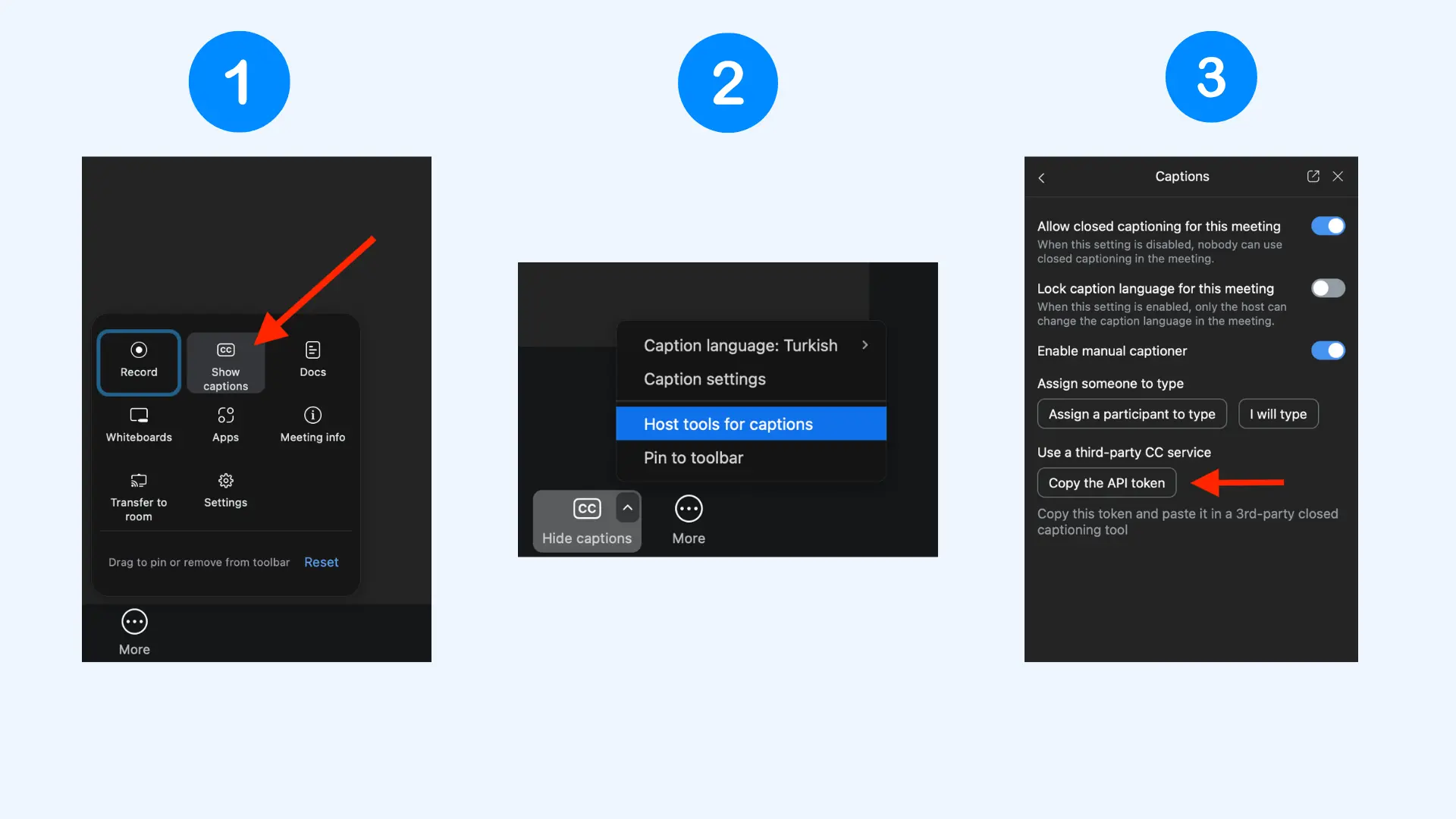
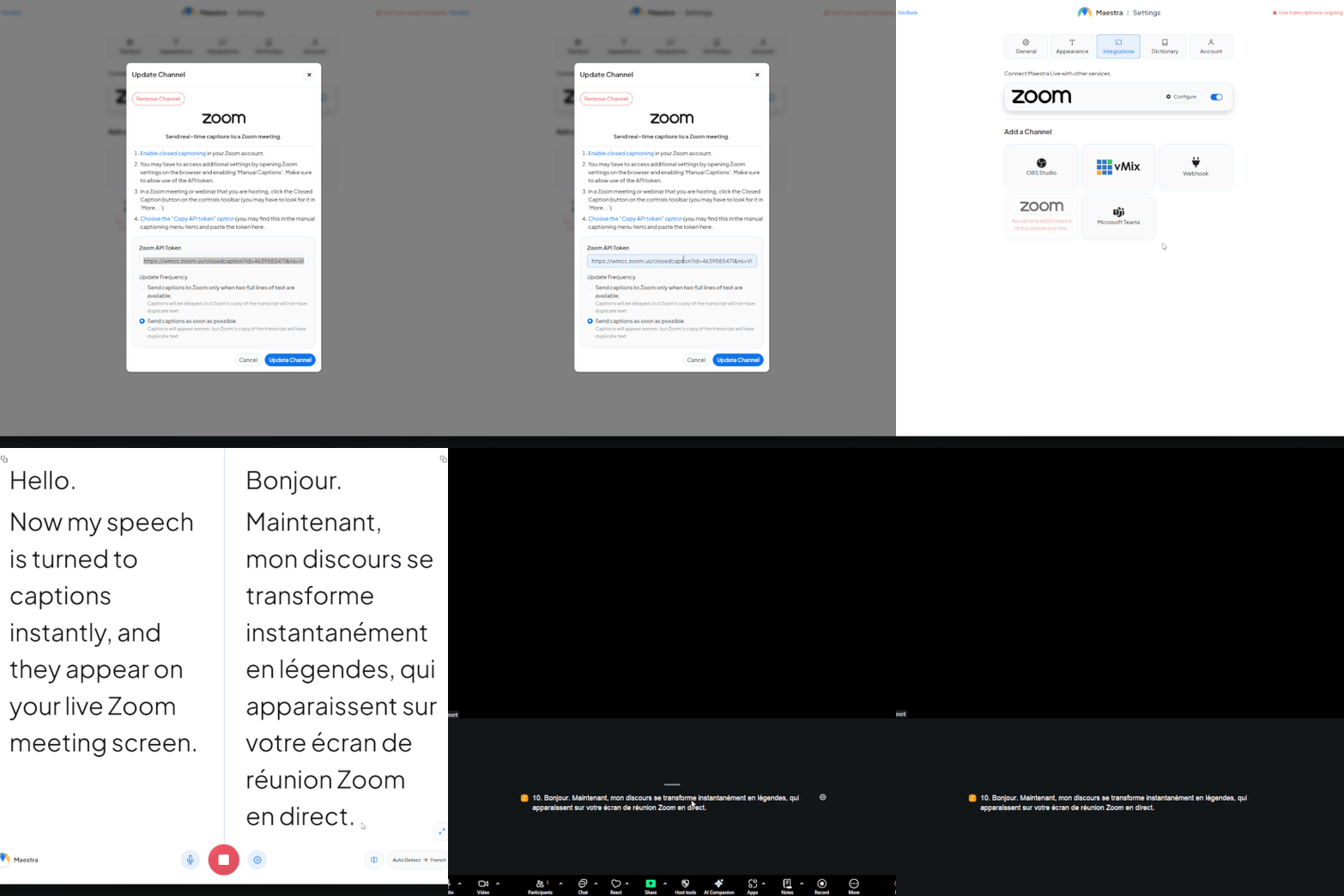
- Now you're ready to integrate Maestra with Zoom. In a Zoom meeting or webinar you're hosting, click More in the toolbar and select Show Captions.
- Click the arrow next to Hide captions, then choose Host tools for captions.
- Toggle on Enable manual captioner from the right-side menu. Then click Copy the API token under Use a third-party CC service.
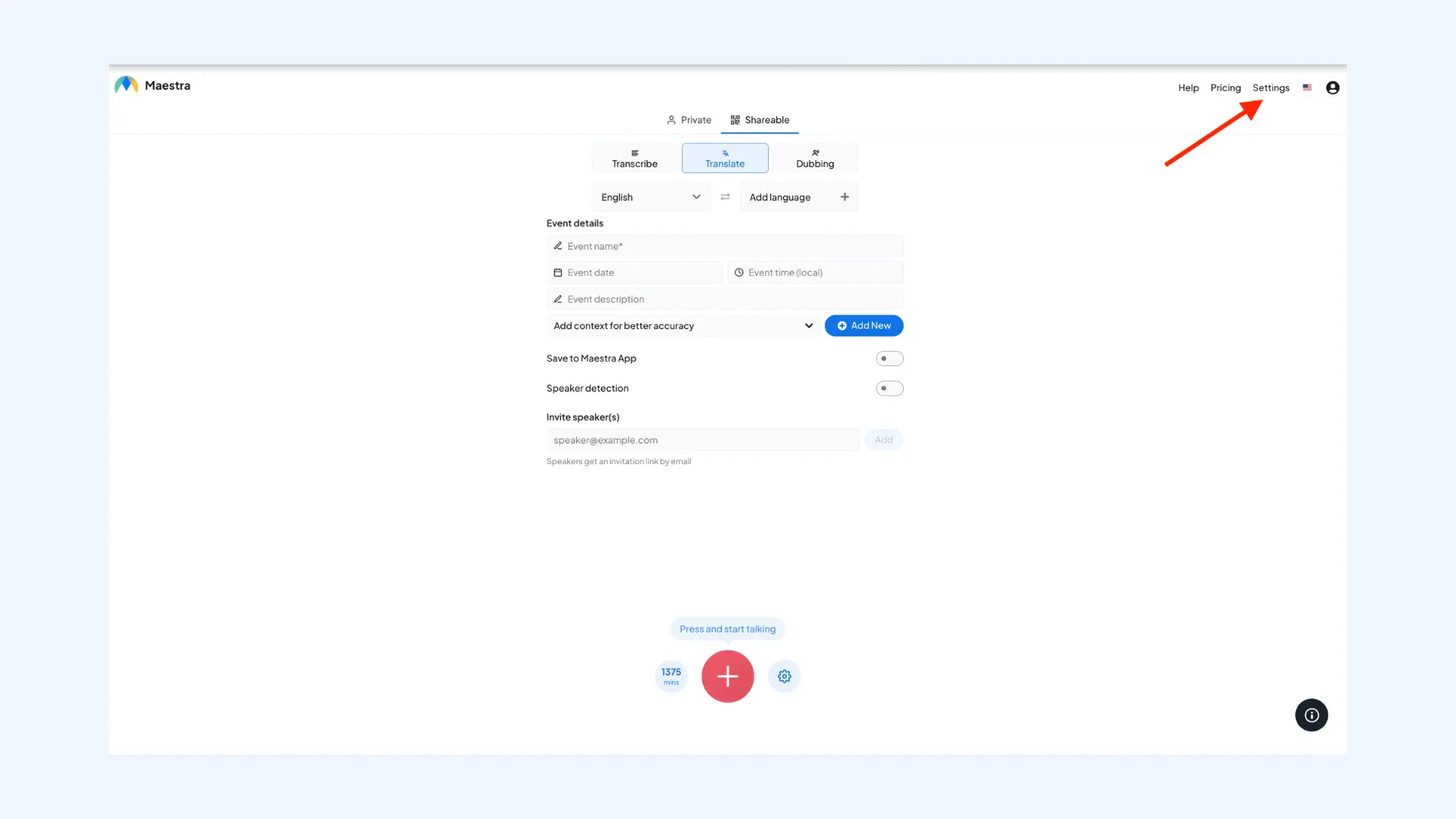
- Open Maestra's live translator and sign in to your account, then go to Settings in the top-right corner.
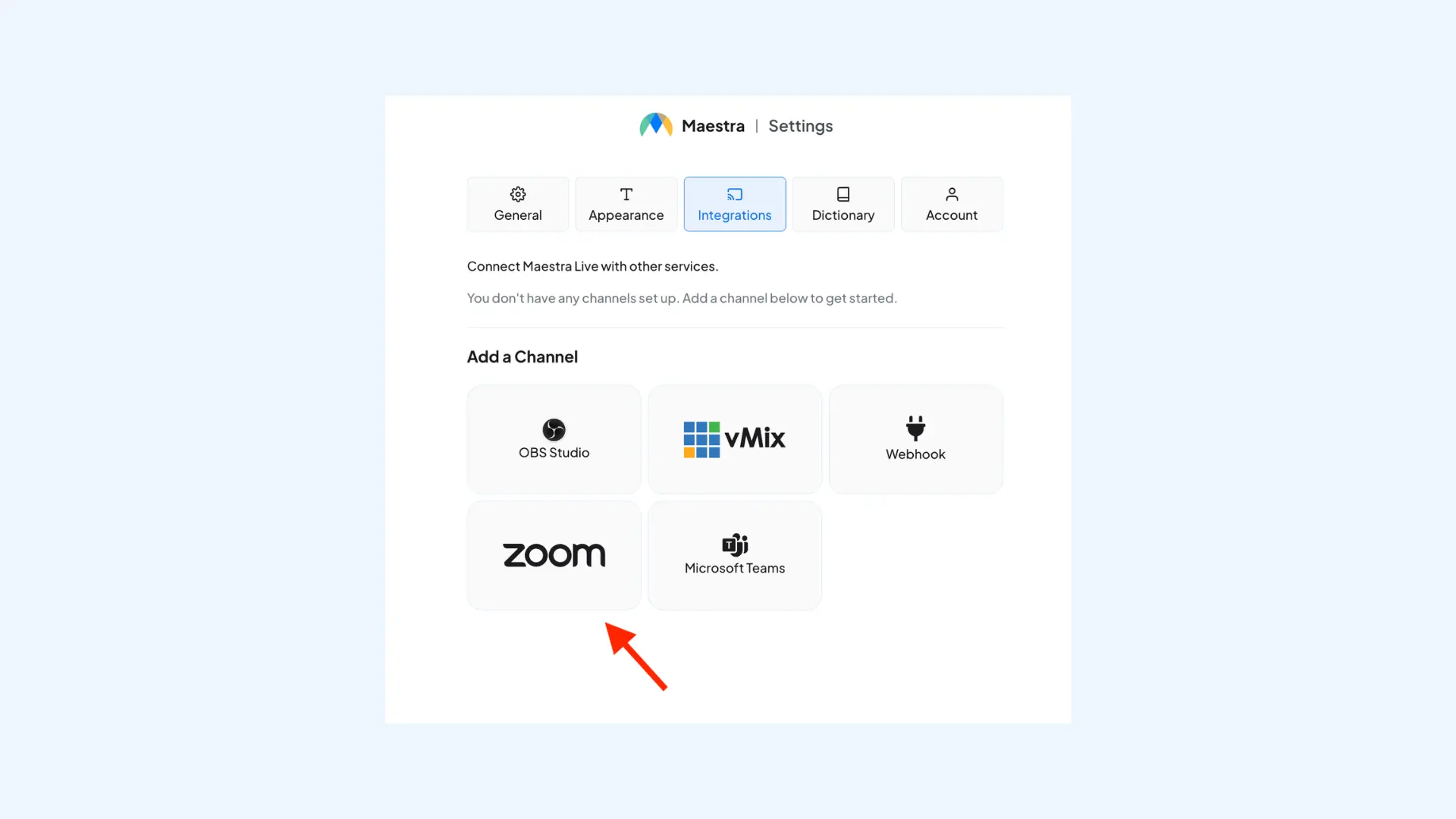
- Click Integrations and select Zoom.
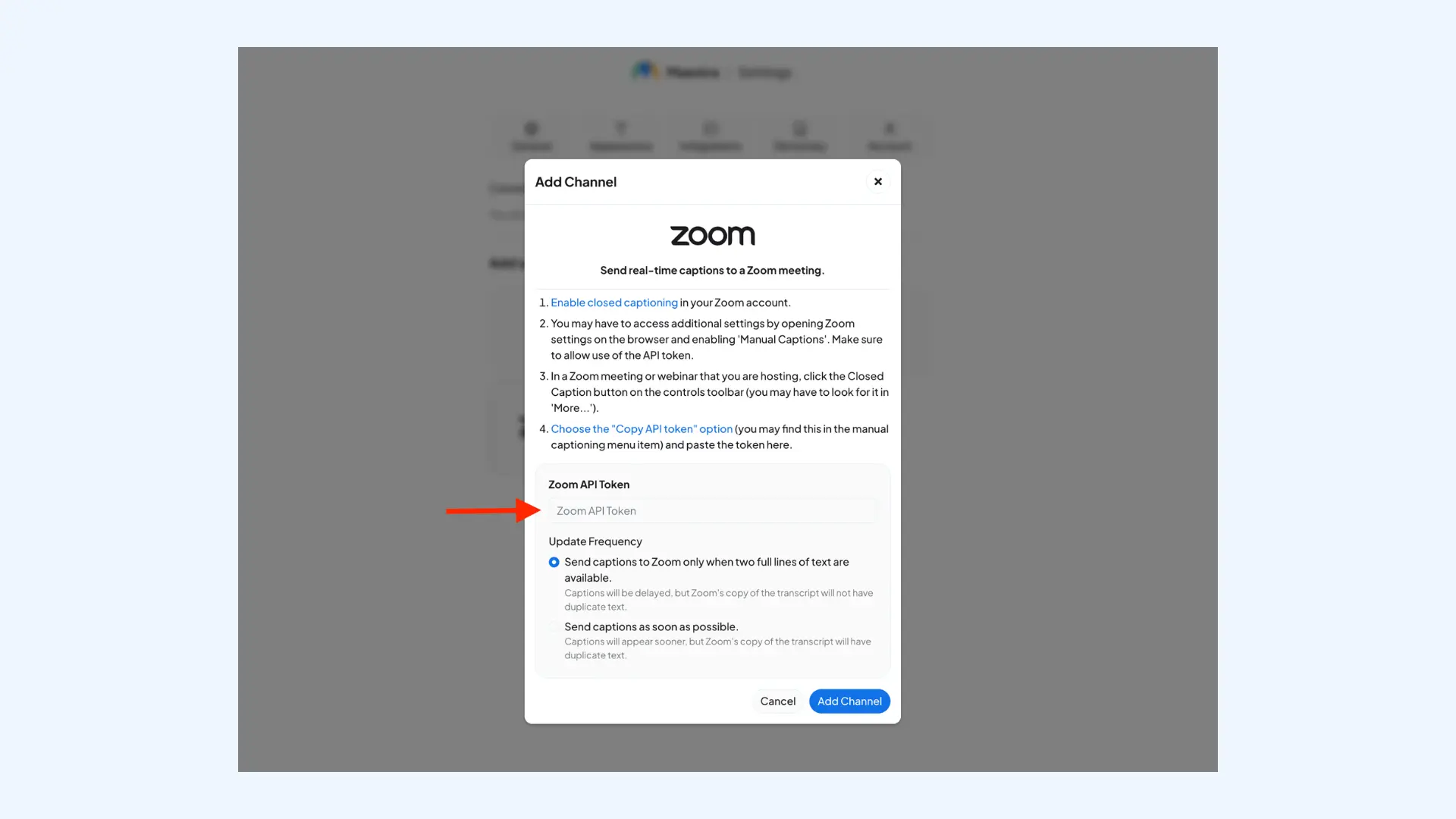
- In the pop-up window, paste your Zoom API token in the required field.
- Start a new translation session, choose the source and target languages, and begin speaking.
- Your translated captions will automatically appear in your Zoom meeting in real time.
How to Translate Zoom Meetings with Maestra's Live Voice Translator
This method allows participants to hear translations in real time, not just read them.
Unlike the previous method, this runs separately from Zoom and does not require integration.
- Start your Zoom meeting.
- Open Maestra's real-time online voice translator in your browser and sign in.
- Choose Private or Shareable mode (use Shareable if you want others to join the session).
- Select Dubbing from the top menu to enable live speech-to-speech translation.
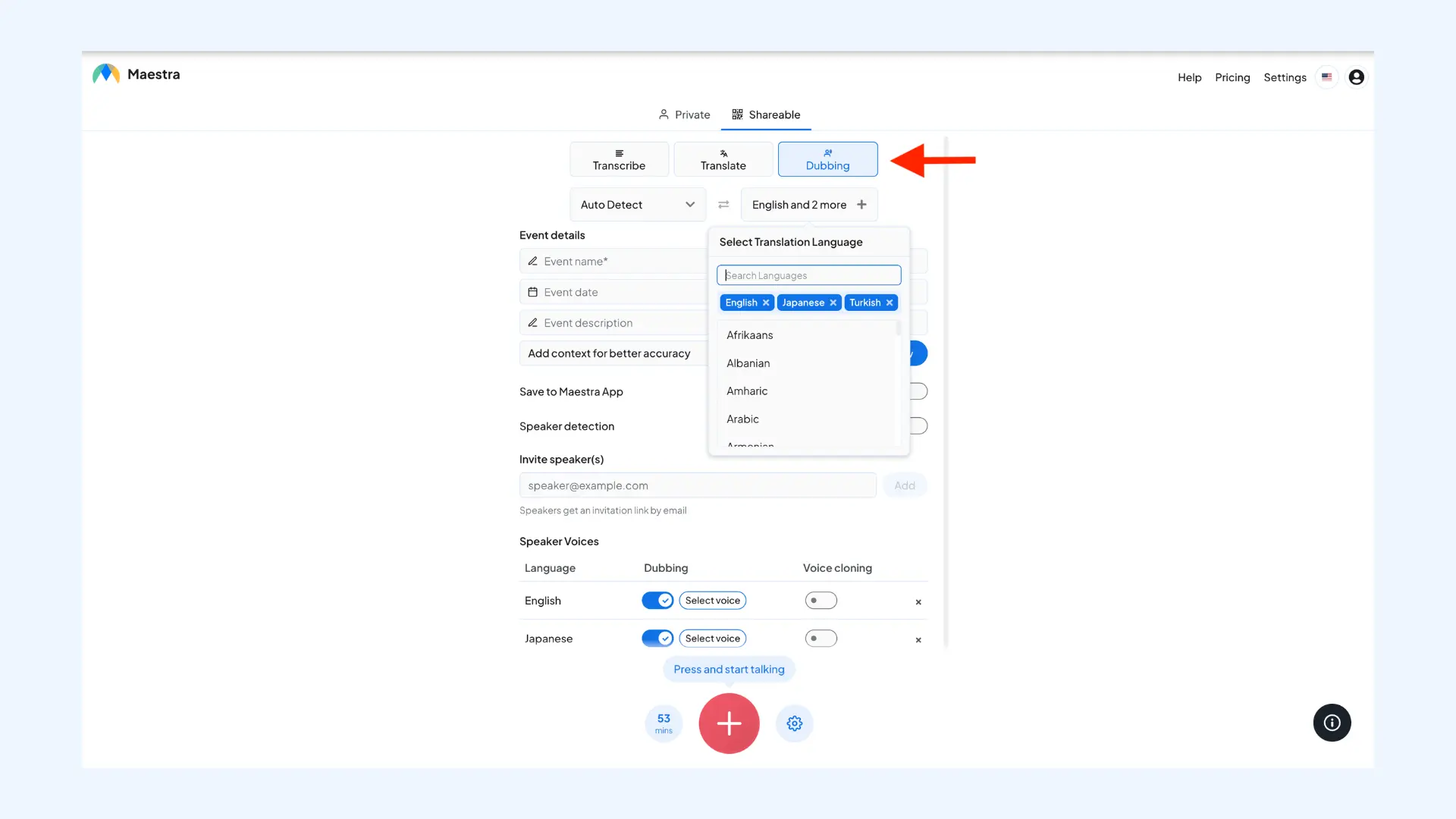
- Set the spoken and target languages. (You can enable auto-detect for the spoken language if needed.)
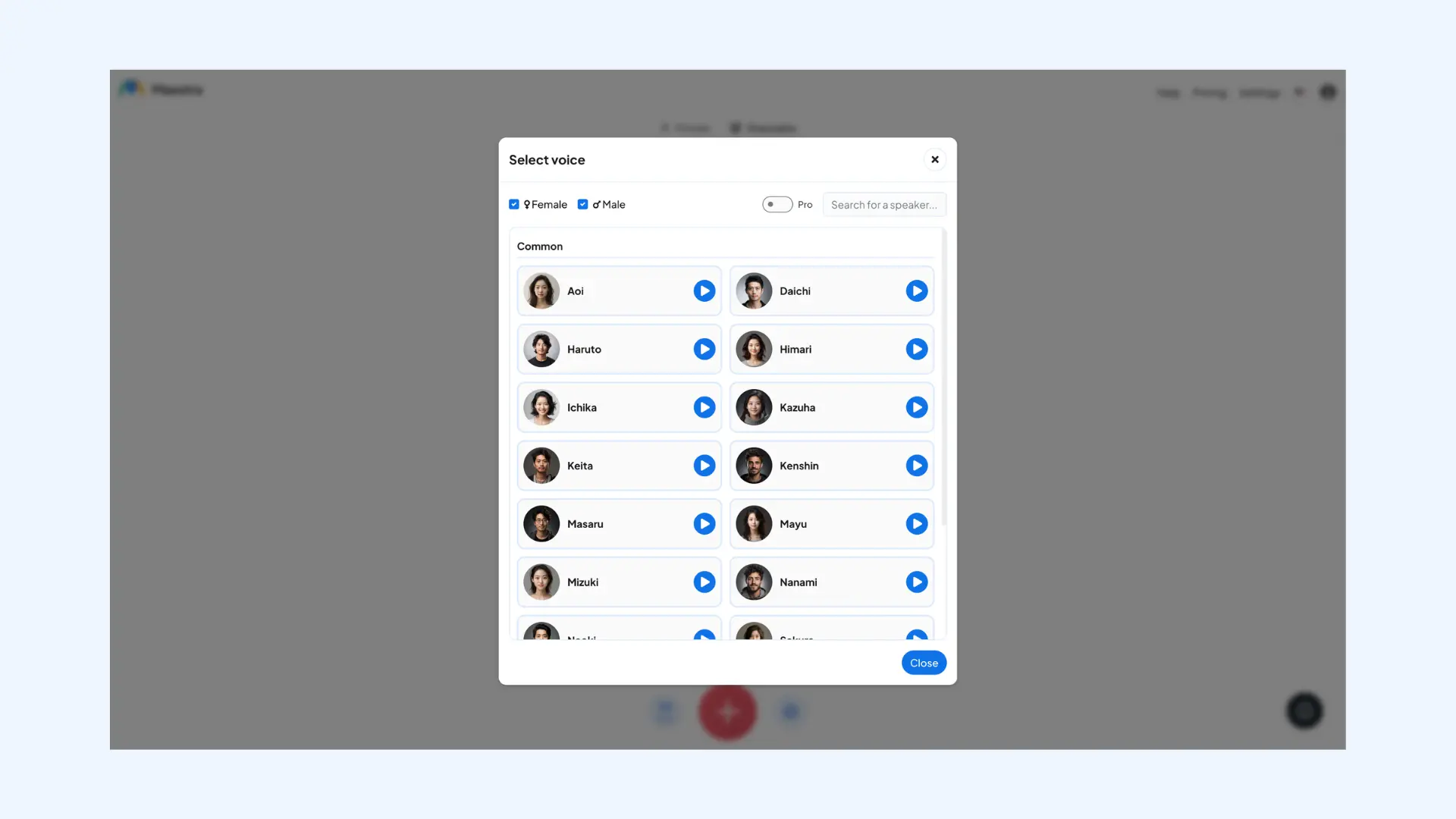
- Choose an AI voice for each target language, or use voice cloning for a more natural output.
- Add event details and context to improve translation accuracy.
- Toggle on Save to Maestra app if you want to store the session transcript and access it later from your dashboard.
- Invite participants by sharing the session link or QR code.
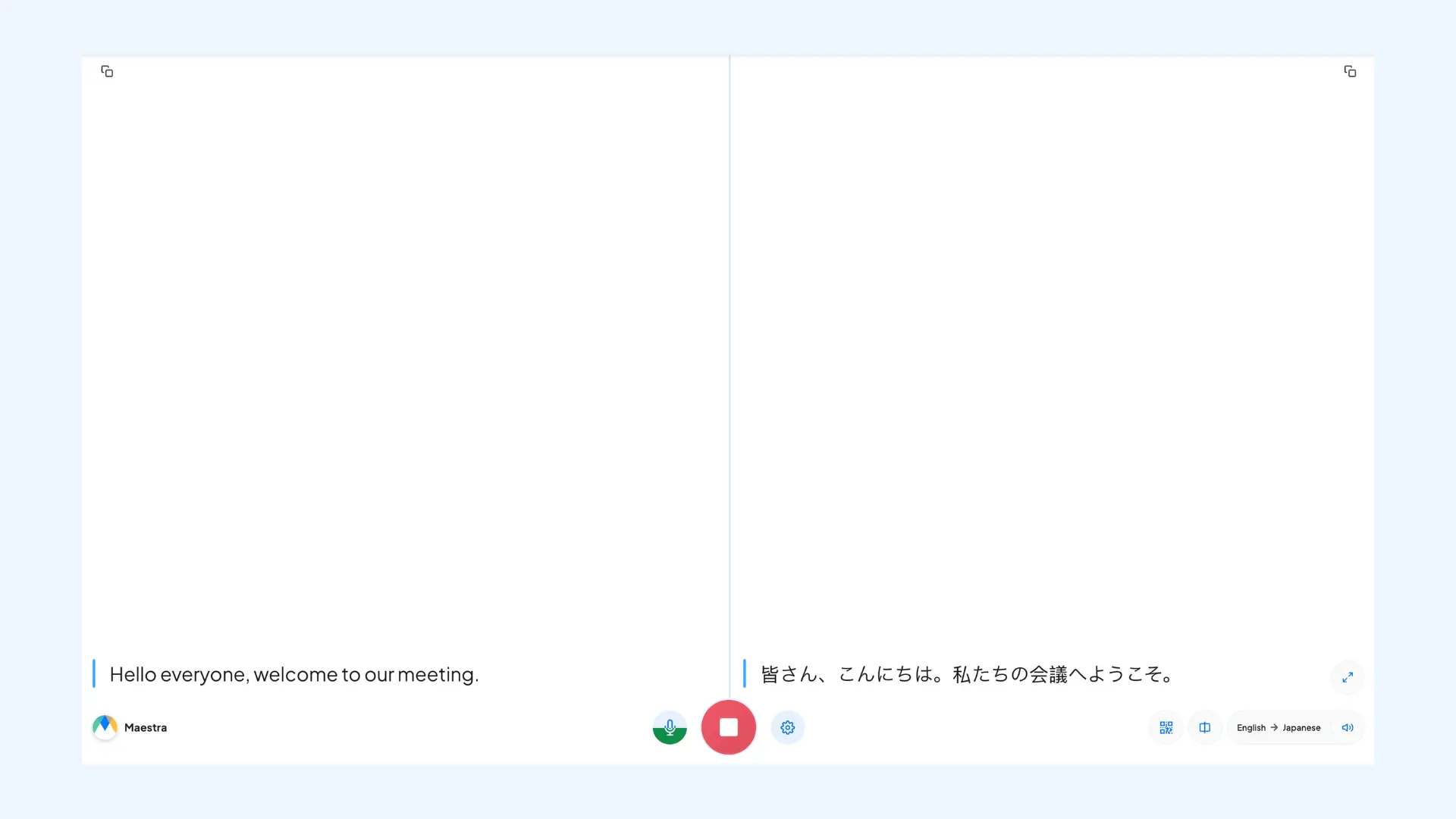
- Start the session and begin speaking. Maestra will deliver real-time translated audio, with captions available as well.
🎥 Already have a Zoom recording? You can use Maestra's AI video translator to translate and transcribe your meeting after it ends. Simply upload your recording to generate subtitles or voiceovers in 125+ languages.
💡 Whether you translate live or afterward, you can access your session transcript from your dashboard and use AI features like summarization, keyword extraction, sentiment analysis, and more.
Translate Live Zoom Meetings in Real Time in 125+ Languages
Top Use Cases for Zoom Translation in Real-Time Communication
Language barriers show up in more places than people expect. Research on global teams shows that up to 60% of international teams face language issues, which directly affect communication and collaboration quality. [1]
More importantly, these issues aren't just minor inconveniences. A 2025 workplace study found that language gaps and accent-related anxiety significantly impact productivity, safety, and participation, with some professionals spending hours each day worrying about how they communicate. [2]
In Zoom, live translation can help reduce these barriers by enabling real-time understanding and participation across languages in various use cases.
Global Team Meetings
Most global teams default to a shared language, but that often limits who actually participates. Discussions slow down, and some voices get left out. In my experience, adding real-time translation makes meetings feel more balanced and less one-sided.

International Webinars and Events
Audience engagement drops quickly when people can’t fully follow what’s being said. Instead of staying present, they either disengage or try to catch up. Providing live webinar translation (whether through captions or voice) keeps attention high and makes the session accessible to a wider audience.
Education and Training Sessions
Training sessions depend on clarity, especially during onboarding or technical workshops. When participants miss key points, it can lead to confusion later on. Real-time translation helps keep everyone aligned, so learning is more consistent across the group.
Interviews and Hiring
Interviews are already nerve-wracking, and language differences can prevent candidates from fully showing their abilities. Live translation helps candidates communicate more naturally and confidently. This leads to more accurate evaluations and better hiring decisions.

Customer Support
Support conversations often become longer than they need to be when there’s a language gap. I’ve seen simple issues turn into long exchanges just because both sides are trying to clarify basic points. With live AI translation, communication becomes more direct, which helps resolve problems faster.
Sales Calls and Product Demos
In sales and demos, timing and clarity matter a lot. If a key detail is missed or misunderstood, it can affect how the entire conversation unfolds. Real-time translation can keep things smooth, so the focus stays on the product and the conversation, not the language barrier.
7 Best Practices for Zoom Live Translation
In Zoom translation, a few details make a big difference. Here are some actionable tips to avoid common issues, make translations more natural, and improve accuracy:
- Choose the right method for your use case. Not every meeting needs the same approach. Utilize captions if you're dealing with large audiences, and voice translation where clarity and nuance matter more.
- Test the setup before the meeting. Always run a quick check to test audio, language pairs, and translation output. This helps avoid interruptions and last-minute troubleshooting.
- Input high-quality audio and minimize background noise. This make a big difference in translation accuracy. I’ve seen even small improvements in microphone quality lead to noticeably better results.

- Provide context beforehand. Sharing key topics or terminology helps the system understand what’s being discussed. This is especially for technical and industry-specific conversations such as software walkthroughs or compliance briefings.
- Assign a moderator. Someone managing the flow of the conversation can coordinate who speaks and when, which reduces overlap. As a result, translations come through more clearly and consistently.
- Combine voice and captions when possible. Some people prefer listening, while others rely on reading to keep up. From what I've seen, offering both creates a more balanced and accessible experience.
- Record and review for accuracy. Going back to recordings or transcripts helps catch anything that was missed or mistranslated. It’s also useful for documentation and follow-ups.
Final Verdict
If your meetings are simple, Zoom’s translated captions might be enough. But in more complex events or live sessions, where spoken content moves quickly, relying on text alone can slow things down for each participant. In those cases, real-time voice translation for meetings becomes a much more practical option.
At that point, it’s less about translating words and more about keeping the conversation moving. There’s less back-and-forth and fewer interruptions. Meetings become faster, clearer, and easier for everyone to follow.
Frequently Asked Questions
Can Zoom translate in real time?
Yes, Zoom can translate in real time through translated captions and human interpretation. Translated captions automatically convert spoken language into on-screen text in another language. If you need spoken translation instead of text, you can use Zoom’s human interpretation feature or Maestra’s talking translator.
How can I enable auto translate in Zoom?
To enable auto translation in Zoom, go to your account settings and turn on automated captions and translated captions under the Meeting settings. Start a meeting, click Show Captions (CC), and select Enable Translated Captions. You can then choose your preferred language from the caption settings menu.
Does Zoom translation work on mobile?
Yes, Zoom AI translation works on mobile devices, including iOS and Android. Participants can view automated captions and translated captions directly in the Zoom mobile app during a meeting. However, some advanced settings and controls may be easier to configure on desktop, so functionality can be slightly more limited on mobile.
Are translated sessions recorded in Zoom?
Yes, Zoom can record meetings that use translated captions or interpretation. However, cloud recordings only preserve the original audio and a non-translated transcript of the session by default. To translate the recording, you can use Maestra’s AI video dubber and generate translated subtitles or voiceovers after the meeting.
How much does Zoom translation cost?
Zoom translation costs vary depending on the method you use. AI translated captions are included in some higher-tier plans or available as a paid add-on, typically costing around $5 per user/month if not included. Live interpretation itself is free as a feature in paid plans, but you must pay for professional interpreters separately, which can significantly increase overall costs.
Is there a translator app for Zoom?
There are several translator apps for Zoom meetings. Maestra's real-time online voice translator, for instance, can integrate with Zoom or be used as a standalone app. The integration sends translated captions directly into Zoom, while the standalone version provides live voice translation across the meeting in 125+ languages.
How can I translate a Zoom meeting in real time?
You can use Maestra's speech translator to translate Zoom meetings in real time. The tool supports multiple source and target languages, so users can translate conversations across different language pairs depending on their needs. It offers both voice output and a captioning system, allowing participants to either listen to translations or read them live.