Chaitanya P.
Managing Director"Master the Media with Maestra"
The best side of this product is auto subtitling. And most importantly, it supports multiple languages.
Read full reviewUpload an audio file in English and translate it to Japanese in minutes.
MP3, WAV, M4A, AAC, FLAC, SRT…
Your free trial is used — convert your next file in the Maestra app.
Sign up nowYouTube, Vimeo, Google Drive, or a direct media URL
Your free trial is used — convert your next file in the Maestra app.
Use your microphone
Your free trial is used — convert your next file in the Maestra app.
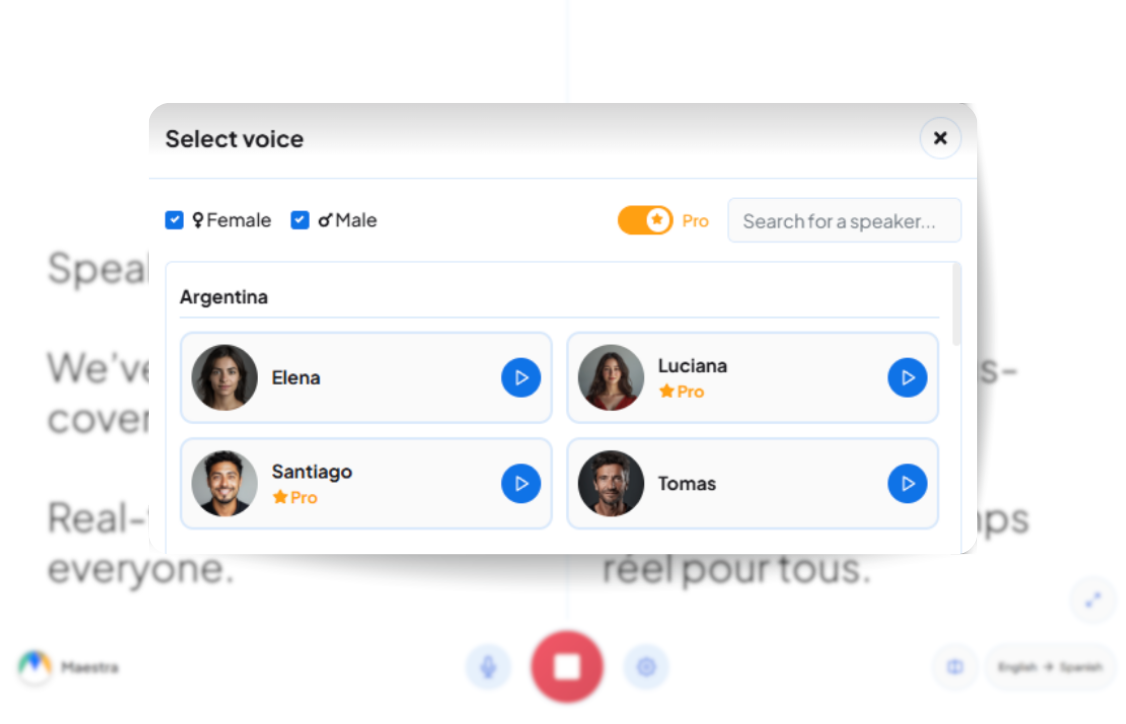
Live Translation from spoken audio, transcribed and translated as you speak.
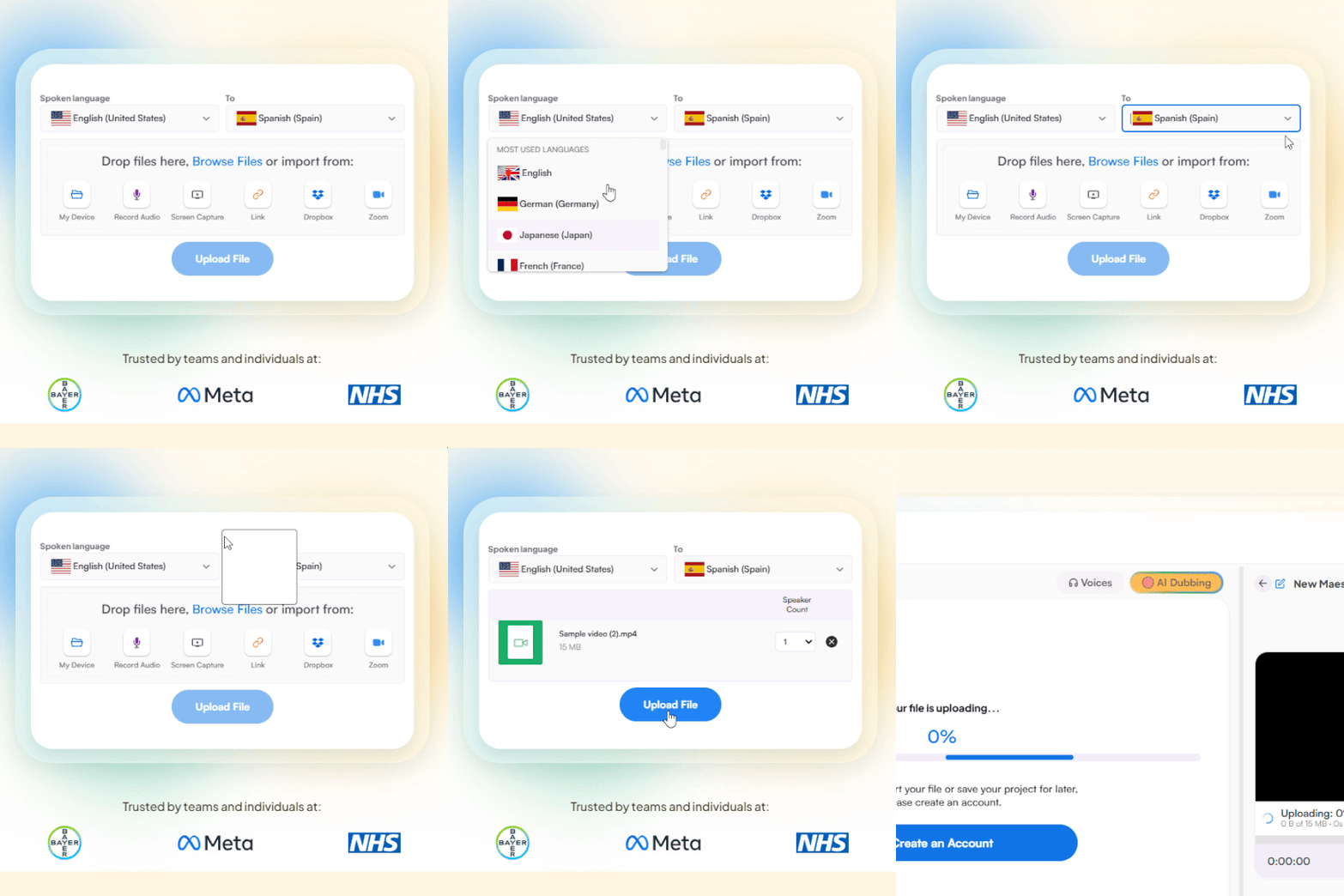
Upload an audio file or import from other platforms. Select English as the source and Japanese as the target language.
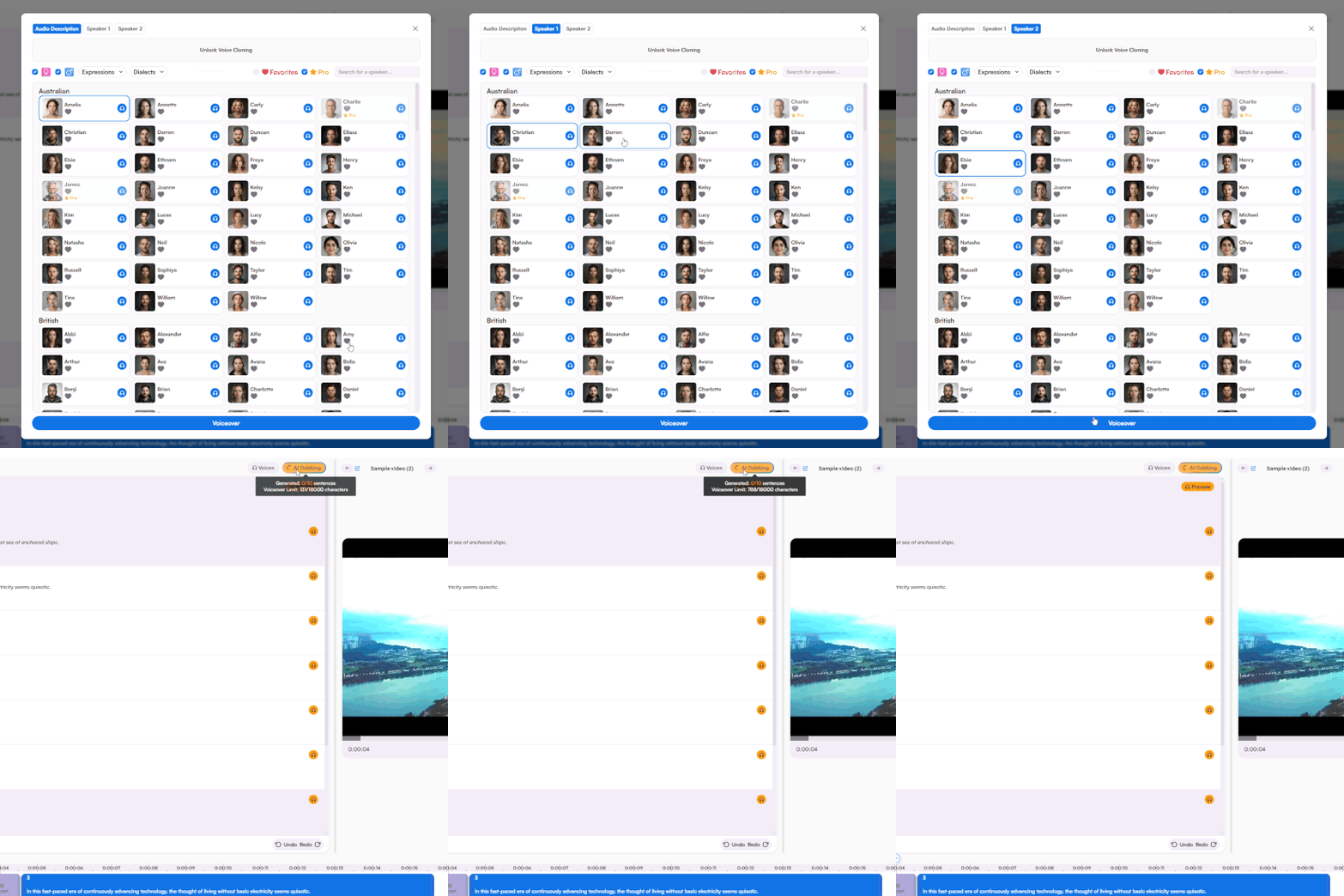
Translate the audio by choosing from a wide range of AI voices, or use voice cloning for a personalized result.
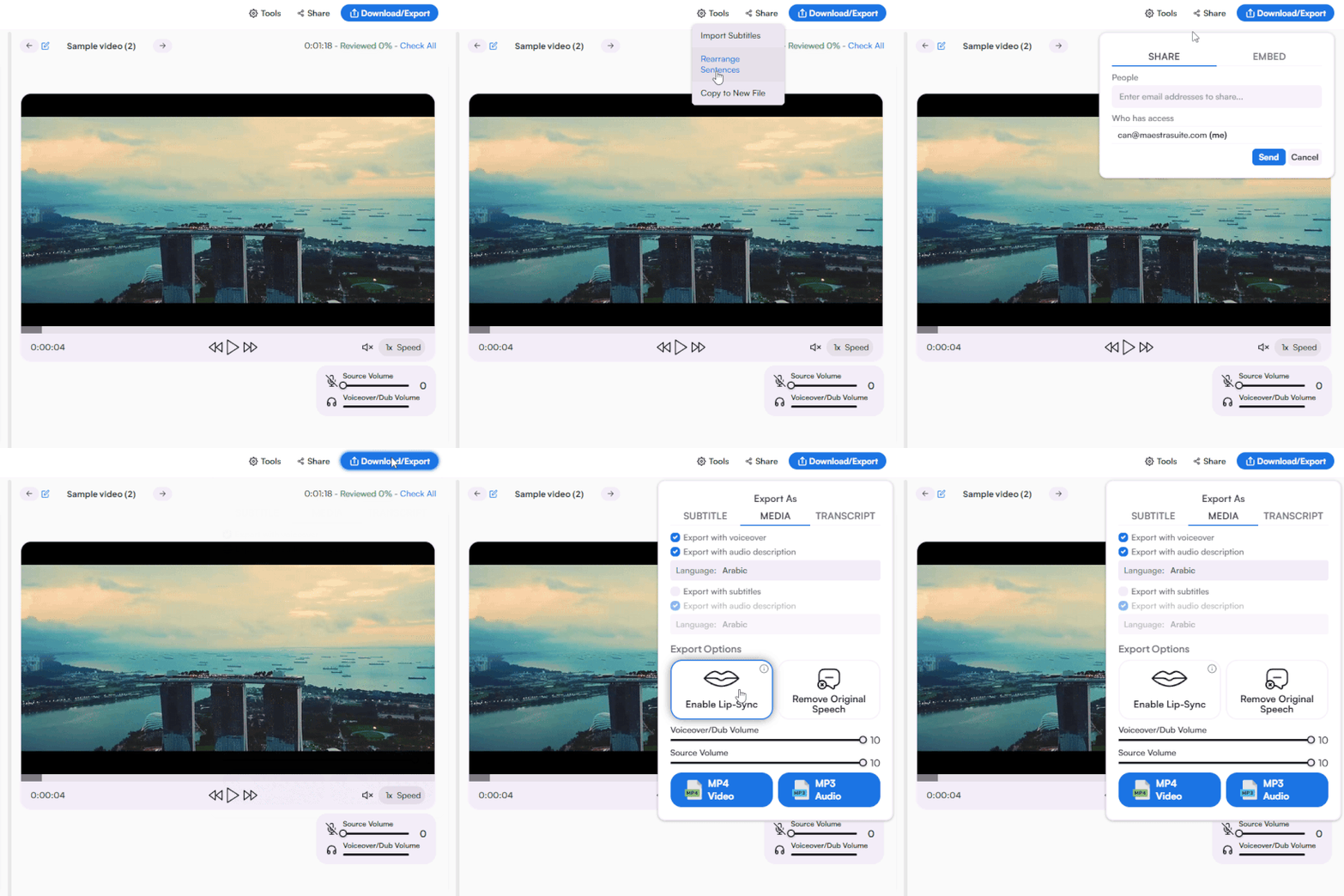
Export the Japanese voiceover as MP3 or MP4, add subtitles and a transcript, and share with others in a click.
.webp)

Yes, you can try the tool for free with no credit card or account required. Test the quality to see if the Japanese voices, accuracy, and editing features meet your needs. If you decide to upgrade, you can explore paid plans tailored for individuals, teams, and businesses of any size.
Upload your English audio file or import it from another platform, then select English as the source and Japanese as the target language. Pick an AI voice or clone your own to generate the Japanese audio. Once it's ready, you can preview the result, edit the transcript to adjust the translated audio, and download the final file.
Yes, you can import audio directly from YouTube and other supported platforms by pasting the link. The tool pulls the audio automatically, so there's no need to download and re-upload files. From there, the translation process is exactly the same as with uploaded files.
Most files are translated in just a few minutes, depending on the length of the audio. Shorter clips finish almost instantly, while longer recordings may take a bit more time.
The audio translator uses advanced AI models like DeepL, OpenAI, and Gemini for context-aware, natural-sounding Japanese. The output captures meaning, tone, and pacing rather than translating word for word. For maximum accuracy, you can add industry-specific terms and brand names to your custom dictionary, so they're translated right every time.
Yes, the translator can detect and separate multiple speakers in a single recording. Each speaker can be assigned a different AI voice for clearer dialogue. This makes it ideal for interviews and podcasts with several participants.
Yes, you can pick from a wide range of AI voices in different tones, genders, and styles. You can also clone your own voice for a fully personalized translation.
Yes, you can adjust the speed of the Japanese voice directly in the editor for a perfect match with your content. You can also choose the right tone or emotion from a wide library of AI voices. Adjustments are applied instantly, so you can preview and refine without delays.
Yes, you can edit the Japanese text directly in the editor and the audio updates automatically. There's also an AI rewriting feature to refine phrasing in a single click. No re-recording or re-uploading is needed.
Yes, every translation comes with a full Japanese transcript with timestamps included. You can download it as a separate file to improve accessibility, boost SEO, or repurpose your content. Subtitles can also be exported in various formats like SRT, VTT, SBV, and more.
You can export your translation as MP3 or MP4, depending on whether you need audio only or audio with video. Subtitles are available as separate files or embedded directly into your video. Transcripts can be downloaded in multiple formats, including DOCX, PDF, TXT, and JSON.
Yes, all uploaded files are encrypted both in transit and at rest to keep your content secure. Your files are never shared with third parties or used to train AI models. For full details, see our privacy policy.
Yes, the audio translator works on both mobile and desktop with the same full feature set. Start a translation on your phone and pick up where you left off on your desktop, or vice versa. Your projects sync automatically across devices.
Yes, with Maestra's real-time online voice translator, you can translate live English conversations into Japanese during meetings, webinars, events, and more. Speak in English and your words are dubbed and captioned in Japanese as you go. It works on both mobile and desktop for any setting.