Chaitanya P.
Managing Director"Master the Media with Maestra"
The best side of this product is auto subtitling. And most importantly, it supports multiple languages.
Read full reviewConvert Japanese text to speech and generate realistic AI voice overs in 60+ voices with
native pitch accent, voice cloning, and instant MP3 export. Free trial, no signup.



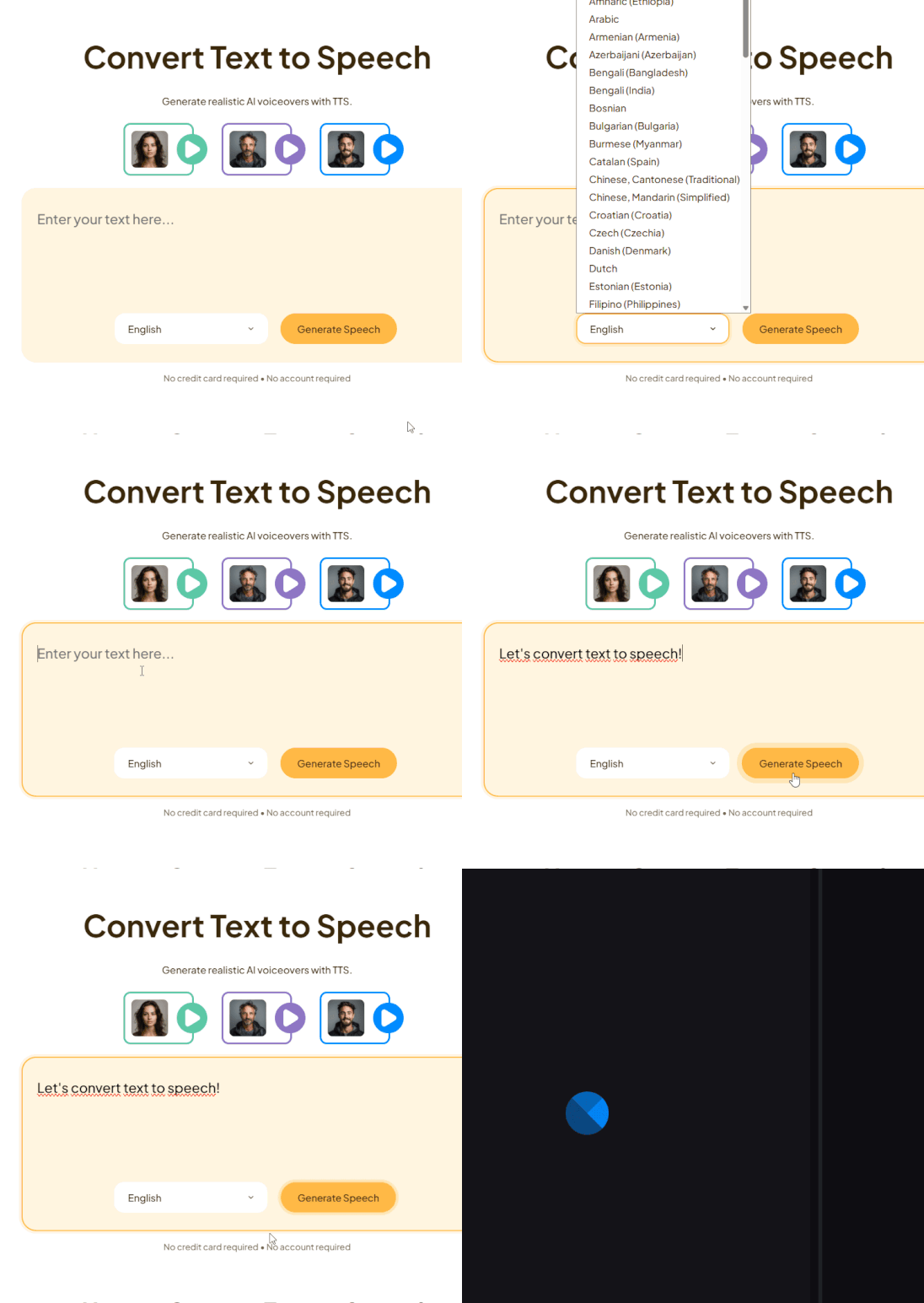
Type or paste your text, then select Japanese from 125+ languages.
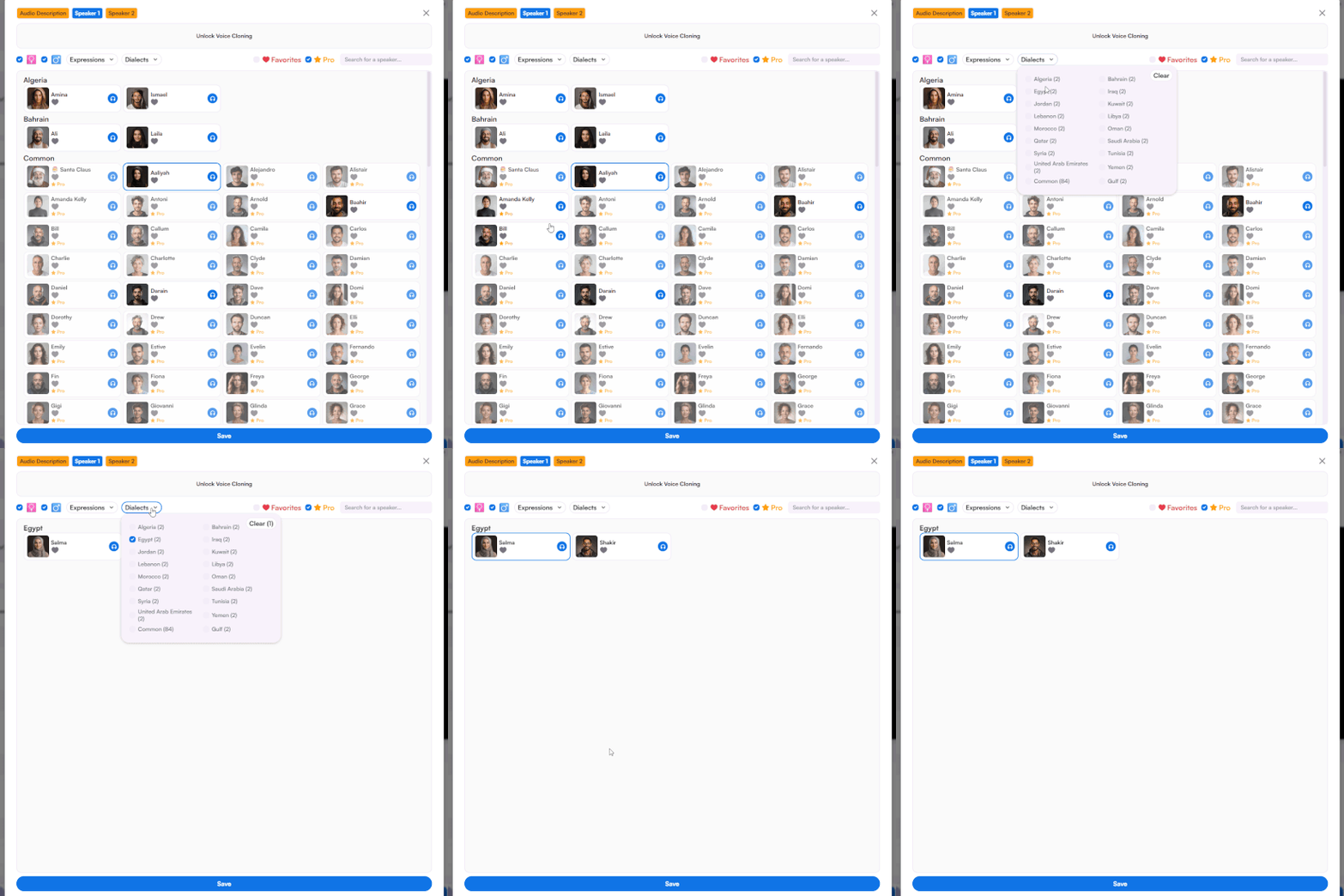
Browse the Japanese AI voices, pick the one that fits your project, and generate Japanese voice over with accurate pitch accent.
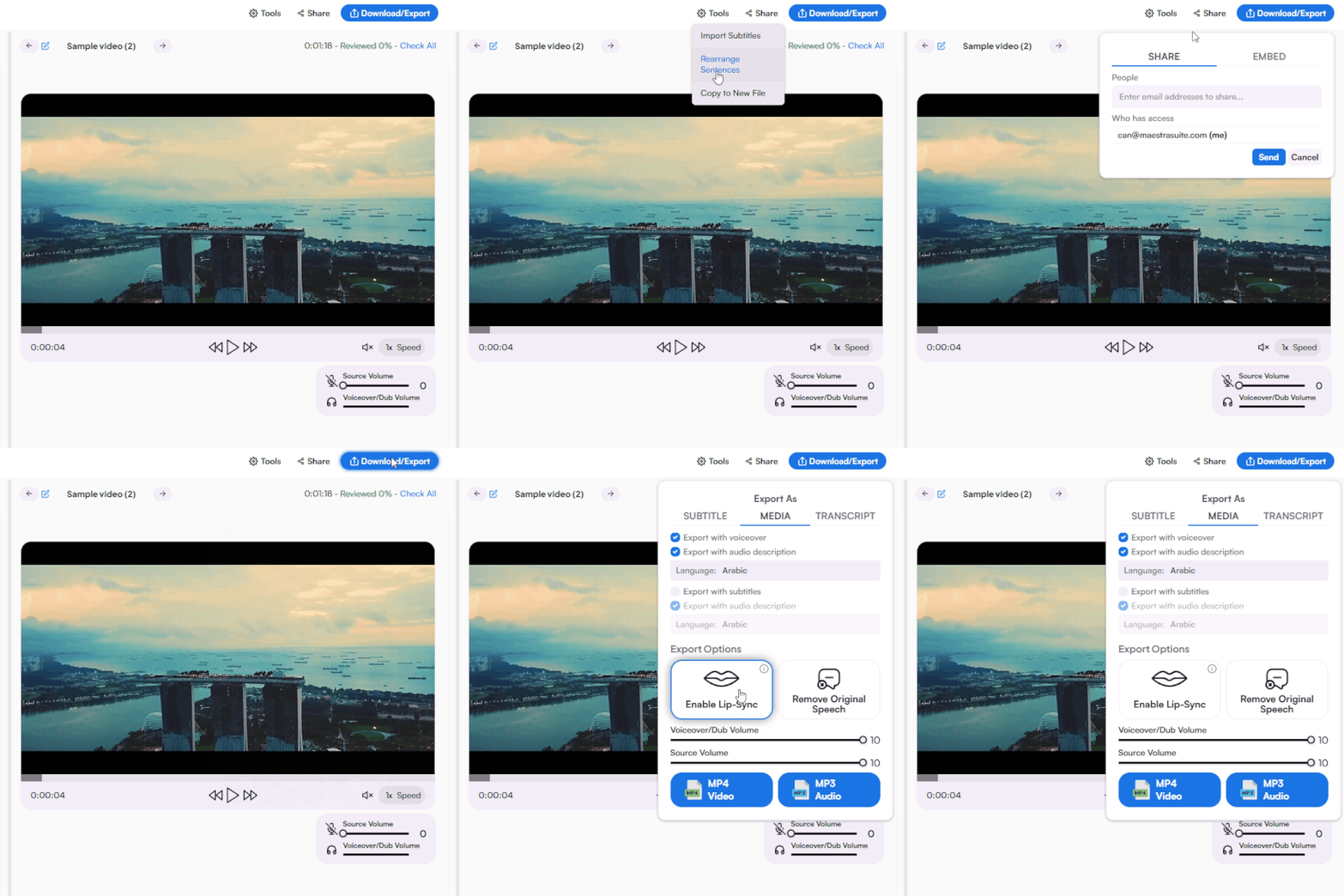
Polish the AI speech, translate into more languages, share to collaborate, or download as MP3 or other formats.
Choose from 61 realistic Japanese AI voices, clone your own in seconds, and fine-tune emotional delivery from cheerful to serious for natural, expressive voiceovers.







Built around how Japanese actually works, from script handling to pitch accent, so your Japanese text to speech fits any audience or content type.
Type or paste your text, select Japanese, pick one of 61 AI voices, and generate. Edit if needed, then download your Japanese text to speech audio.
Yes. You can try Maestra's Japanese text to speech free, no credit card required.
Yes. Audio generated on paid plans can be used commercially across YouTube videos, ads, e-learning courses, podcasts, and client work. Because the voices are fully synthetic, there are no voice actor booking fees or per-use royalties to manage.
Yes. You can convert long scripts, articles, and full documents into Japanese speech in a single file, which makes it practical for audiobooks, lectures, and long-form narration.
Open the Japanese text to speech tool, enter your text, pick a voice, and generate. There is nothing to download or install.
Yes. Our Japanese AI voices work well for anime, VTuber, and game character voiceovers, with a range of tones that fit both energetic and calm character styles. It is a fast way to prototype character dialogue or produce full scenes without hiring separate voice talent.
Yes. The voices are generated with natural pitch accent, which is what makes Japanese sound authentic rather than flat or robotic. Correct pitch accent helps listeners understand meaning clearly, since the same kana can carry different meanings depending on intonation.
Yes. You can generate Japanese voice overs for video, YouTube, presentations, and ads directly from your text, then export the audio to drop into your editing timeline.
Yes. You can type in kanji, hiragana, or katakana and the Japanese text to speech reads each script accurately in context.
You can download your Japanese audio as MP3, or as an MP4 video file. You can also export subtitles in popular formats, plus full transcripts as TXT, DOCX, PDF, or JSON, which makes it easy to repurpose one project into audio, video, captions, and text.
Yes. With Japanese voice cloning you can recreate your own voice and have it speak Japanese, which is useful for keeping a consistent brand or creator voice across languages.
Yes. You can translate your Japanese text to speech into 125+ languages within the same tool, which makes it easy to localize one piece of content for a global audience.
Yes. Maestra's Japanese TTS runs in any modern browser on both desktop and mobile, with no app download required, so you can generate or edit audio from anywhere.