Subtitle Importing & Translation
Getting Started
- Account Creation
Uploading Files to Cloud
- Upload to Subtitle
- Upload to Transcribe
- Upload to Voiceover
Advanced Editing
- Subtitle Editor
- Timeline Tool
- Transcription Editor
- Voiceover Editor
Translating Videos
- How to Translate Videos with Maestra
Maestra's Tools
- Collaborate Through Maestra Teams
- Create and Share a Session
- Custom Dictionary
- Embed Player
- Real Time Voiceover
- Real-Time Extension
- Voice Cloning
- Web Captioner
Integrations
- Slack Notifications
- TikTok Ads Manager
- YouTube Subtitling
- Zapier Integration
- Zoom Transcription
Your Data
- Privacy & Data
Maestra supports many subtitling formats and allows users to directly import existing subtitle files.
Importing Subtitle Files
You can import subtitles in various ways.
- You can drag the subtitle file into the dropzone on any of our subtitling pages.
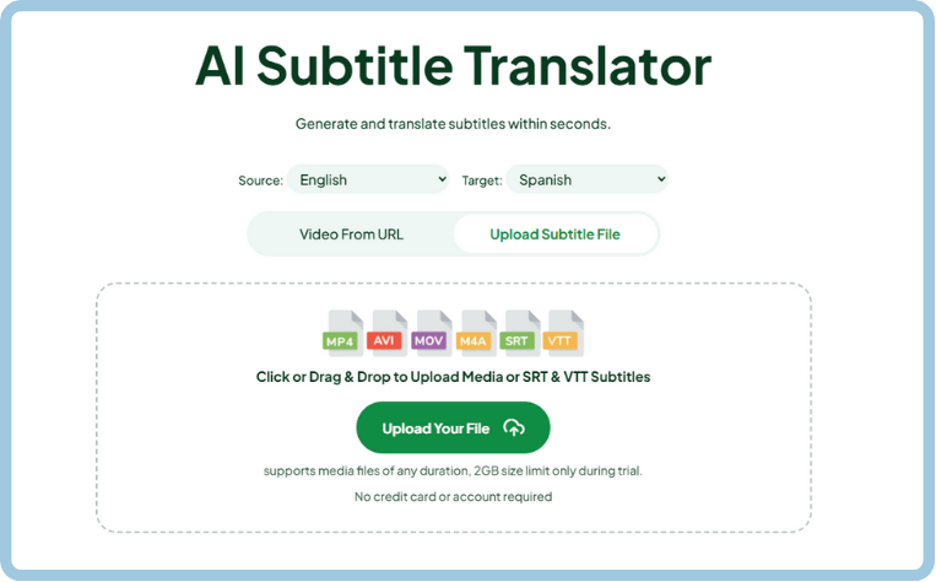
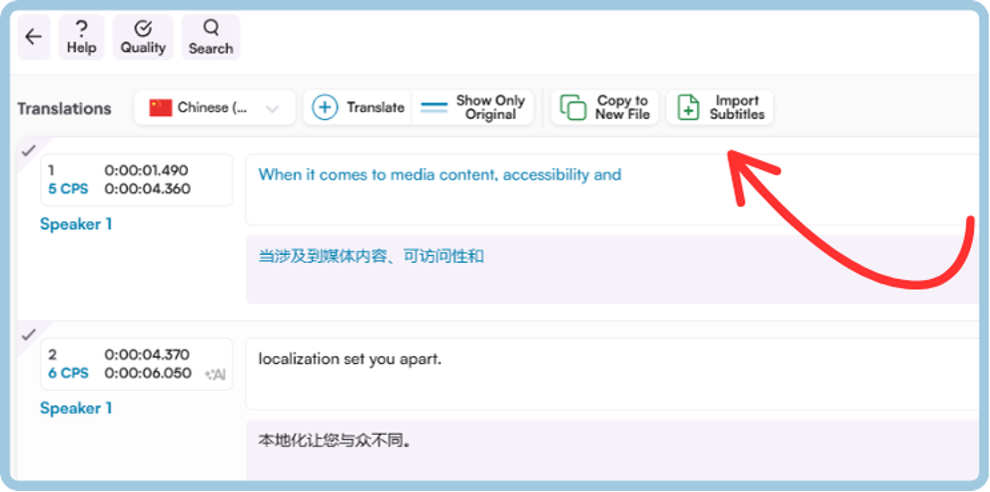
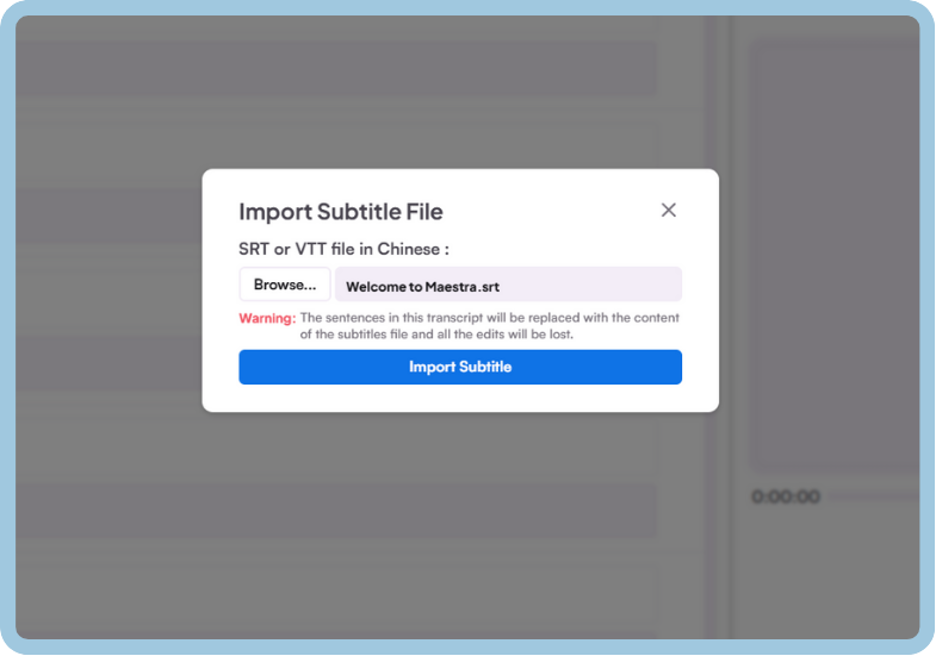
- Click "Import Subtitles" on the subtitle editor.
Imported subtitles will replace the existing subtitles on that editor window.
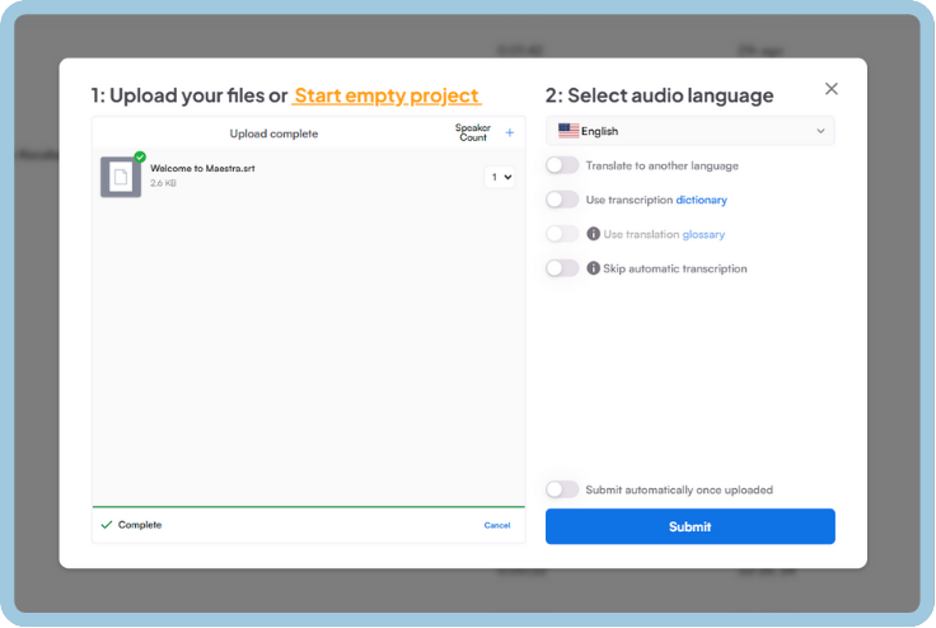
- Click "New Subtitle" on the upper right side of the dashboard and upload the subtitle file.
Translating Subtitles
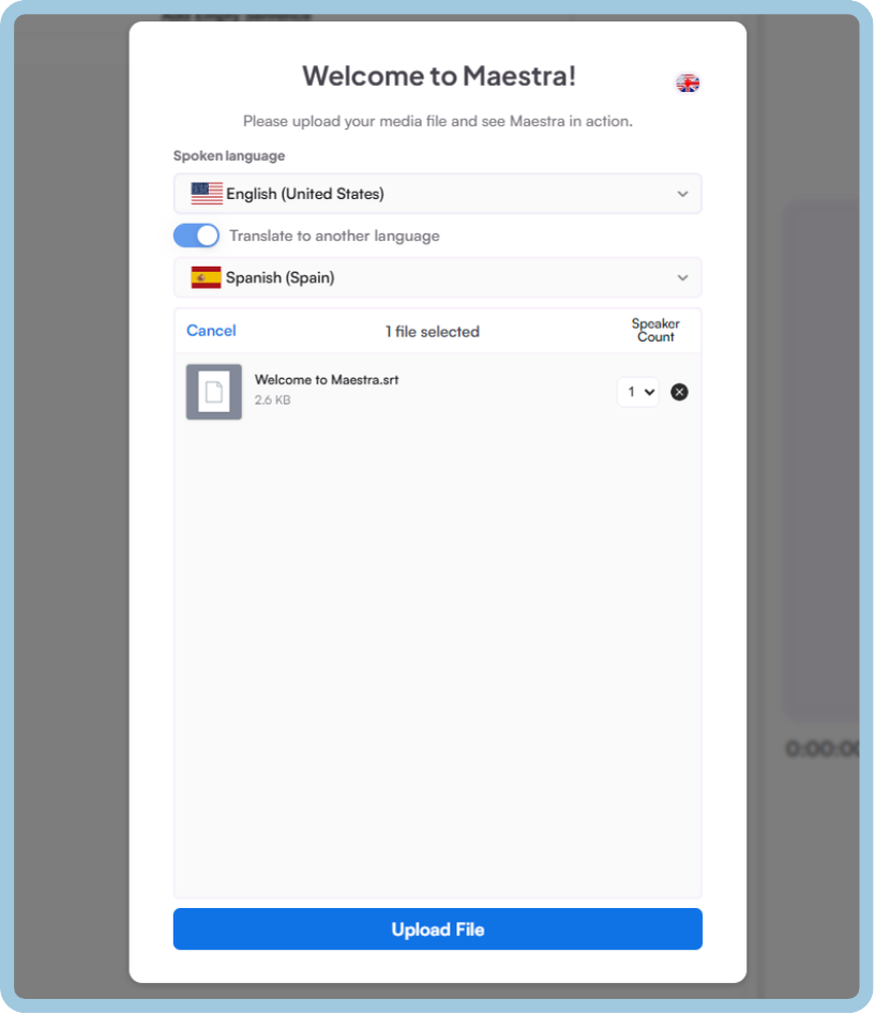
Once you import subtitles using any of the methods above, you can enable “Translate to another language” on the upload screen and choose the translation language.
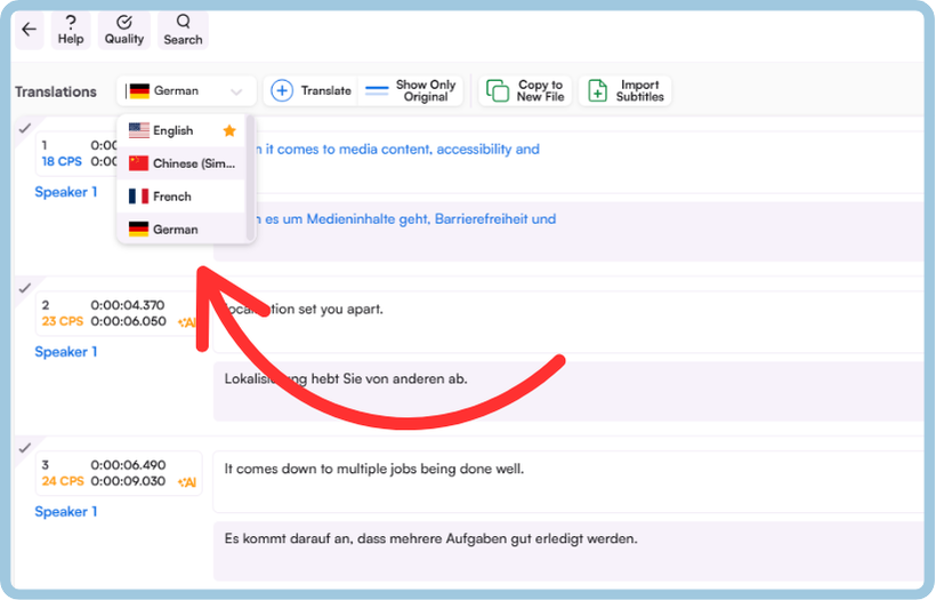
You can always translate to additional languages and edit multiple translations on the same editor window.
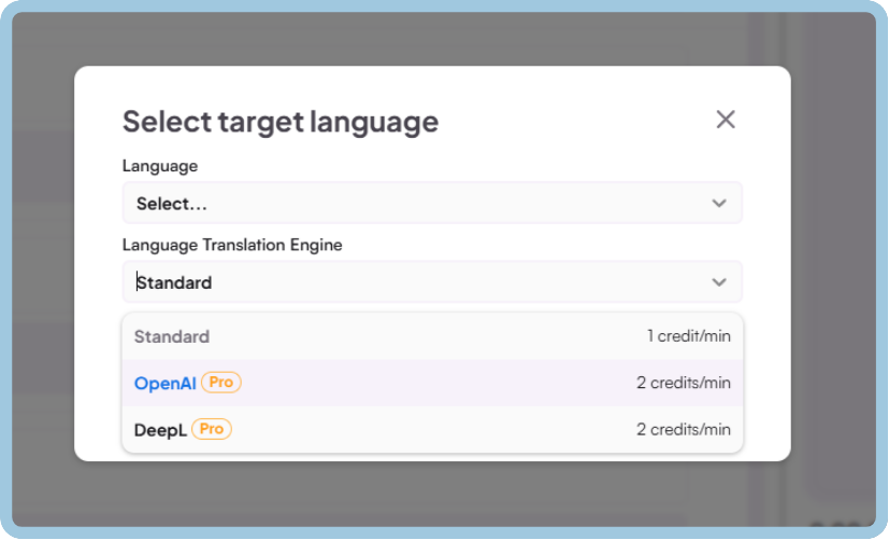
Maestra also supports different translation models, including OpenAI and DeepL for superior accuracy.
For further information, please contact support@maestra.ai or check out our other help guides.