9 Best Voice to Text Apps for iPhone, Android, PC & Mac (Free & Paid)
Typing is no longer the fastest way to get words onto a screen. Whether you're capturing a thought while walking, drafting an article, or following a meeting without scribbling notes, the best voice to text apps now turn speech into clean, usable text in seconds. The category has also changed: alongside the familiar built-in dictation tools, a new generation of AI-powered apps can punctuate, format, and even polish what you say as you say it.
To find out which ones actually deliver, I tested each app in this list myself on real tasks. Every section below follows the same structure: who the tool is best for, where it falls short, what I found when I tested it, what users on reputable platforms say, and what it really costs.
First, here's the shortlist at a glance:


Each of these earned its place for a different job. Here's how they break down by use case in three main categories.
TL;DR: Best Voice to Text Apps at a Glance
Everyday use: Gboard Voice Typing, Apple Dictation, Speechnotes
Meetings, events, and lectures: Maestra, Otter, ScreenApp
Long-form writing and dictation: Google Docs Voice Typing, Wispr Flow, Superwhisper
| Voice to Text App | Best For | Platform Availability | Languages | Unlimited Free Use |
| Gboard Voice Typing | Quick everyday dictation on Android | Android (native); iOS via app | Dozens (exact number varies by device and OS) | ✅ |
| Apple Dictation | Quick, private dictation on Apple devices | iPhone, iPad, Mac (built-in) | 30+ | ✅ |
| Speechnotes | Long, uninterrupted dictation sessions | Web, Android | Dozens (dependent on Google speech engine availability) | ✅ |
| Maestra | Sharing real-time captions with an audience | Web, Chrome extension | 125+ | ✅ (live transcription) |
| Otter | Automated meeting notes and summaries | Web, iOS, Android, Mac, Windows, Chrome extension | 6 | ❌ |
| ScreenApp | Transcribing lectures and presentations with visuals | Web, iOS, Android, Mac, Windows, Chrome extension | 100+ | ❌ |
| Google Docs Voice Typing | Drafting long documents for free | Web | 100+ | ✅ |
| Wispr Flow | Turning speech into polished writing in any app | Mac, Windows, iPhone, Android | 100+ | ❌ |
| Superwhisper | Private, on-device dictation | Mac, Windows, iOS | 100+ | ✅ |
Before we get to the individual reviews, a quick word on how this list was put together.
How I Tested Best Voice to Text Apps
Every one of these speech to text programs was tested personally, using free plans and trials, the same way most readers would first try them.
Various tasks included:
- Dictating a book excerpt aloud to measure accuracy and punctuation handling
- Running a simulated multi-participant meeting to test transcription and speaker identification
- Recording a full presentation to evaluate transcripts, summaries, and AI features
- Using live captioning and translation at an event with attendees from different countries
- Dictating across everyday apps
Each "How I've tested it" section reports what actually happened, including the errors: mislabeled speakers, missed topics, capitalization slips, and lag. Meanwhile, user review summaries draw on recurring themes from platforms like the App Store, Google Play, G2, Capterra, and Product Hunt.
With that covered, let's start with the everyday voice to text tools.
Best Voice to Text Apps for Everyday Use
These voice to text apps are designed for speed and convenience rather than advanced features. They're great for sending messages, jotting down notes, or dictating text without setting up a dedicated tool.
Gboard Voice Typing: Best for Quick Everyday Dictation on Android
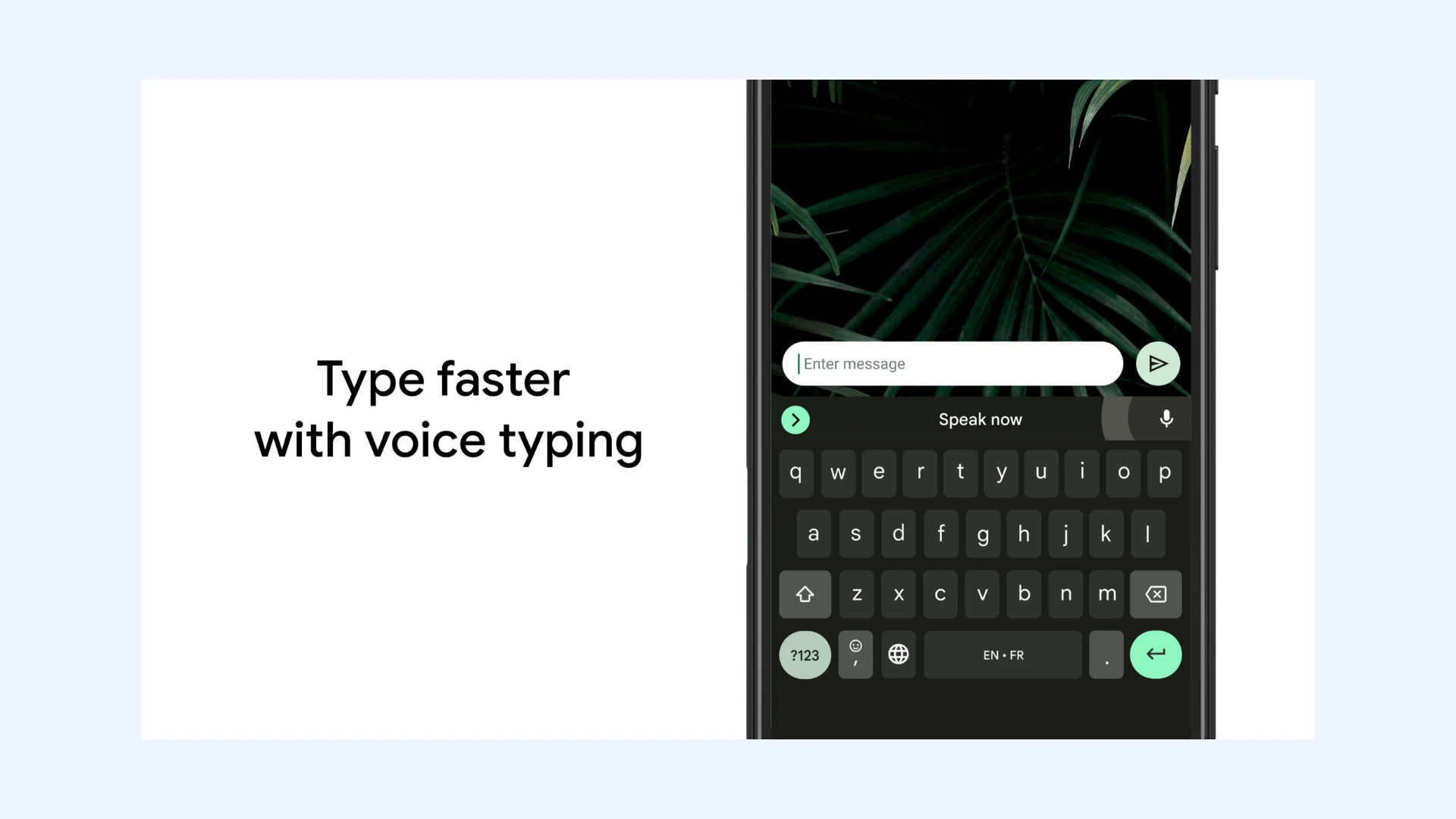
What makes it special: Gboard Voice Typing is built directly into the keyboard of most Android devices, so voice to text is always one tap away in any app. There is nothing to install, configure, or open separately.
Not ideal for: Long-form drafting or technical dictation. Its most capable features, including automatic punctuation and voice editing commands, are limited to Pixel 6 and later devices.
Gboard Voice Typing turns your smartphone keyboard into a dictation tool. Tap the microphone icon, and spoken words are converted into text in real time. It's ideal for quick notes, short messages, or drafting emails on the go without opening a separate app.
Key features:
- Real-time voice to text in any text field (messages, email, notes)
- Multiple language support with easy switching via keyboard settings
- Advanced voice typing on Pixel 6 and later, with automatic punctuation and voice commands like "delete" or "clear"
Pros
- Handles casual, conversational speech well
- Performs well in noisy environments thanks to Google’s noise-handling optimization
- Supports emoji by voice (e.g., “smiling face with heart eyes”), which is surprisingly useful for messaging
Cons
- Struggles during long dictation sessions with occasional pauses or misfires
- Inconsistent formatting control (capitalization and line breaks often need manual correction)
- Depends on a stable connection on most devices, with noticeable lag on weak signal
How I've tested it: As an iPhone user, I tested Gboard by downloading the app from the App Store and adding the keyboard through Settings, since it's not the default dictation engine on iOS. After that initial setup, everything was simple: one tap on the keyboard's microphone and dictation starts. Accuracy was high for everyday input, though the experience stays basic rather than advanced. I also appreciated the multi-language support, since I regularly switch between English and Turkish.
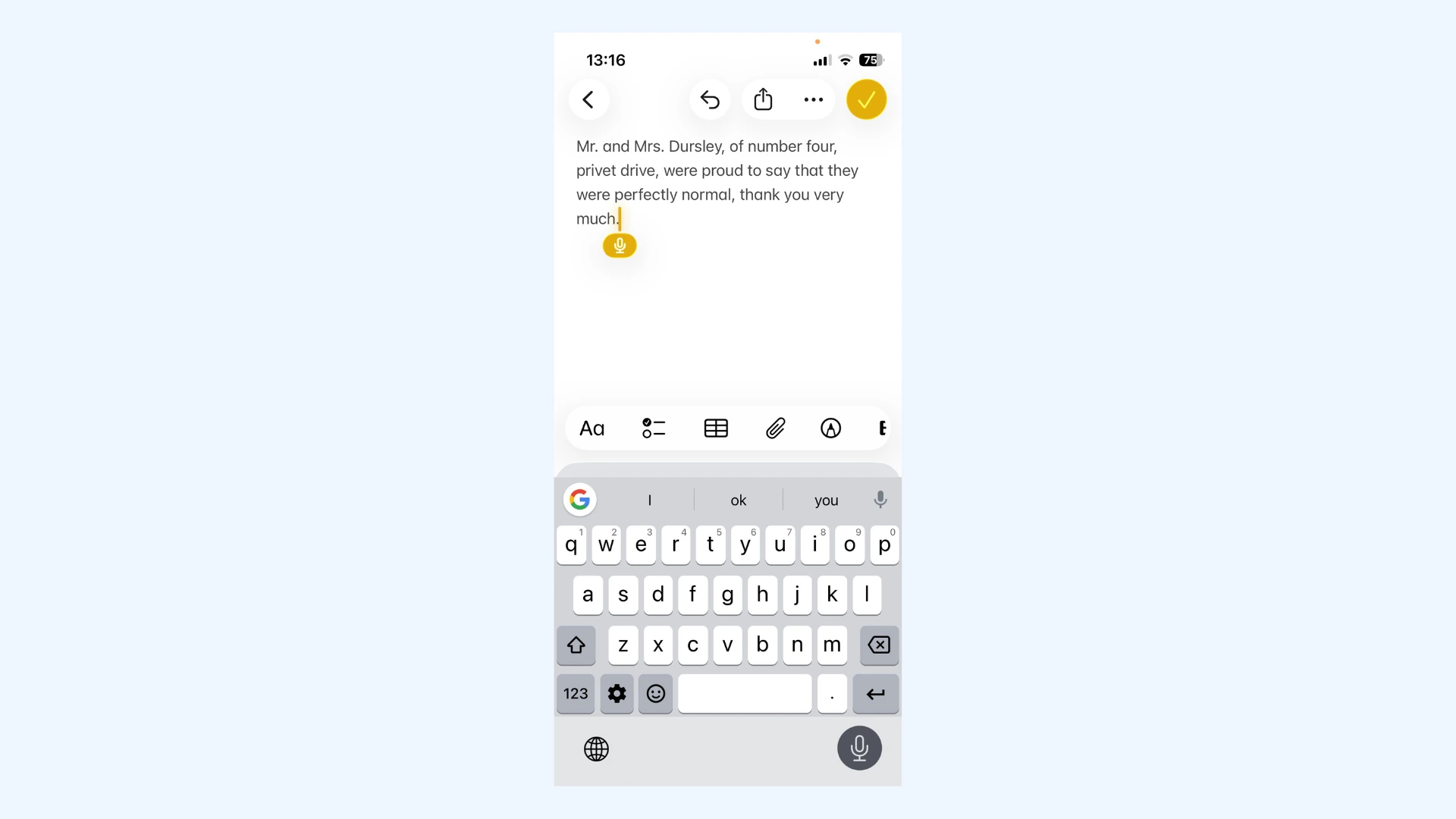
Final verdict: Gboard Voice Typing is the go-to path on Android, since it's already part of the keyboard. The main drawback is punctuation: unless you're on a recent Pixel, you'll need to speak it out loud or add it manually afterwards. Still, for the dozens of short voice inputs most people make in a day, its convenience is hard to beat.
User reviews: Play Store reviewers consistently praise how effortless voice input feels when it's built into the keyboard they already use. The most common criticisms target voice recognition accuracy, with some long-time users reporting a decline since Google moved dictation to its in-house engine, along with lag when the connection is weak.
Pricing: Free.
Apple Dictation: Best for Quick, Private Dictation on Apple Devices
What makes it special: Apple Dictation is built directly into iOS, iPadOS, and macOS, offering fast voice to text with strong on-device processing. On newer Apple chips, your audio never has to leave the device.
Not ideal for: Long writing sessions. Dictation stops automatically after around 30 seconds of silence with no way to extend it.
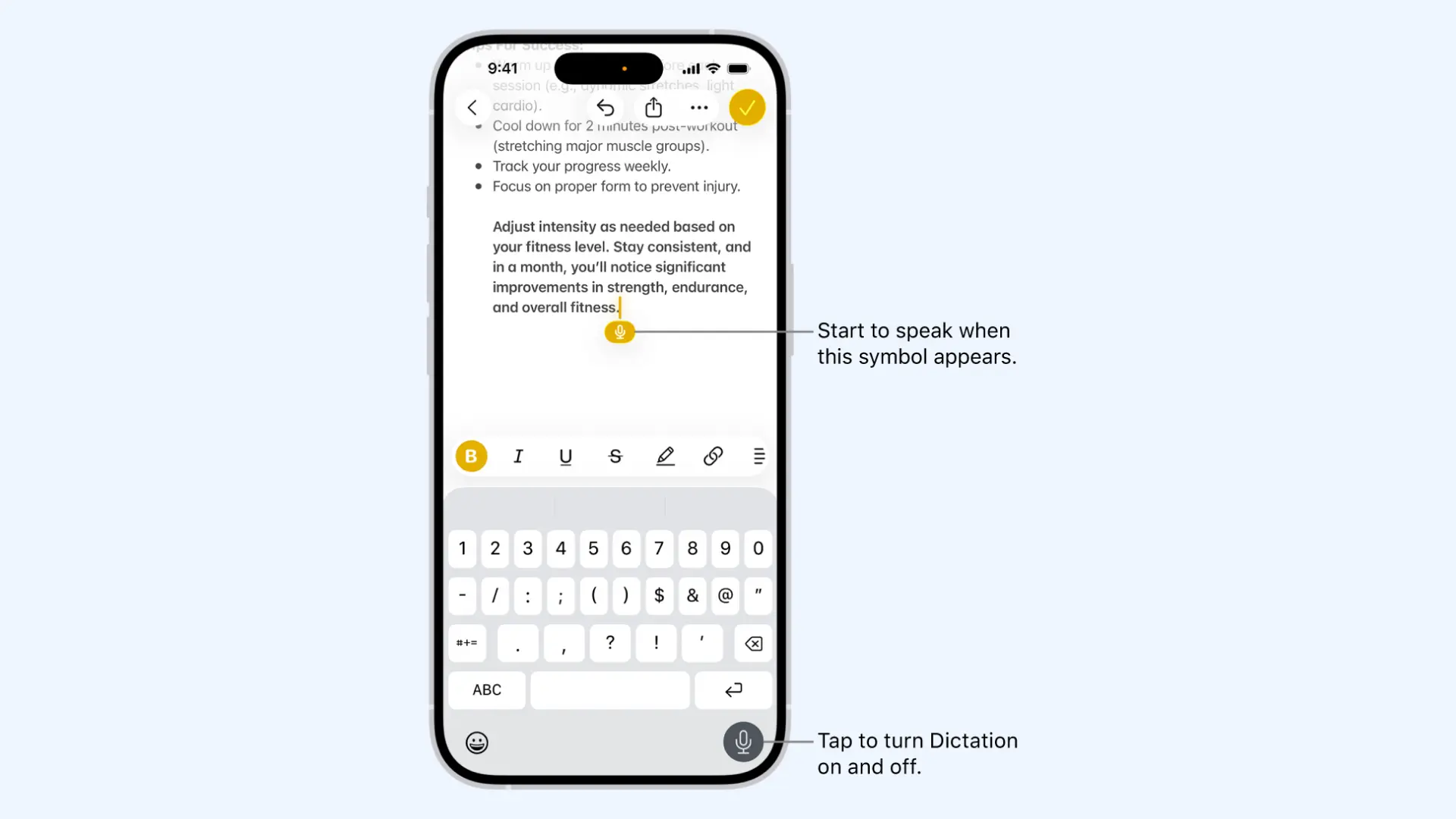
Apple Dictation lets you convert speech into text anywhere your Apple keyboard appears. Recognition is fast and responsive, and the microphone icon sits right on your keyboard, ready whenever you need it.
Key features:
- On-device dictation with fast processing on supported devices
- System-wide availability in any app that uses the Apple keyboard
- Automatic punctuation in supported languages and regions
Pros
- Handles mixed-language input well (especially for bilingual users)
- Recognizes contacts and proper nouns more accurately due to system integration
- Offers offline dictation for supported languages
Cons
- Struggles with technical or highly specialized vocabulary (medical, engineering, etc.)
- Struggles with background noise (particularly compared to Google’s engine)
- Few voice editing commands (so fixing mistakes usually means going back to the keyboard)
How I've tested it: Since Apple Dictation is already built into my iPhone, there was nothing to download or set up. I particularly rely on it for quick, interruption-free messaging and note taking, especially when I'm walking or commuting and don't want to stop to type.
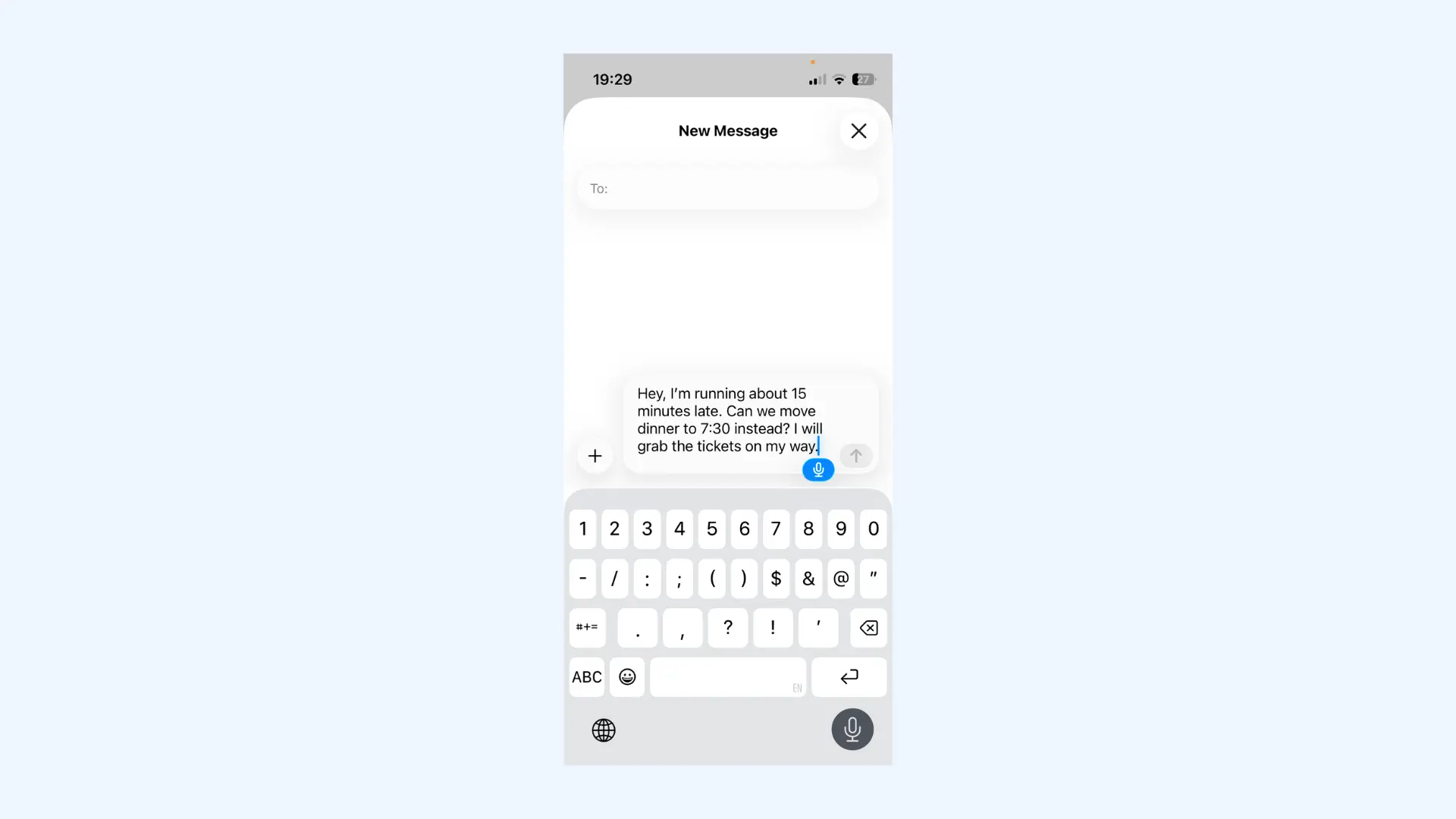
Final verdict: Apple Dictation is free, private, and always one tap away, and the automatic basic punctuation is a nice touch. That said, accuracy isn't flawless: sometimes even basic wording needs a manual edit afterwards. For messages, reminders, and short notes, though, it's more than enough.
User reviews: Sentiment across Apple's own support communities is consistent. Users appreciate that it's free, private, and available everywhere, while the most common frustrations are the silence timeout and correctly dictated words changing after the automatic correction pass. Users who dictate specialized vocabulary also note it repeats the same mistakes since it doesn't learn from edits.
Pricing: Free.
How to Transcribe Voice Memos to Text: 3 Methods I Tested
Speechnotes: Best for Long, Uninterrupted Dictation Sessions
What makes it special: Speechnotes is a lightweight, continuous voice to text app designed for long and uninterrupted voice input. Unlike mobile dictation tools that time out quickly, it keeps listening for as long as you keep talking.
Not ideal for: Meetings and interviews. Speechnotes is built for a single speaker, with no multi-speaker differentiation.
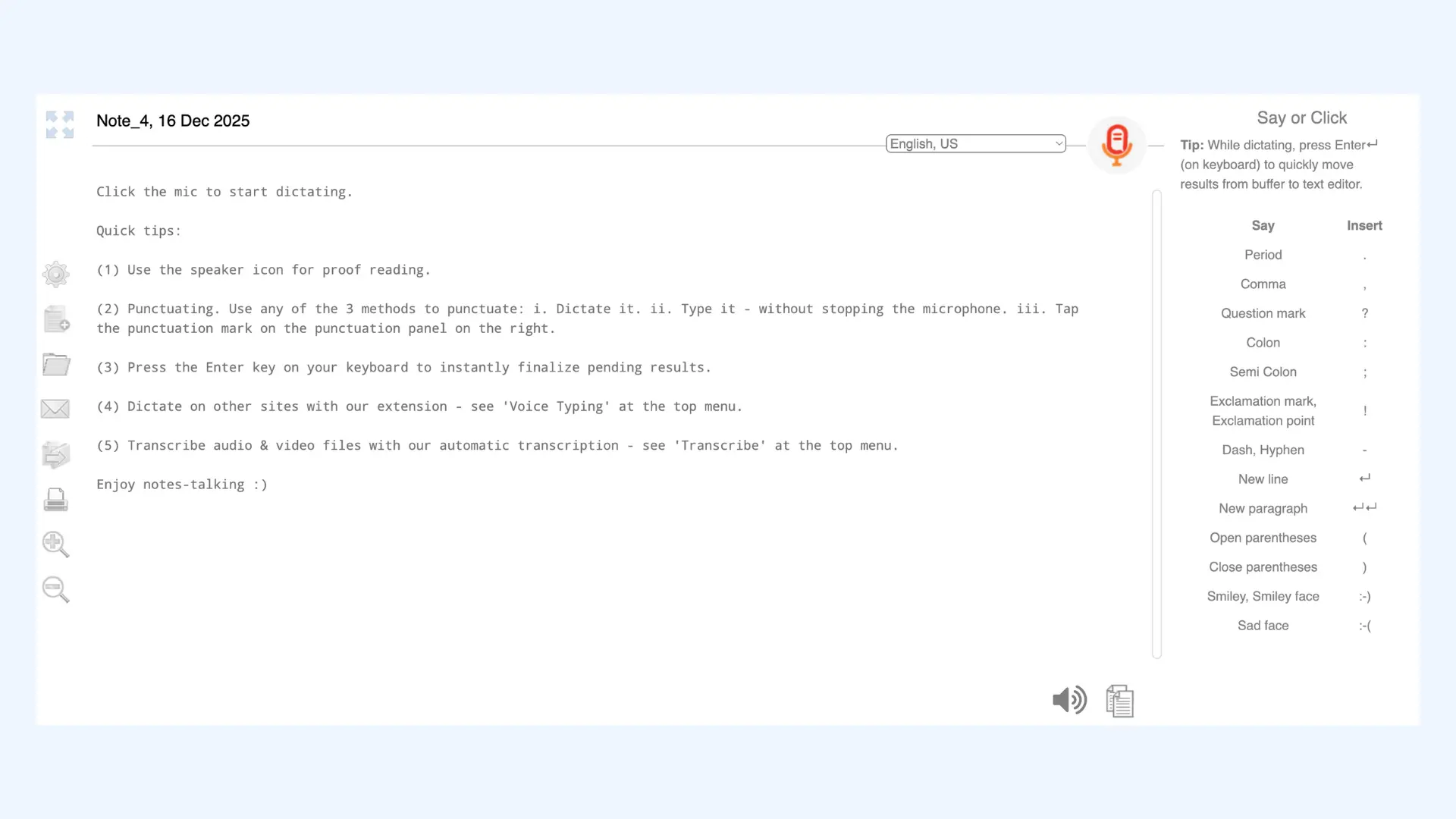
As one of the best voice to text apps, Speechnotes provides a distraction-free dictation experience optimized for extended speech. Its minimalist interface lets you start dictating immediately, with no registration or setup, and every note opens on a clean blank page. Plus, it uses Google's speech recognition engine to deliver high accuracy.
Key features:
- Continuous dictation with no automatic cutoff during long sessions
- Custom voice commands for punctuation and formatting
- Easy export to email, cloud drives, and text editors
Pros
- No account or signup required for the browser version
- Lets you type and dictate at the same time without switching the mic off
- Saves drafts automatically, preventing accidental loss of long recordings
Cons
- Limited organizational tools for managing large collections of notes
- Banner ads in the free version can be distracting
- No dedicated iOS app, so iPhone users are limited to the browser version
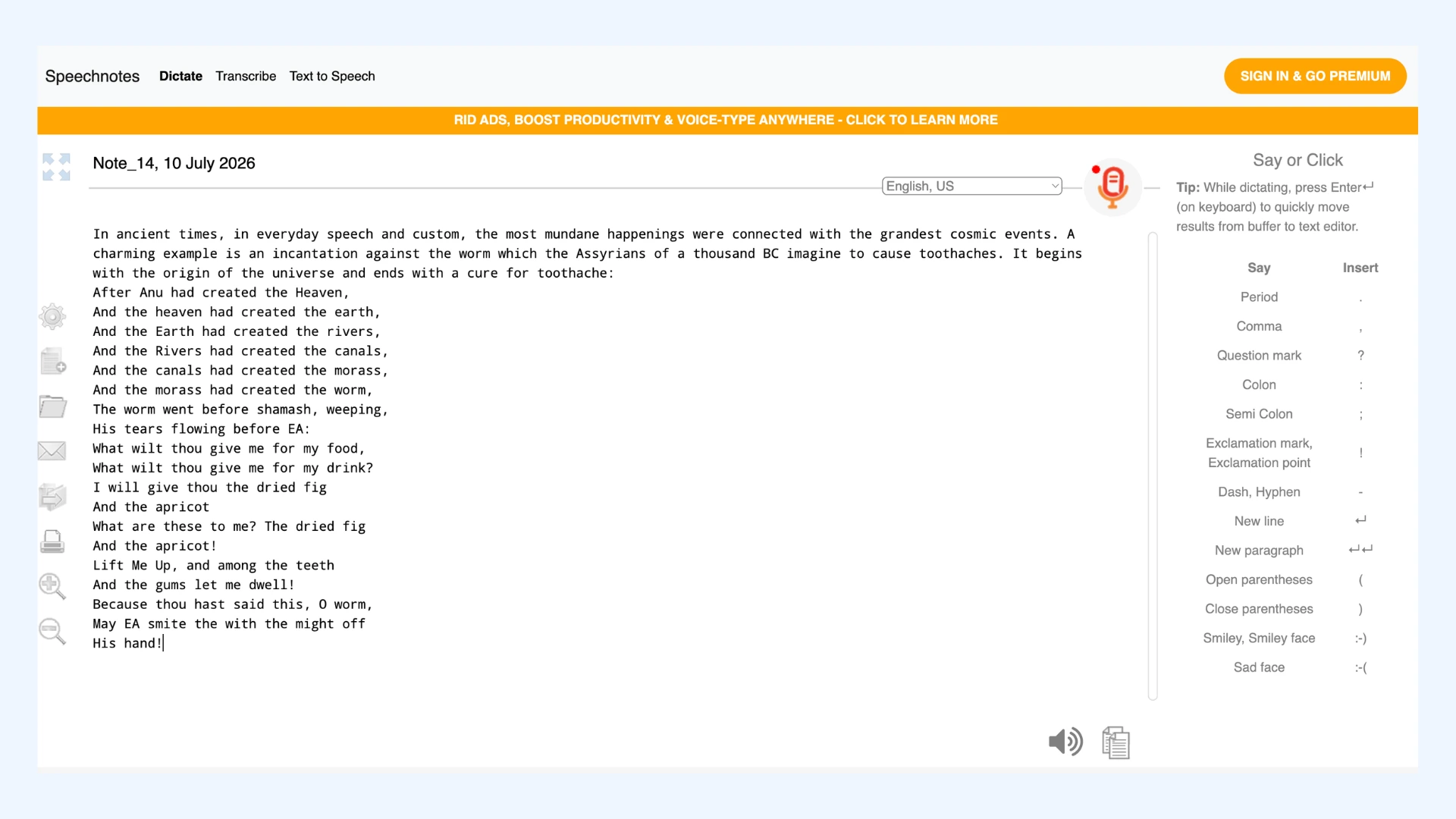
How I've tested it: I tried the free browser version by reading a book excerpt aloud. The big pluses are how easy the tool is to access and that it's free; you just open the site and start dictating. The interface is simple, though a bit old school. Accuracy is not flawless but manageable, and it got specialized terminology right for the most part. Punctuation isn't automatic; you either say voice commands like "period" or "comma" as you speak, or type it in manually.
Final verdict: Speechnotes does one thing and does it well: it keeps up with you for as long as you keep talking. For drafting multi-paragraph content by voice without interruptions, it's one of the most convenient free options available. Another plus is that you can send your text straight to Google Drive once you're done dictating.
User reviews: Play Store reviewers frequently describe using Speechnotes to capture thoughts while walking or driving, praising how reliably it saves everything automatically. The most common complaints are the banner ads in the free version and the limited note management, since only one note can be open at a time.
- Free version: Includes the online dictation notepad and the Voice Typing Chrome extension
- Premium: $1.9/month (billed once for a full year with no auto-renewal)
- File transcription service: $0.1/minute, pay-as-you-go
Best Voice to Text Apps for Meetings, Events & Lectures
Apps in this category focus on multi-speaker environments and real-time accessibility. They’re best suited for meetings, classes, presentations, and events where multiple people need to follow along as someone speaks.
Maestra: Best for Sharing Real-Time Captions with an Audience
What makes it special: Maestra offers one of the most versatile live voice to text experiences available today. It allows you to share real-time captions (and translations) with your audience via a simple link or QR code, letting everyone follow along on their own devices.
Not ideal for: Offline events. Maestra runs entirely in the browser and needs a stable internet connection throughout, with no offline mode as a fallback.
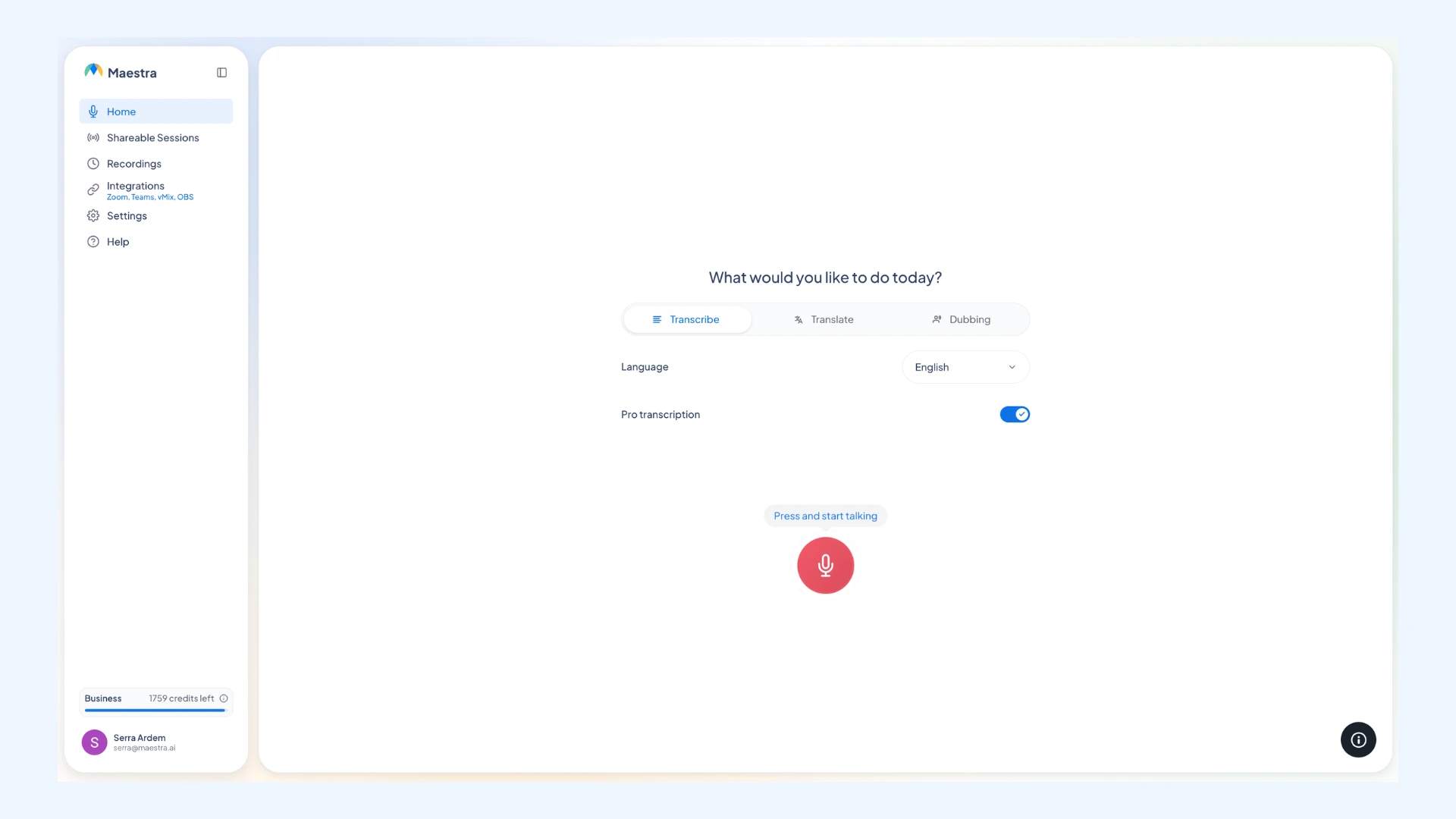
Maestra is built for moments when the words need to reach more than one screen: lectures, services, conferences, and meetings. You open the live transcription app, generate a QR code, and everyone in the room (or on the call) gets real-time captions on their own devices. Sessions can also run with multiple source and target languages at once, so multilingual audiences can each read the captions in the language they understand best.
Key features:
- Free real-time captioning directly in the browser
- Live translation with options for both caption and voice output
- Integrations with OBS, vMix, Zoom, and Microsoft Teams
Pros
- Offers unlimited real-time captioning for free
- Customizable appearances (fonts, colors, etc.) to match your branding
- Pro mode with custom glossary, speaker identification, transcript saving, and AI summaries
Cons
- Live translation, sharing sessions with an audience, and Pro features require a paid plan
- Free sessions don't store transcripts afterwards (saving them is a Pro feature)
- Caption quality depends on your microphone and room audio setup, so events need a quick sound check
How I've tested it: I used Maestra's real-time audio transcription app at an event with attendees from different countries, which meant setting up several source and target languages so everyone could follow along in their own language. The live voice to voice translation stayed smooth with minimal delay, and the captions accompanying it were easily readable.
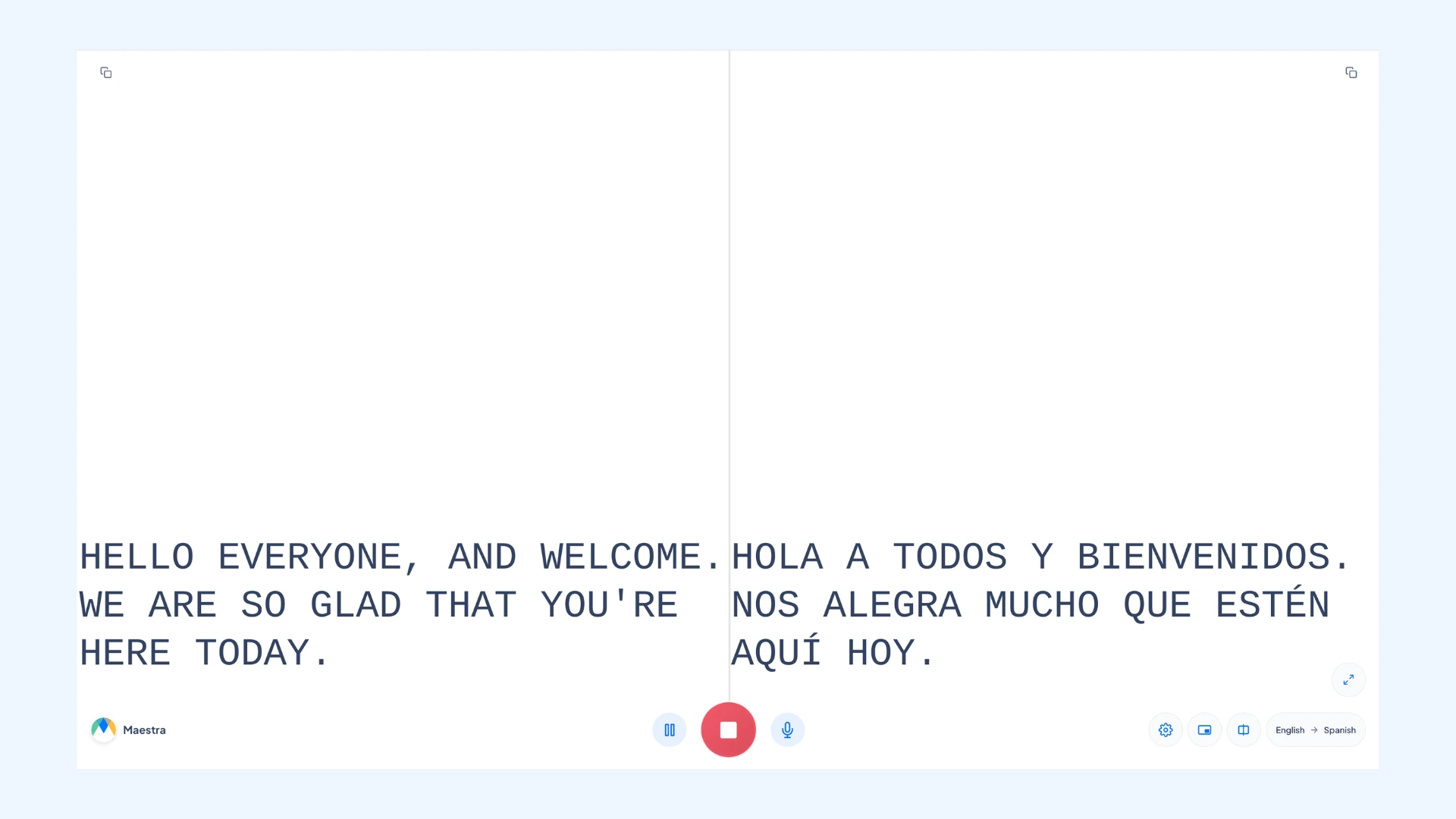
Final verdict: Maestra wins on convenience. The interface is simple and distraction-free, so the captions never pull attention away from the event itself. Voice cloning is one of the standout features, keeping the speaker's own voice in translated audio, and language coverage extends to less popular languages that some other tools skip. Just plan for the paid tiers if your events need translation or saved transcripts.
User reviews: On Trustpilot, the most detailed feedback comes from live-event use: a church running captions and real-time Spanish-English translation praised the accuracy even with liturgical language and noted the platform improves continuously based on user feedback. G2 reviewers echo the multilingual accuracy and consistently highlight responsive customer support. Meanwhile, a reviewer found live translation through the Chrome extension slower than expected.
- 100% free live voice to text
- Free trial for live translation available
- Paid plans (yearly billing): Basic at $39/month with 360 caption minutes, Premium at $79/month adds real-time translation, Business at $159/month adds real-time dubbing
- Custom enterprise pricing
Convert Voice to Text Live
Otter: Best for Automated Meeting Notes and Summaries
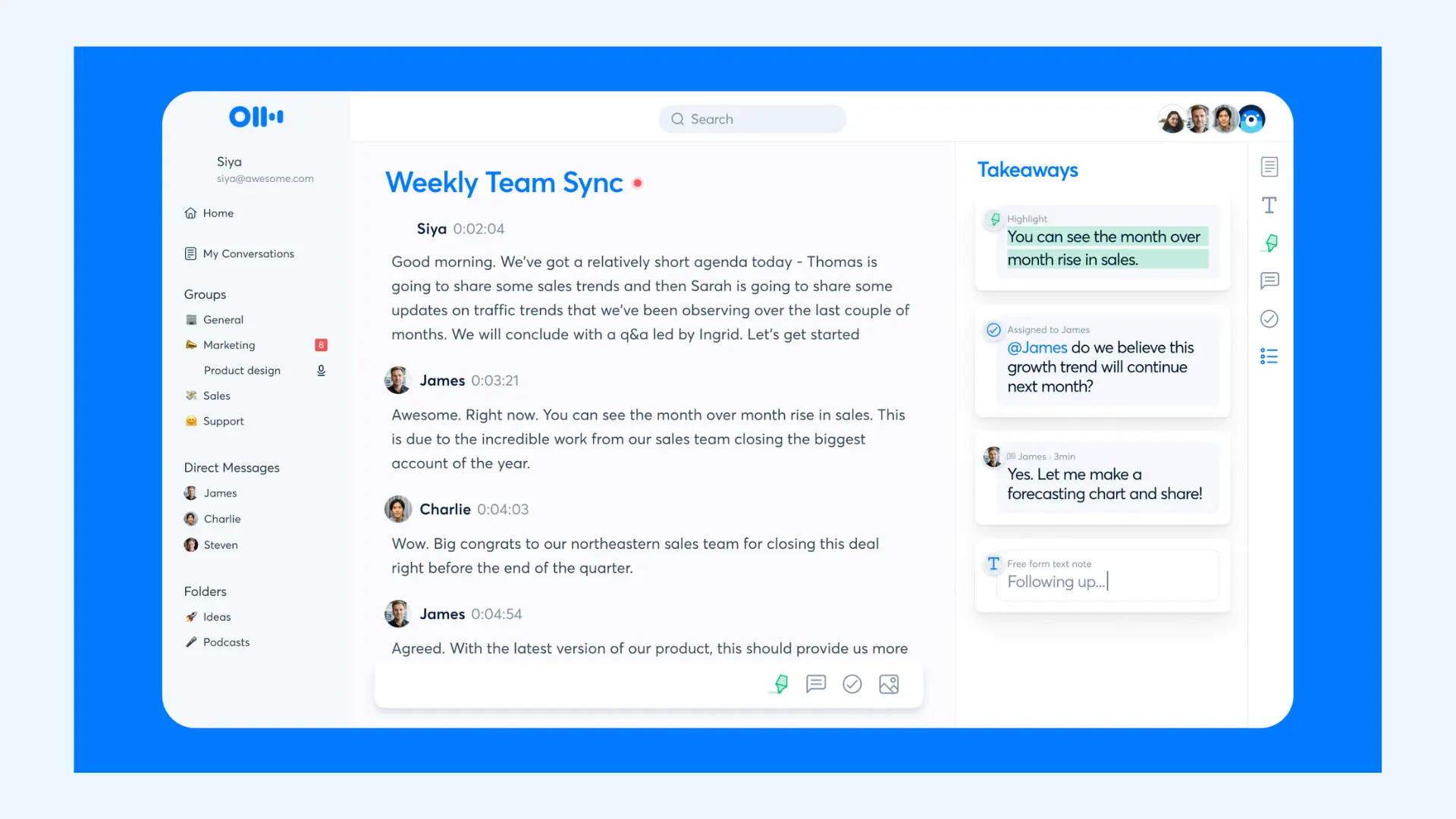
What makes it special: Otter is built for meetings and multi-speaker environments, offering real-time transcription, speaker identification, automated summaries, and action items. It captures conversations clearly and turns them into searchable notes.
Not ideal for: Multilingual meetings. Otter supports six languages and transcribes only one per conversation, so meetings that move between languages won't be captured properly.
Otter is widely considered the gold standard for meeting transcription. Unlike standard voice to text apps that are meant for single-speaker, short dictation, Otter is designed to listen to a room (or a Zoom call) full of people and make sense of it all. It acts as an automated secretary, recording the audio while generating live text so you can focus on the conversation rather than scrambling to scribble down notes.
Key features:
- Searchable transcripts with highlights, keywords, and shared notes
- Integrations with Zoom, Google Meet, and Microsoft Teams
- OtterPilot (an AI assistant that can auto-join your meeting and take notes even if you arrive late)
Pros
- Automated summaries with action items
- Collaborative editing and highlighting within the transcript in real time
- Shared screen and slide capture for added context in the transcript
Cons
- Speaker identification can be inconsistent (sometimes mislabeling voices in larger meetings)
- Requires an internet connection for real-time transcription
- AI outlines can occasionally skip a topic that was discussed
How I've tested it: To see Otter in real conditions, I simulated a weekly teachers' meeting with multiple participants. Transcription accuracy was high, helped by the way Otter corrects its own initial mistakes as it goes, and it handled punctuation, specialized terminology, and background noise impressively well. The highlight feature let me mark the parts worth revisiting instead of scanning the whole transcript later. The most useful part came after the meeting: a clear overview and a solid list of action items. Not everything was perfect, though; I had to fix a speaker identification error manually, and the outline missed one topic that was discussed.
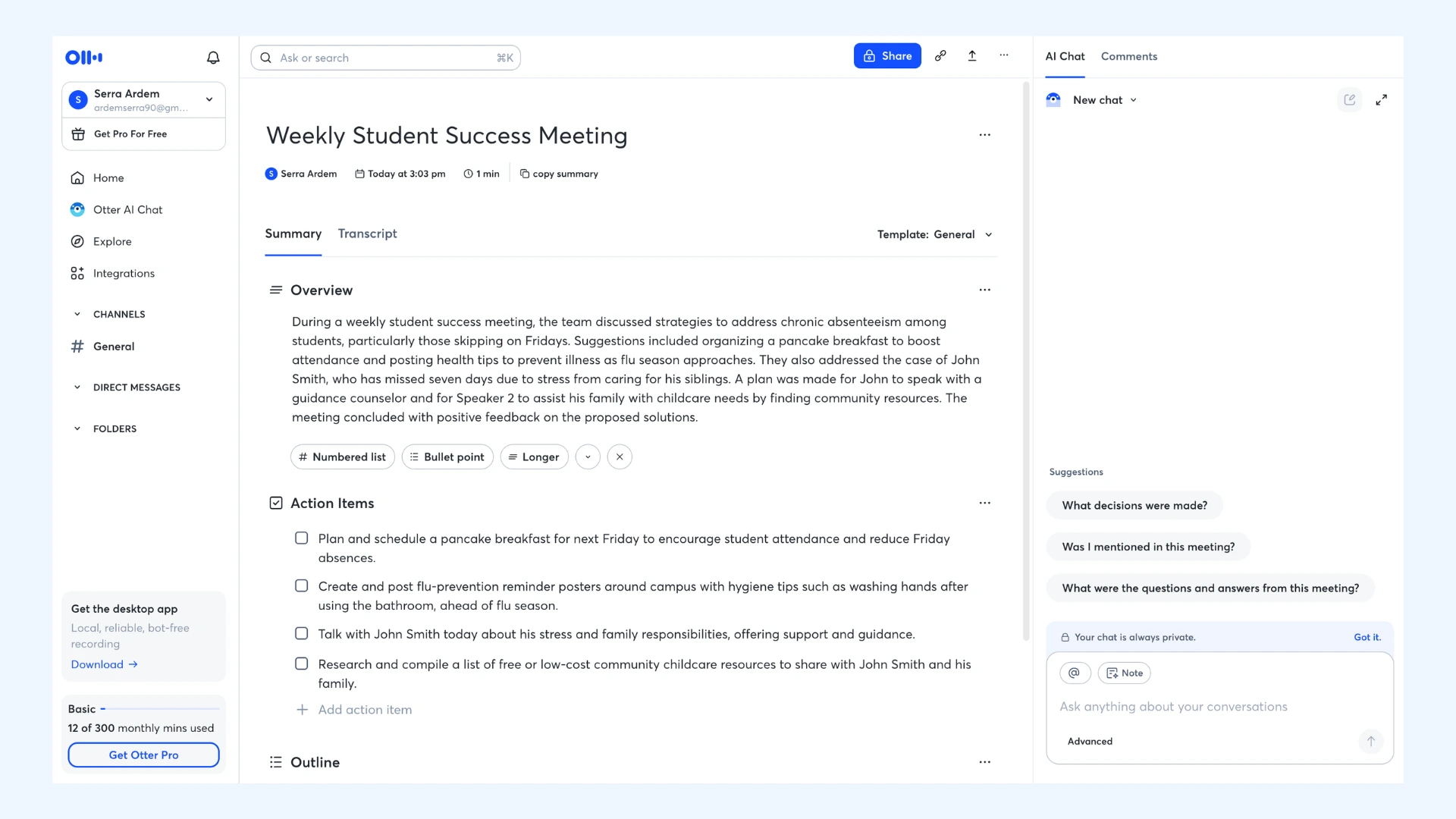
Final verdict: Otter remains the reference point for meeting transcription, and its summaries genuinely reduce follow-up work. Just go in knowing its limits: six languages with one per conversation, and speaker labels that need a quick check before you share the transcript.
User reviews: Across G2 and Capterra, the most repeated praise is that Otter lets people focus on the conversation instead of taking notes, with the automated summaries and action items called out as the biggest time-savers. Criticisms cluster around transcripts needing a correction pass after noisy or crowded meetings.
- Free version: 300 minutes/month, 30 minutes per conversation, 3 file imports in total
- Pro: Starts from $8.33/month (annual billing), 1,200 minutes/month
- Business: Starts from $19.99/month (annual billing), unlimited meeting transcription
- Custom enterprise pricing
The Best 15 Otter.ai Alternatives, including Free Options
ScreenApp: Best for Transcribing Lectures and Presentations with Visuals
What makes it special: ScreenApp is unique because it combines screen recording with voice to text. While other apps just listen to the audio, ScreenApp captures the visual presentation (slides/video) along with the spoken words, making it a strong fit for online lectures and webinars.
Not ideal for: Team collaboration on transcripts. ScreenApp focuses on capturing and summarizing content, so reviewing and co-editing tools are thin compared with meeting-focused platforms.
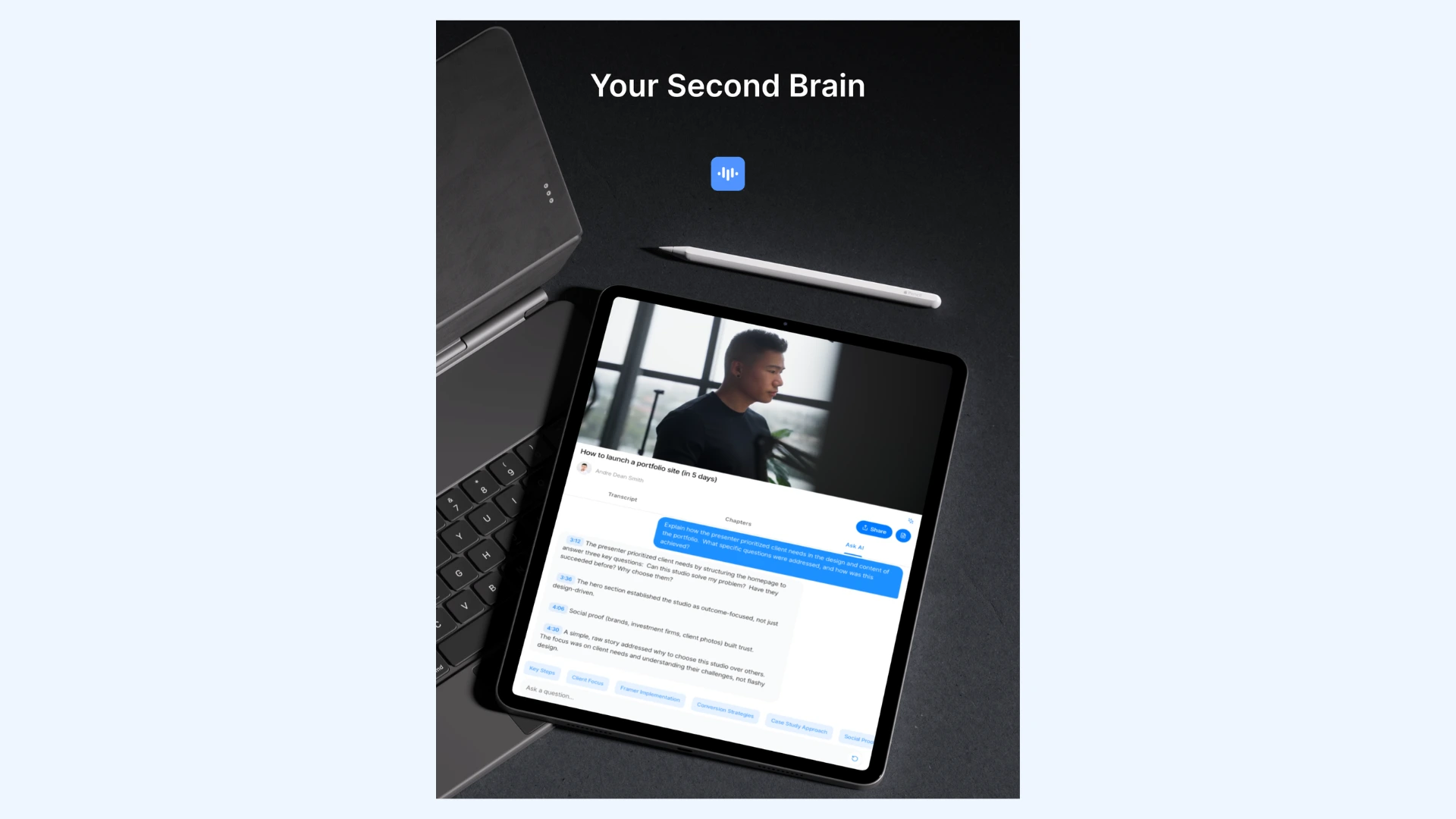
ScreenApp is designed for anyone attending or reviewing lectures, whether in-person or online. You record the session, whether that's a Zoom lecture, a webinar, or a live presentation captured via your laptop microphone, and once you hit stop, ScreenApp delivers the full transcript along with an AI summary. Because the visuals are recorded with the audio, you can revisit exactly what was on screen at the moment something was said.
Key features:
- Screen and audio capture with automatic transcription generated when you stop recording
- AI chat that answers questions about the recording and recommends keywords and topics to explore
- AI summary with subheadings, generated alongside the full transcript
Pros
- Handles multi-hour sessions smoothly
- Records screen or mic only, depending on what you need
- Works entirely in the browser (no installation or device setup required)
Cons
- The free tier is restrictive (3 recordings and 1 transcription per month)
- Recordings consume significant browser storage
- AI features are metered in credits (which makes it hard to predict how far a plan will stretch)
How I've tested it: I tested ScreenApp by recording a Google presentation playing on YouTube. Setup and navigation were easy: you choose what to capture (screen, mic only, or both) and you're recording within seconds. Being able to add notes manually while capturing was a welcome detail. Afterwards, I got a summary with on-the-spot subheadings alongside the full transcript. What impressed me most was the AI chat: you can ask questions about the video or audio and it answers accurately and clearly, and it recommends keywords and topics so you can pull information out even faster. The catch came at the start: the free version is very limited, and the 7-day trial asks for your card details before it begins.
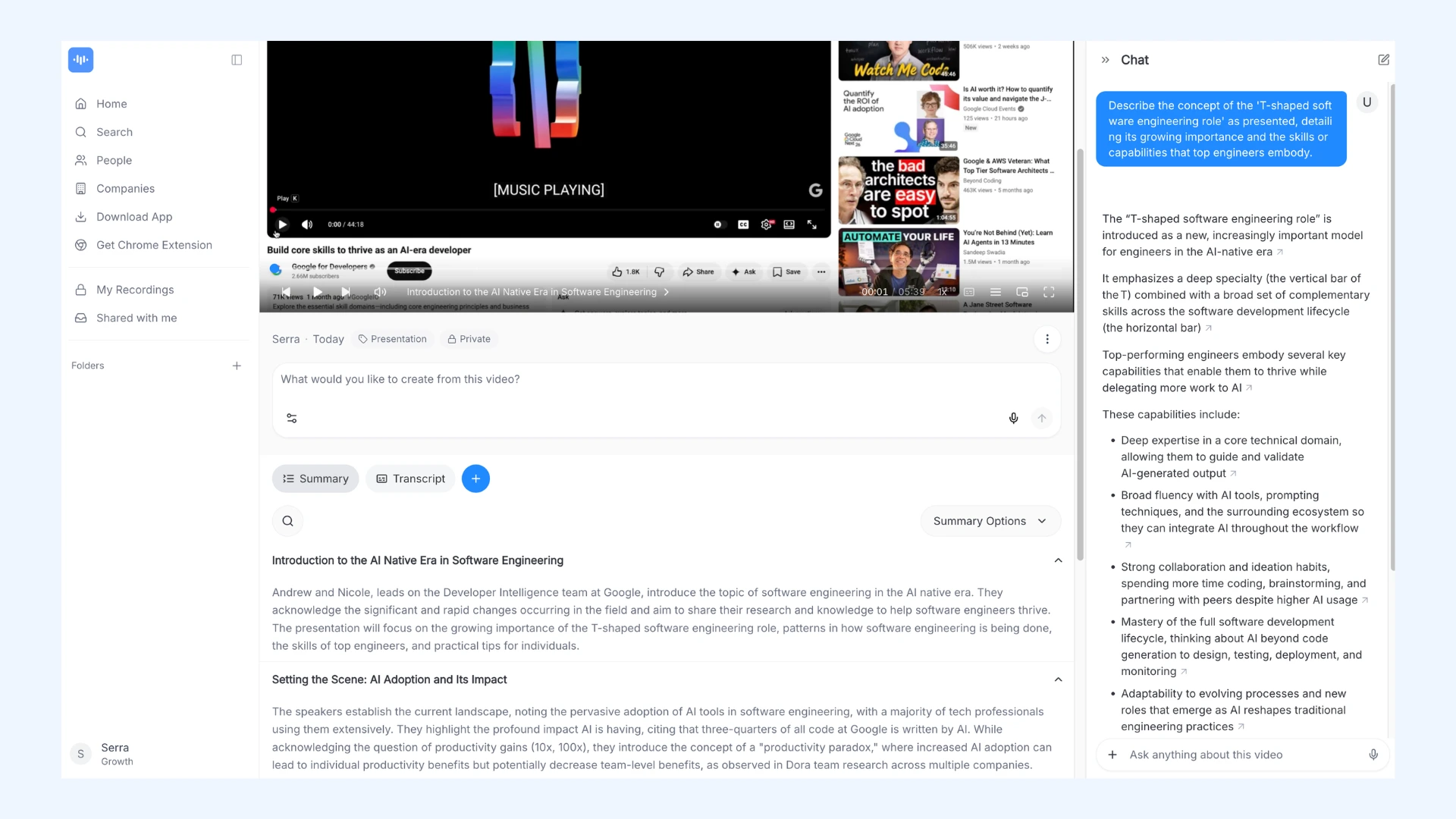
Final verdict: ScreenApp fills a genuine gap: when the slides matter as much as the words, capturing both together beats any audio-only tool, and the AI chat turns a recording into something you can actually query. Treat the free tier as a demo, though, and if you start the card-gated trial, note that it converts to annual billing automatically unless you cancel.
User reviews: Capterra reviewers describe ScreenApp as easy to pick up, with the AI summaries and a responsive support team earning the most praise. Trustpilot tells a harsher story: the recurring complaint is the free trial converting automatically into an annual subscription without a clear reminder, followed by a difficult refund process.
- Free version: 3 recordings (45 minutes each)
- Growth: Starts from $14/month (annual billing)
- Business: Starts from $34/month (annual billing)
- Custom enterprise pricing
Best 8 ScreenApp Alternatives
Best Voice to Text Apps for Writers & Dictation
These apps are built for extended dictation sessions and document creation. They work best for writers, professionals, and anyone who needs to dictate long-form content with consistent accuracy and control.
Google Docs Voice Typing: Best for Drafting Long Documents for Free
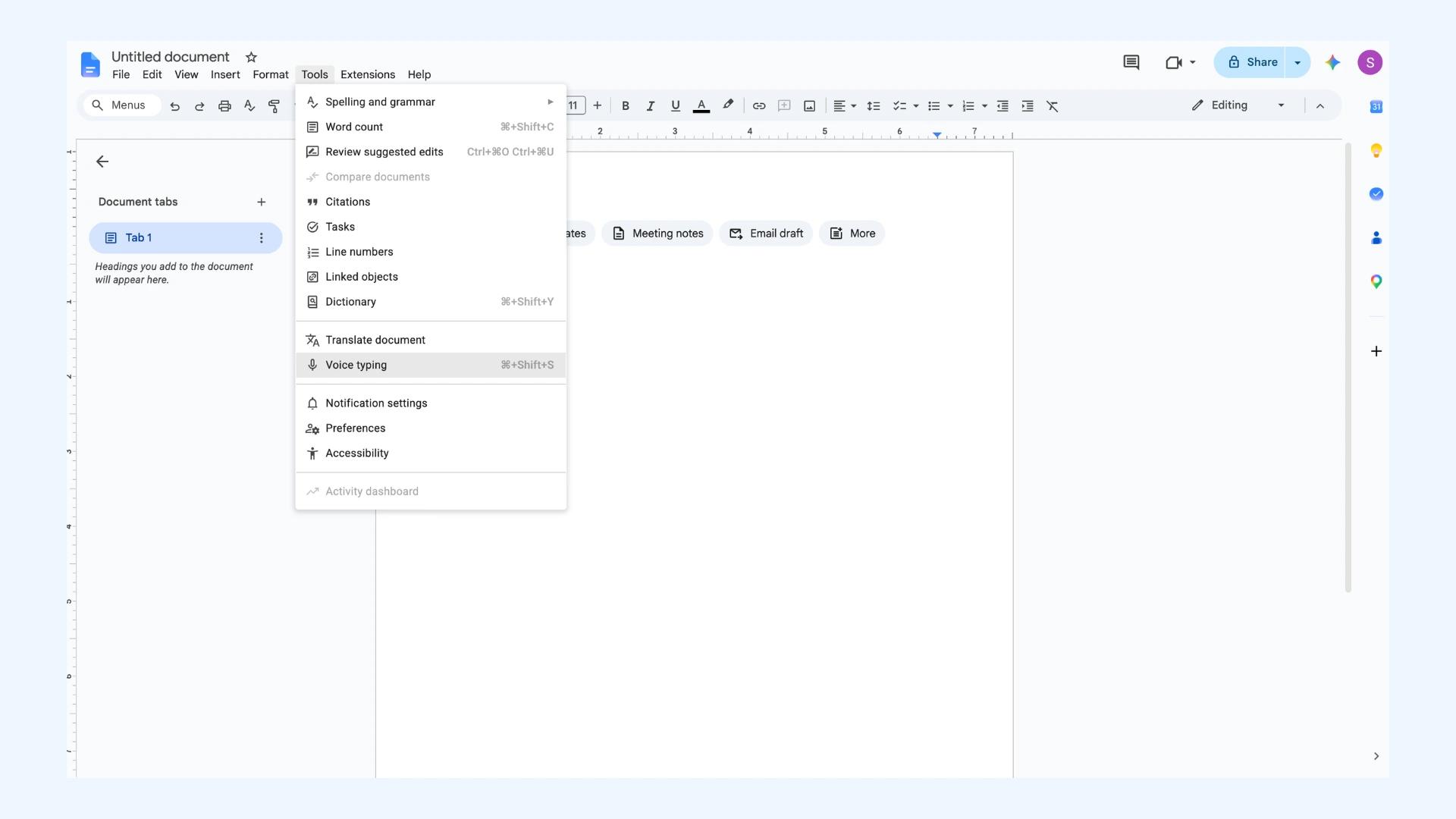
What makes it special: Voice typing is built directly into the word processor millions of people already write in. There is nothing to install and nothing to pay; open a document in your browser, press Ctrl+Shift+S (Cmd+Shift+S on Mac), and start drafting at speaking speed with no word or time limits.
Not ideal for: Writing outside Google Docs. Voice typing works only inside Docs (plus Slides speaker notes), so it can't dictate into email, chat, or any other app.
Google Docs Voice Typing is aimed at writers who live in Docs already: students, bloggers, and anyone drafting long-form content who wants a faster first draft. Speech appears at your cursor in near real time, and because it sits inside the document rather than a separate tool, there's no copy-pasting between apps. Like most cloud dictation, it needs an internet connection.
Key features:
- Real-time dictation in your documents via Tools, then Voice Typing
- 100+ voice commands for punctuation, formatting, and navigation
- Also dictates speaker notes in Google Slides
Pros
- Completely free with a Google account
- One of the broadest language options among free dictation tools, with regional accent variants
- Mistakes can be fixed mid-session manually
Cons
- Punctuation must be spoken aloud (nothing is added automatically)
- The microphone can stop mid-session after a while
- Not available in the Docs mobile app (which hands dictation off to your phone keyboard)
How I've tested it: I tested voice typing by dictating a short paragraph on the topic itself. The tool sometimes stops after a certain amount of time, which means hitting the microphone icon again to continue. I also ran into capitalization issues and some accuracy errors that need manual fixing. Voice commands, on the other hand, worked really well, and yes, they work in multiple languages. The best part is access: this is the easiest tool on this list to reach, and it's totally free.
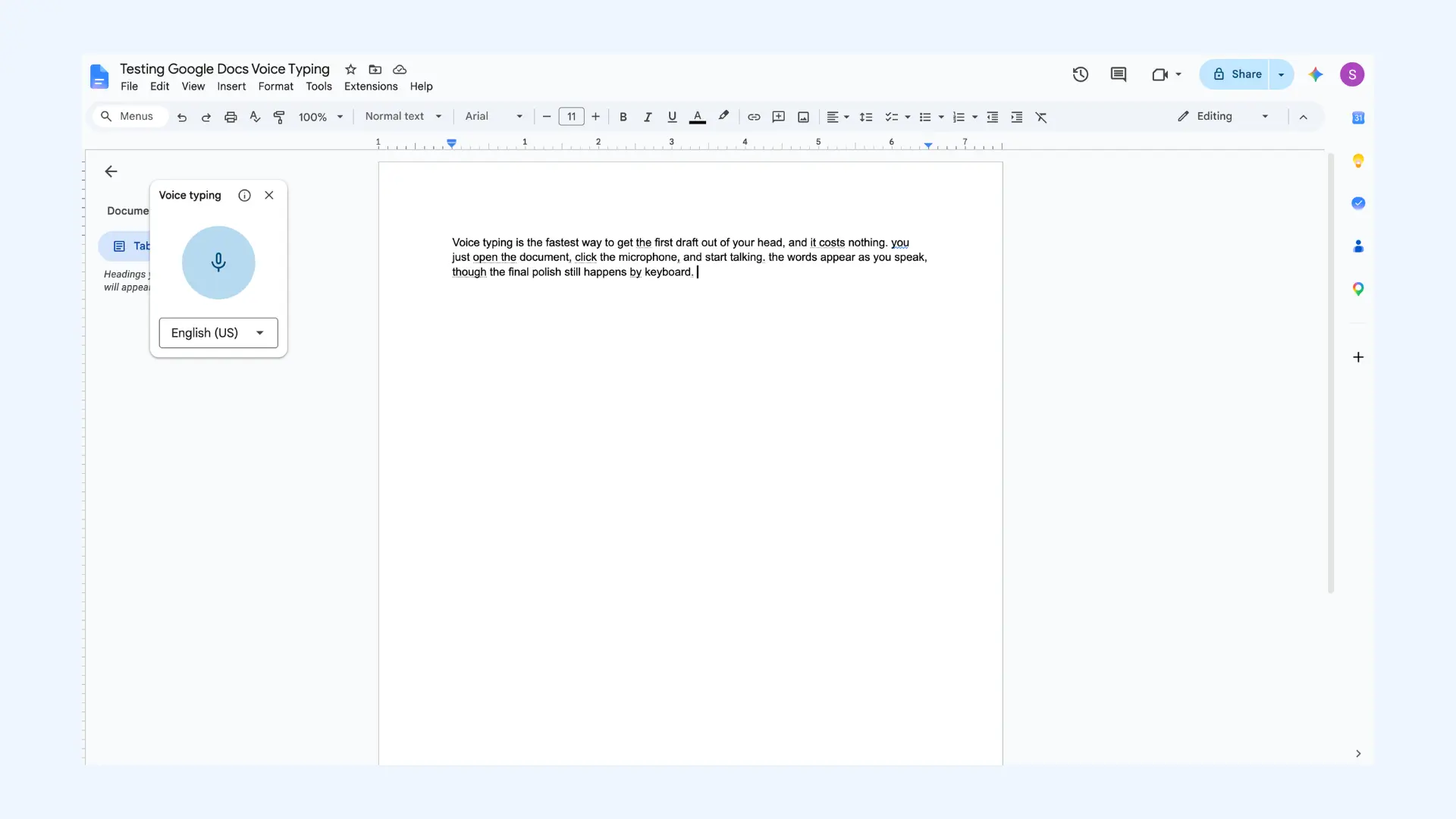
Final verdict: For getting a rough draft out of your head and into a document, this is the best zero-cost option there is, provided you write in Docs anyway. It's not the thing you're looking for if you're seeking more advanced controls, and the impatient microphone plus the cleanup pass for capitalization and misheard words mean the final polish still happens by keyboard. But as a first-draft engine, it costs nothing and asks nothing.
User reviews: As a built-in feature, voice typing has no review-platform presence, but long-term user sentiment is consistent across help communities and guides. It's widely recommended as the best free way to draft, with the recurring frustrations being the microphone silently stopping mid-session and spoken punctuation breaking the flow of thought during longer dictation.
Pricing: Free.

How to Use Speech-to-Text in Google Docs (Desktop & Mobile)
Wispr Flow: Best for Turning Speech into Polished Writing in Any App
What makes it special: Wispr Flow doesn't just transcribe what you say; it turns it into what you meant to write. Press a hotkey, speak naturally, and clean, punctuated text appears in the app you're using, whether that's an email, a document, Slack, or a note.
Not ideal for: Live events or meetings. Flow is built for dictating your own voice into your own apps.
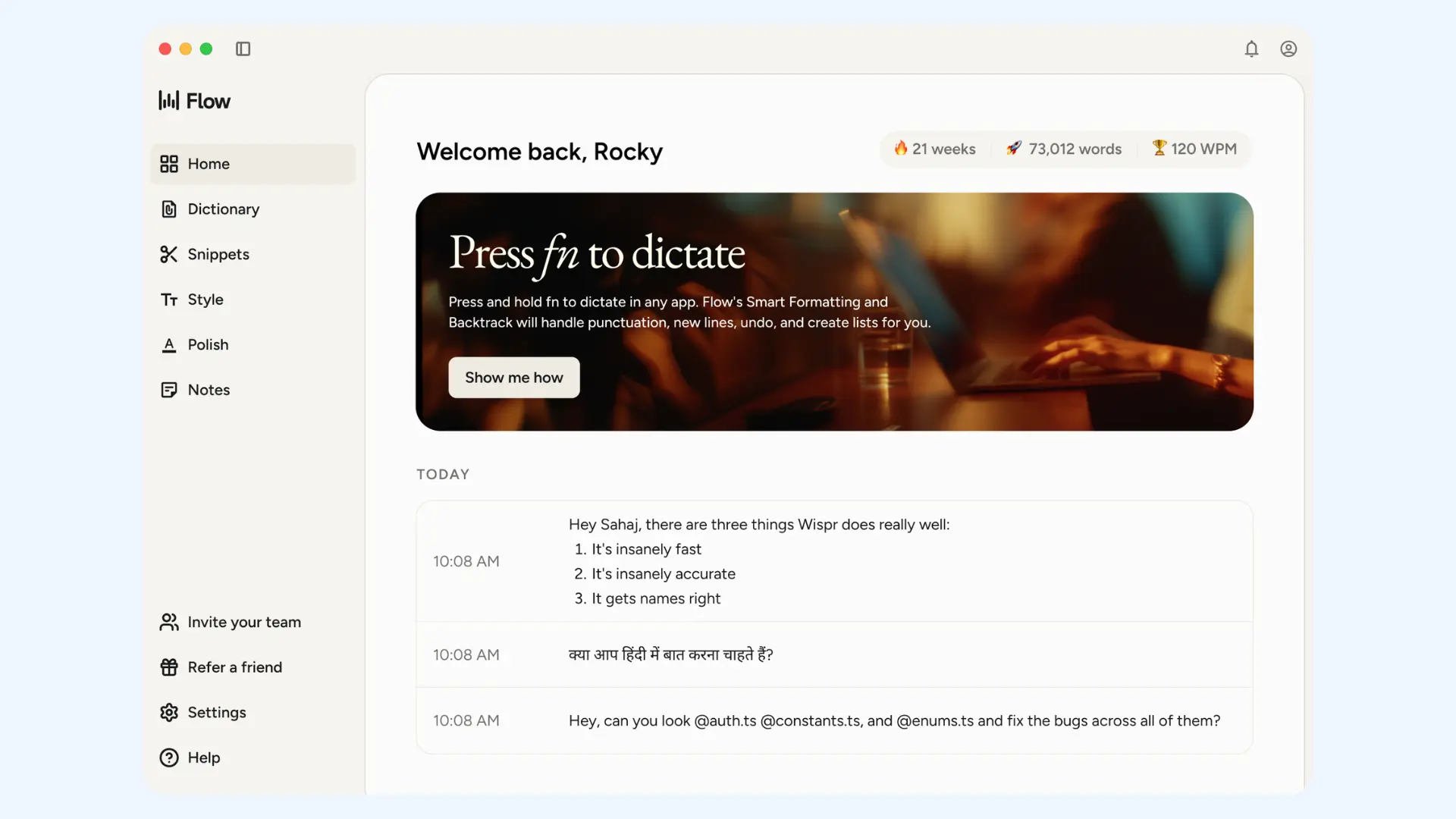
Wispr Flow is a system-wide dictation tool for everyone: professional writers, people answering everyday messages, and those who find typing difficult or impossible. Instead of living in its own app, it works inside every application on your device, adjusting tone to where you're writing, so a Slack message comes out casual while an email comes out professional. For long-form drafting, that means far less cleanup after you stop speaking.
Key features:
- System-wide dictation via a hotkey, working in any app where you can type
- A personal voice profile built from your first 2,000 words
- Command Mode for editing by voice ("make this more concise," "turn this into a list") on paid plans
Pros
- Custom dictionary for names and specialized terms is included even on the free plan
- Supports 100+ languages with automatic detection (including switching mid-dictation)
- Keeps a clipboard-style history of everything you've dictated, so nothing is lost
Cons
- No offline mode (all processing happens in the cloud)
- The free plan's weekly word caps arrive quickly if you dictate daily
- Reviewers report the Windows app runs noticeably heavier than the Mac version
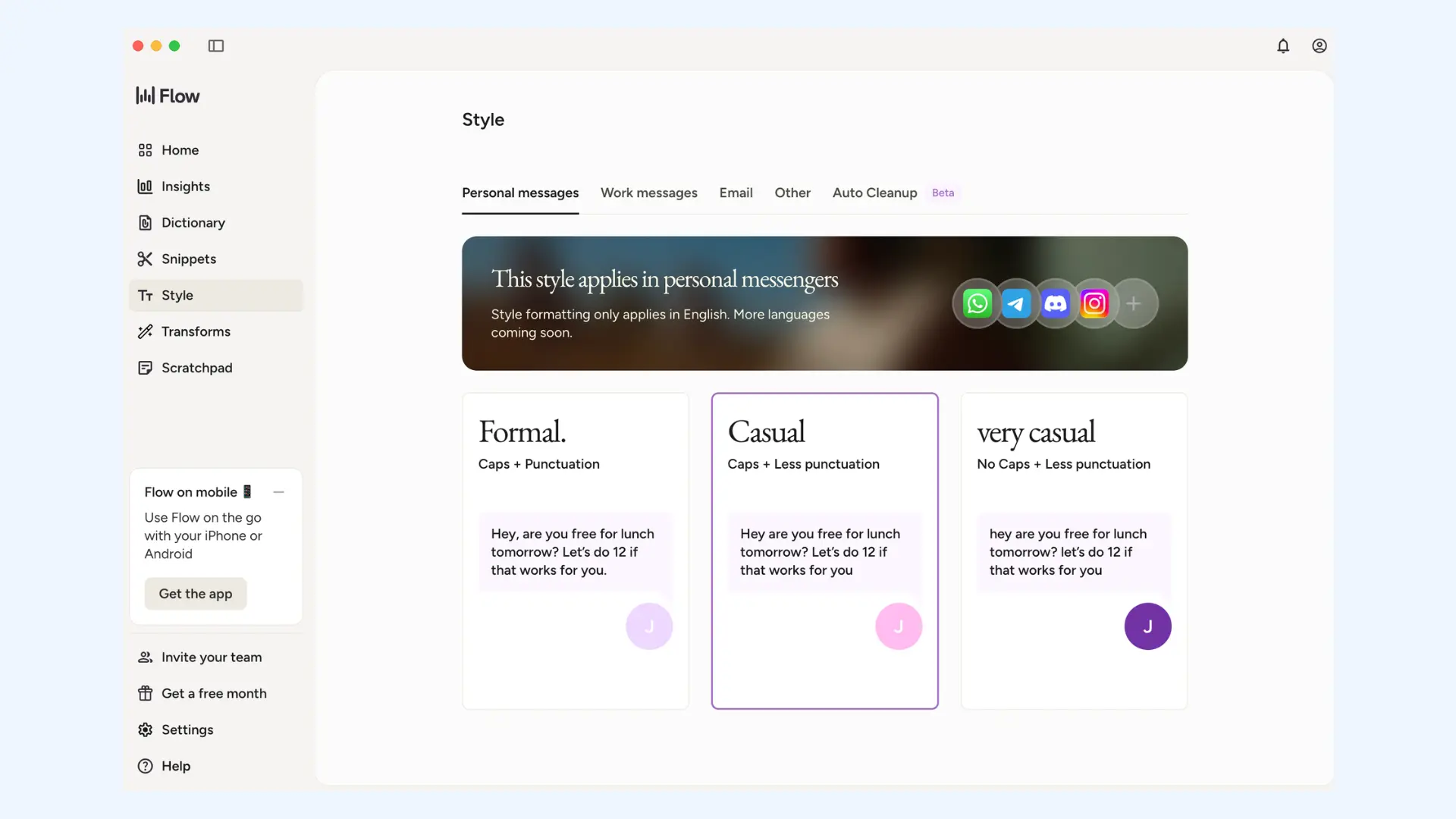
How I've tested it: Setup was as simple as it gets. I downloaded the Mac app, and it enables voice typing in almost any app; I just press Fn and start talking. Accuracy was very high and punctuation was handled beautifully. You can set up different writing styles for different apps, which is another great feature, and the custom dictionary updates both automatically and manually. For instance, when I fixed a miswritten word, Flow added the correct version to the dictionary on its own. There's also a snippet feature: assign a word to text you write often, such as your email address, and speaking that word inserts the whole thing.
Final verdict: Along with Maestra, Wispr Flow is my favorite app in this list: easy to use, attractively designed, with wide language support, and it puts all your apps in one bunch. The free plan is a genuine trial rather than a demo, and the polish it applies to spoken words is the real differentiator. Just know what you're trading: your audio is processed in the cloud, and Flow polishes rather than transcribes word-for-word.
User reviews: App Store reviewers describe Flow as a daily habit rather than a utility. Accuracy in everyday writing apps earns the most praise. Accessibility comes up often too; users with Parkinson's and RSI call it life-changing. Product Hunt reviews are more mixed: Windows users in particular report crashes and heavy memory use, describing an experience that lags behind the Mac app.
- Free (Basic): 2,000 words/week on Mac or Windows, 1,000 words/week on iPhone
- Pro: $12/month billed annually (or $15 monthly), unlimited dictation plus Command Mode
- 14-day Pro trial available
- Custom enterprise pricing
Superwhisper: Best for Private, On-Device Dictation
What makes it special: Superwhisper runs its AI models directly on your device, so your audio never has to leave your machine and dictation keeps working with no internet at all. Touch a hotkey, speak, and the text lands in whatever app you're using. Just make sure real-time mode is on if you don't want to wait for the recording to end before the text appears.
Not ideal for: Android users. Superwhisper covers Mac, Windows, iPhone, and iPad, so if your phone runs Android, this is not the option to build your setup around.
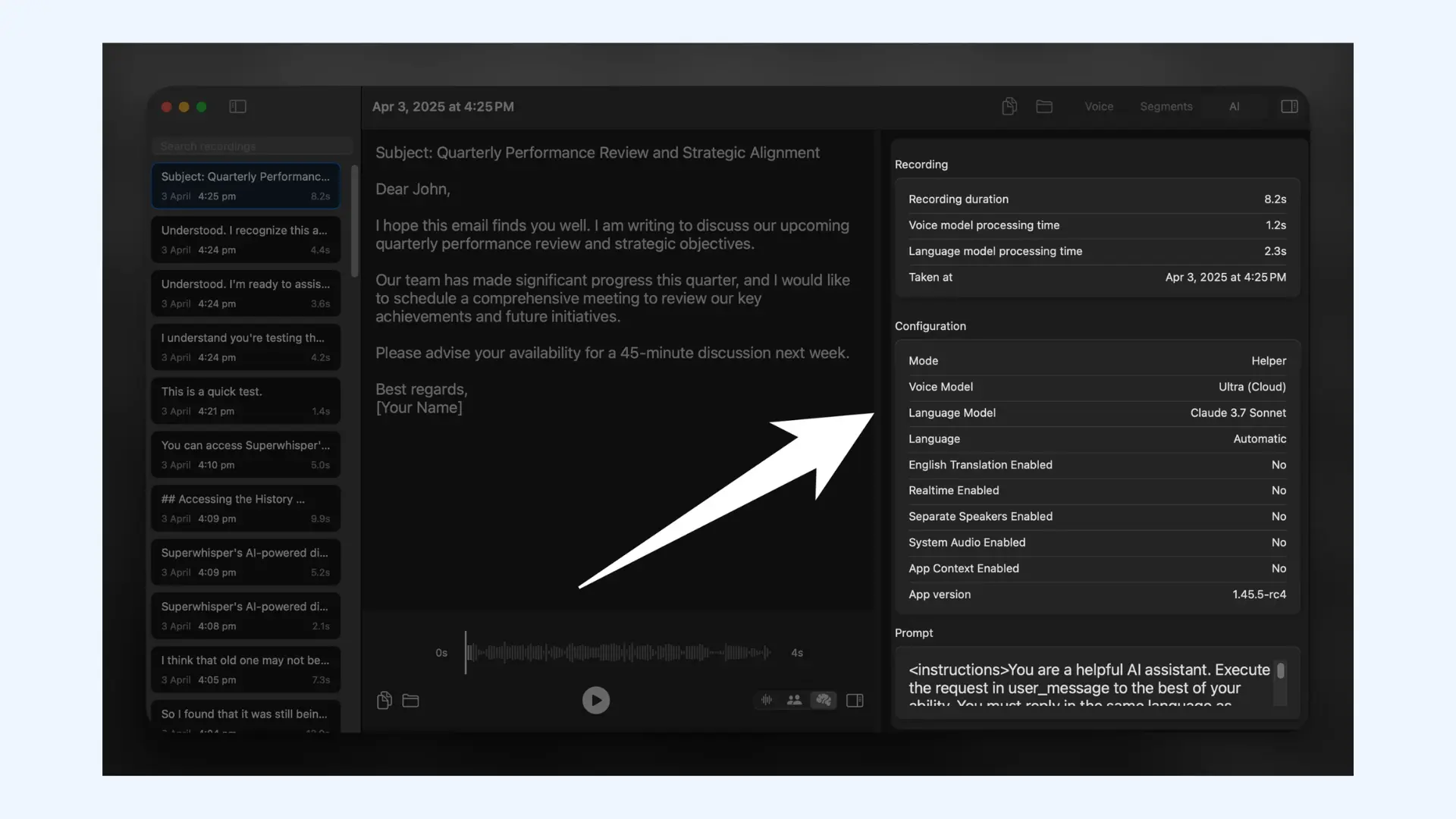
Superwhisper is the privacy-first option in this category. Where most modern speech to text software sends your voice to the cloud, it also transcribes locally using on-device AI models, which matters if you dictate anything sensitive: client work, legal notes, unreleased content. Custom modes shape the output per app, so the same speech comes out formatted as an email in Gmail and as a message in Slack.
Key features:
- On-device transcription that works fully offline, with cloud models as an option as well
- Custom modes for different tasks and apps
- Audio and video file transcription alongside live dictation
Pros
- One Pro license covers all your devices (no device limit)
- Predefined modes are ready to use if you don't want to build your own
- Automatic language detection, with the option to translate any language into English
Cons
- Takes more initial setup than other voice to text software
- The free tier is limited to small AI models, so peak accuracy requires Pro
- Occasional transcription errors (though you can fix them with your voice)
How I've tested it: I downloaded the Superwhisper Mac app. The nicest part is local processing, meaning you can work offline with complete privacy, since nothing is stored in the cloud. Downloading the default voice model took a bit of time, but after that, things moved quickly. You can build a unique mode for different tasks and apps, each with its own voice, format, and style. Every mode can get its own keyboard shortcut too. There are various voice models to choose from, such as ElevenLabs models, plus language models for post-processing the text. However, there's also a noticeable lag compared to Wispr Flow.
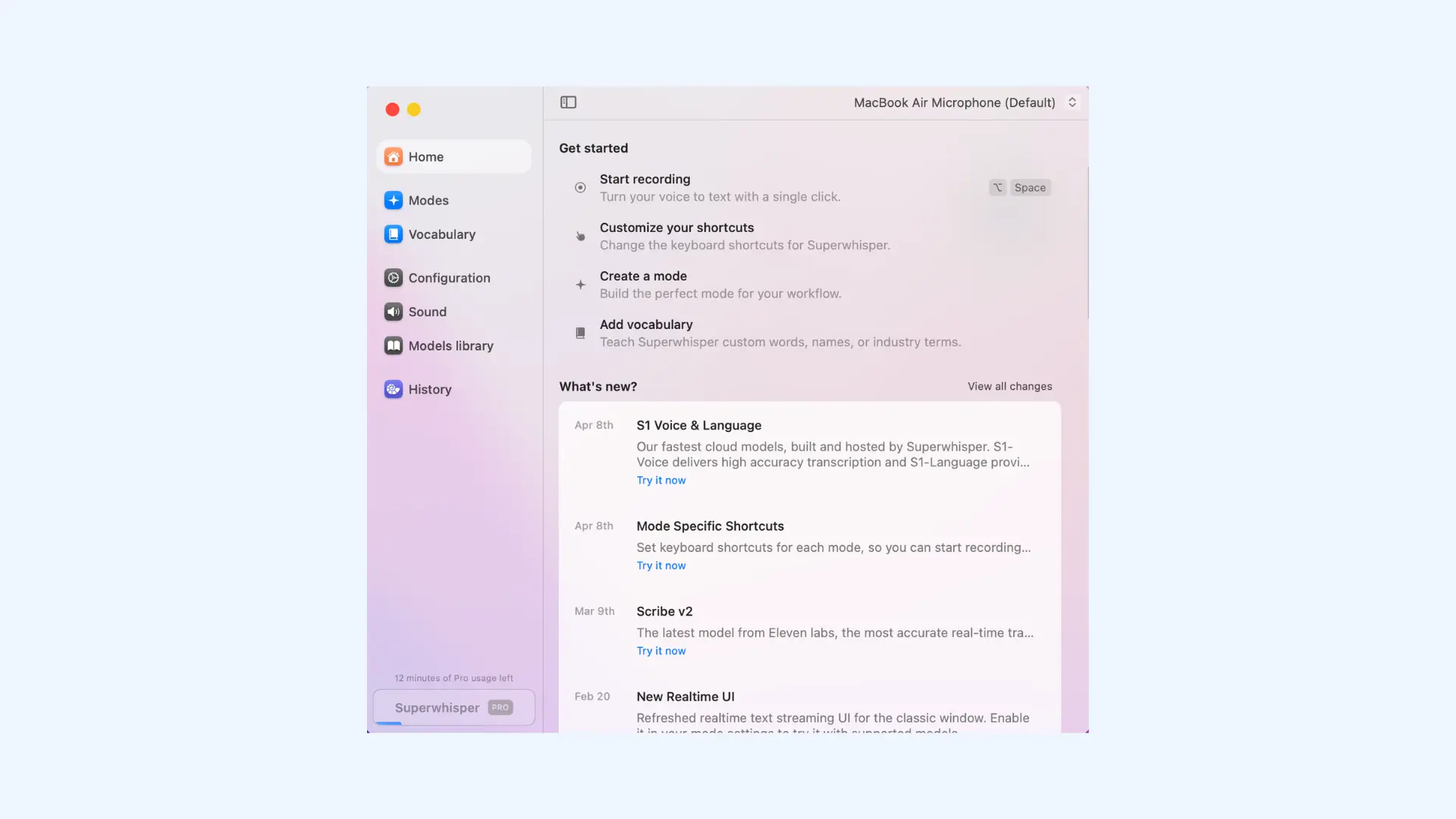
Final verdict: Superwhisper is what you pick when you want your dictation to stay yours. Local processing means it can work offline with complete privacy, and the mode system, despite its reputation, is not hard to set up at all. For privacy and customization, nothing else in this list comes close; just expect a short lag between speaking and seeing your text compared with cloud tools.
User reviews: Superwhisper has no meaningful G2 or Capterra footprint, so sentiment lives on Reddit and the company's public feedback board. Power users praise the mode system and daily speed. New users describe the settings as overwhelming at first. Windows users report more crashes and rough edges than Mac users, consistent with the Windows app being the newest build.
- Free: voice dictation and basic transcription with limited cloud model access
- Pro: $8.49/month or $84.99/year, unlocking unlimited use of Cloud and Local AI models
- Lifetime: $249.99 one-time, same features, no recurring billing
- Custom enterprise pricing

The Best 8 Dictation Apps for Writers: Free & Paid
Final Verdict & Best Practices
Voice to text apps have reached a point where they're genuinely useful across everyday life and work, but there's still no single app that works best for everything. Through real use, the biggest takeaway is that matching the tool to the task matters more than chasing the highest accuracy number. A lightweight dictation app can be perfect for everyday notes, while meetings, live events, and long-form writing require tools built specifically for those scenarios.
Here's where each app earned its recommendation:
📱 Gboard Voice Typing is best for quick everyday dictation on Android.
🍎 Apple Dictation is best for quick, private dictation on Apple devices.
📝 Speechnotes is best for long, uninterrupted dictation sessions.
🤝 Otter is best for automated meeting notes and summaries.
🌍 Maestra is best for sharing real-time captions with an audience.
🎓 ScreenApp is best for transcribing lectures and presentations with visuals.
📄 Google Docs Voice Typing is best for drafting long documents for free.
✨ Wispr Flow is best for turning speech into polished writing in any app.
🔒 Superwhisper is best for private, on-device dictation.
To get the best results from any voice to text app, a few practical habits can make a noticeable difference:
- Choose the tool based on context, not convenience. Using the wrong speech to text app is the fastest way to get poor results, even if the technology itself is solid.
- Prioritize audio quality whenever possible. Clear speech and minimal background noise still have a bigger impact on accuracy than most settings or features. [1]
- Speak naturally and at a steady pace. Modern speech recognition software is trained on natural conversation, not slow, overly deliberate dictation. [2]
- Take advantage of additional features. Custom vocabularies, glossaries, speaker labels, and summaries can significantly reduce cleanup time.
- Review efficiently, not exhaustively. Use search, timestamps, and highlights instead of replaying entire recordings.
Dictation software can increase your writing speed by up to 3x: the average person might drop 40 words per minute on a doc, where dictating it could accelerate it up to 125.
When used intentionally, speech to text apps become more than a convenience feature. The right setup and practices take the busywork out of writing, meetings, and documentation, allowing you to focus on the content rather than the transcription itself.
FAQs on Best Voice to Text Apps
Which dictation software is best?
The best dictation software depends on your needs. In my testing, Wispr Flow stood out for everyday dictation because it turns speech into polished, punctuated text in any app. Google Docs Voice Typing is the best free option for drafting documents, and Superwhisper leads if privacy and offline use matter most to you.
What is the most accurate voice to text app?
Accuracy depends on where and how you dictate. In my tests, Wispr Flow's advanced speech recognition delivered very high accuracy with automatic punctuation for personal dictation. Otter handled multi-speaker meetings, background noise, and specialized terminology impressively well, and Maestra delivered accurate real-time captions and translation even at a live event with multiple languages in play.
Meanwhile, built-in tools like Apple Dictation and Gboard are accurate enough for casual use but stumble more often on technical vocabulary. And when a transcript must be flawless word for word, human transcription services still have the edge over any app.
Can I convert voice to text for free?
Yes, you can convert voice to text for free with Maestra's live transcription app. Just start speaking, and real-time captions will appear instantly on your screen. You can use it for a wide range of use cases, from everyday conversations to events, lectures, and more.
What is the best voice to text app for iPhone?
For most iPhone users, Apple Dictation delivers the best overall voice to text experience. The native voice recognition engine is tightly integrated with the keyboard, allowing you to dictate text in almost any app. Apple also includes Voice Control, a separate accessibility feature for navigating the entire phone hands-free.
If you want AI-polished output instead of raw transcription, Wispr Flow also offers an iPhone app.
What is the best voice to text app for Android?
The best voice to text app for Android is usually Gboard Voice Typing. It offers fast, accurate dictation without requiring a separate app or setup. Because it's integrated into the keyboard, it's always available when you need it. Keep in mind that its most advanced features, like automatic punctuation and voice editing commands, are limited to Pixel 6 and later devices.
Are there other voice to text tools worth considering?
Yes, three tools come up often. Microsoft Voice Access, the successor to the older Windows Speech Recognition, is free for Windows 11 users and covers both dictation and full voice control of the computer. It wasn't tested hands-on for this update, so it didn't qualify for the list, but it's worth trying if you work on a Windows PC.
Dragon Professional remains a powerful dictation suite for legal, medical, and other specialized domains, but it offers no free version or trial, and every app in this list was personally tested before being recommended.
Amazon Transcribe is a different kind of tool altogether: a cloud service for developers who want to build transcription into their own products, not an app you dictate into directly.
How can I convert already recorded voice to text?
You can turn audio recordings into text with Maestra's audio to text and video to text converter. Simply upload your audio files or videos, select the language, and Maestra will generate a full transcript in a few minutes. From there, you can easily edit the transcript, collaborate with others, and export the text in multiple formats.
Can ChatGPT do voice to text?
Yes, but with limitations. ChatGPT has a Voice Mode (powered by OpenAI's Whisper model) that can listen to you and turn your prompt into written text. However, the large language model is designed to respond to you, not just transcribe. If you try to read a whole document to it, it might try to summarize or answer you rather than writing down every word verbatim. It is not a replacement for dedicated transcription software.
.png)